 RankEngine
You open Google Search Console, click around for a minute, and then hit the same question a lot of Shopify merchants hit: am I supposed to use Search Console, Search Console Insights, or both?
That confusion is normal. Google has changed the product over time, the names sound similar, and most walkthroughs assume you already know what each layer does. If you're running a Shopify store, that assumption causes problems fast. You don't need another dashboard just to admire traffic lines. You need a view that helps you decide what to fix on product pages, collection pages, and content that supports sales.
That's the useful way to think about Google Search Console Insights. It isn't your full SEO control center. It's a lightweight visibility layer that helps you notice what content is moving, what queries are surfacing, and where attention is shifting. Then you use deeper reporting to verify what changed and whether it matters for your store.
Table of Contents
- What Google Search Console Insights Actually Is
- The Signals and Metrics Inside the Insights Report
- Setting Up Insights in Search Console
- How Insights Compares to Full Search Console and RankEngine Reporting
- The 2026 Shift to Generative AI Performance Reports
- Practical Ways Shopify Merchants Use Insights Day to Day
- Pairing Insights with RankEngine for Verified SEO Monitoring
What Google Search Console Insights Actually Is
The first mistake merchants make is treating Search Console Insights like a separate SEO platform. It isn't.
Google Search Console is the main system. That's where Google stores indexing, performance, coverage, and other site-level diagnostics. Search Console Insights sits on top of that and gives you a simplified view of visibility patterns. Google first introduced Search Console Insights in June 2021 as a new experience, then announced a redesigned version in June 2025 that moved Insights directly into the main Search Console interface and replaced the standalone beta, according to Google's Search Console Insights announcement.
A simplified layer, not a replacement
For a Shopify merchant, the easiest comparison is this:
- Search Console is the back room with all the inventory, logs, and diagnostics.
- Insights is the front counter summary that tells you what's getting attention.
- Your SEO reporting stack is incomplete if you stop there.
Google's help documentation describes the Insights report as a simplified overview that highlights key metrics like clicks and impressions, plus top and trending content, search queries, countries, and traffic sources from Google Web Search and other Google properties in the Search Console Help page for Insights. That description matters because it tells you what Google intended the feature to be. It's built for speed and clarity, not for deep technical investigation.
Practical rule: If you want to answer “what just changed?” open Insights first. If you want to answer “why did it change?” you'll usually need more than Insights.
Why Shopify merchants benefit from that simplicity
A Shopify store often has too many moving parts for a full Search Console report to feel approachable on day one. Product launches, out-of-stock items, collection rewrites, blog content, and seasonal search shifts all hit at once. Insights can help you catch broad patterns without getting lost in the interface.
That said, don't expect it to settle hard questions like:
- whether a collection page lost rankings for a priority keyword
- whether product schema changes improved rich result visibility
- whether AI search exposure led to revenue
- whether competitors overtook you on a commercial query set
Insights is useful because it reduces noise. It becomes useful when you treat it as the first signal, not the final answer.
The Signals and Metrics Inside the Insights Report
When merchants first open Insights, the panels can look almost too simple. That's where misunderstanding starts. The report is compact, but the metrics still need careful reading.
Google defines impressions as the number of times a link to your site was seen on Google, clicks as the number of times users clicked that link, CTR as clicks divided by impressions, and average position as a relative ranking metric where 1 is the top result in the Search Console Insights Chrome Web Store description. Google also notes that some impressions only count when a result is scrolled or expanded into view, which is important when you compare different types of queries.
What each metric means in a store context
If you sell skincare on Shopify, an impression might mean your product page appeared when someone searched for a product type. A click means they chose your result. CTR tells you how persuasive that search snippet was. Average position gives you a directional sense of where you tend to show up, but not a precise view of every SERP feature around you.
Here's the merchant translation:
| Metric | What It Counts | What a Merchant Learns |
|---|---|---|
| Impressions | Times a link to your site was seen on Google | Whether Google is surfacing a page or query at all |
| Clicks | Times users clicked your result | Whether visibility is turning into visits |
| CTR | Clicks divided by impressions | Whether your title and description are attractive enough |
| Average position | Relative ranking position, where 1 is top | Whether your visibility is generally near the top or lower down |
| Top content | Pages getting notable visibility | Which products, collections, or articles Google already favors |
| Top queries | Searches that surface your site | What language Google associates with your store |
| Countries | Locations where visibility appears | Which markets are actually seeing your pages |
| Traffic sources | Google surfaces sending attention | Whether discovery is coming from standard web search or other Google properties |
Where merchants often misread the data
A rising impression line doesn't always mean your SEO update “worked” in the business sense. It may mean Google showed your page more often. If those impressions came from low-visibility placements or from results users had to scroll to see, clicks may not follow.
That's why a common Shopify pattern looks like this:
- a blog article gets more impressions but little click growth
- a collection page keeps impressions steady but loses CTR
- a product page starts appearing for broader queries that don't convert well
More visibility is useful. More visibility without context can send you toward the wrong fix.
Read the report like a hypothesis tool
Insights works best when you use each metric to form a next question.
- High impressions, weak clicks: your snippet may need work
- Strong clicks on one page: that page may deserve internal links from related collections or blog content
- Rising query visibility: Google may be starting to trust your store on a topic you can expand
- Country shifts: demand may be forming in a market you haven't localized well yet
For merchants, that mindset is the difference between “interesting dashboard” and “actionable workflow.”
Setting Up Insights in Search Console
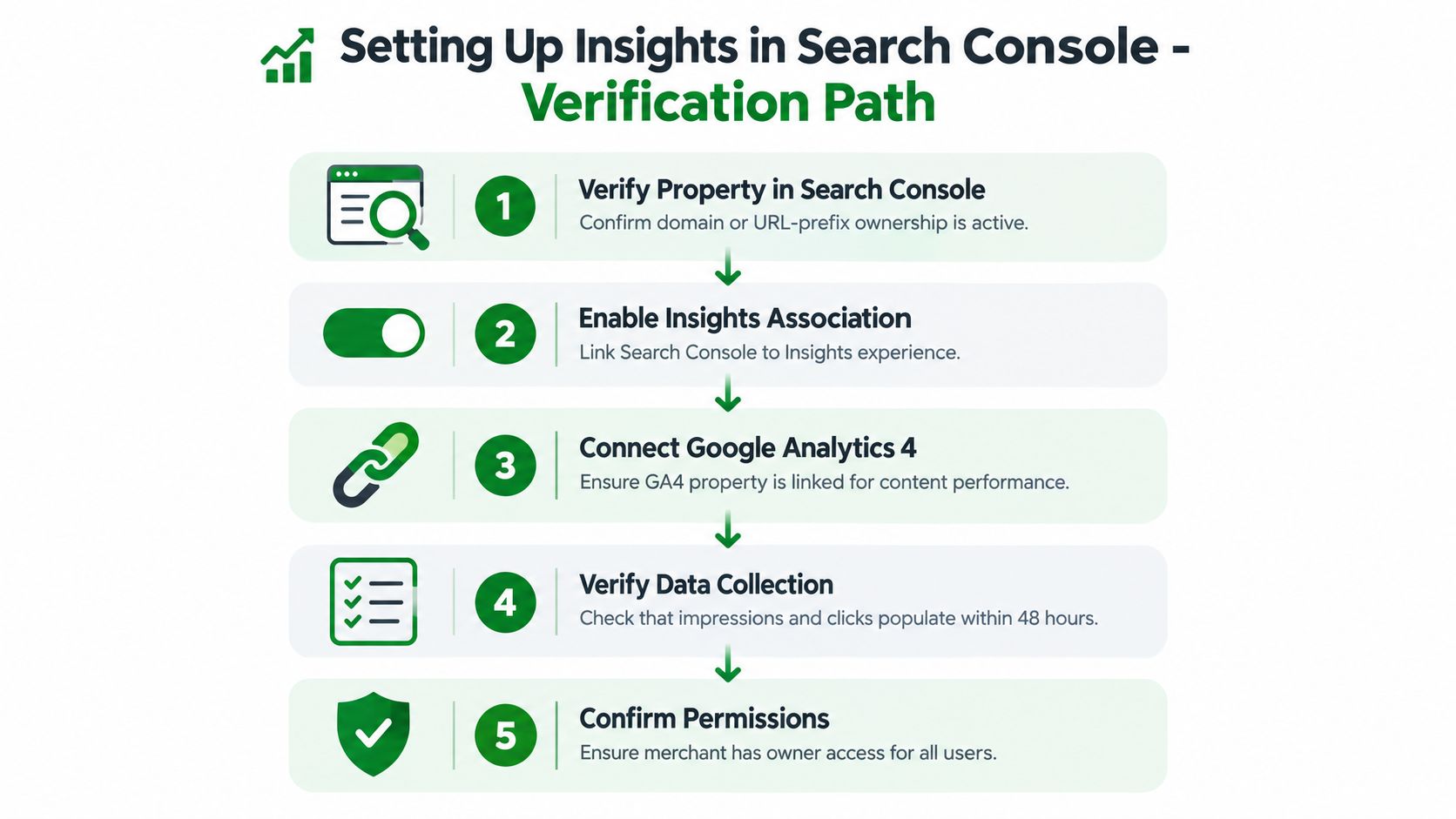
For most Shopify merchants, setup is less about “turning on a feature” and more about confirming the right connections are in place. If your property ownership is incomplete, your data links are messy, or permissions are uneven across your team, Insights won't be very helpful.
The clean setup path
Start with the Search Console property that represents your actual store. For Shopify, that usually means confirming you're looking at the right verified site property, not an old test version or a partial URL setup someone created during launch.
Then work through these checks:
- Confirm ownership is active. If ownership is broken, the rest won't matter.
- Open Search Console and look for the integrated Insights experience. Google moved the redesigned version into the main interface, so you're not looking for the old standalone beta path.
- Link the right analytics environment if your reporting setup expects it. This helps keep your broader measurement stack aligned.
- Check early population, not perfection. At first, you're just making sure impressions and clicks show up where expected.
- Review user permissions. Owners, marketers, and agencies often need different access levels.
What to verify after setup
Once the report is live, don't stop at “it loads.”
Check whether the pages showing in Insights are the pages you care about:
- Priority collections
- Key product groups
- Blog posts that support product discovery
- Main target countries
If you also want a secondary way to compare search visibility patterns, teams that track AI visibility via Search Console often use that alongside their regular reporting stack to spot where Google's own view ends and AI-surface monitoring begins.
If Insights only surfaces a narrow slice of your store, that isn't always a setup failure. Sometimes it's a sign that Google doesn't yet have enough meaningful visibility data on the rest of the catalog.
How Insights Compares to Full Search Console and RankEngine Reporting
These tools make more sense when you stop asking which one is “better” and start asking what job each one does.
Insights is the summary layer. Full Search Console is the system of record inside Google. A reporting layer built for SEO operations adds the pieces Google won't build for you, especially if you run a Shopify catalog and need repeatable monitoring.
Three layers, three jobs
Here's the side-by-side view:
| Layer | Scope | Best Use Case | Main Limitation |
|---|---|---|---|
| GSC Insights | Simplified visibility overview across content, queries, countries, and traffic sources | Quick pattern spotting and content performance checks | Not deep enough for diagnosis or competitive proof |
| Full Search Console | Core Google reporting on indexing, performance, coverage, and site health areas | Technical SEO review and query/page analysis inside Google's environment | Still limited for fixed-rank tracking and broader market comparison |
| RankEngine reporting | Shopify-focused monitoring across keyword movement, store fixes, schema work, and AI-search readiness | Verifying ranking changes and turning findings into store actions | Depends on your configured workflows and priorities |
Where Insights stops
If a collection page starts slipping, Insights may show softer visibility or fewer clicks. It usually won't tell you whether the issue came from a title change, internal linking gap, SERP feature displacement, schema weakness, or competitor movement.
Full Search Console gets you closer. You can inspect pages, review query patterns, and look deeper at performance slices. But even there, merchants often hit the same wall: Google reports what happened in Google's interface. It doesn't always give you the fixed baseline and operational tracking needed for weekly decision-making.
Where a reporting layer adds value
A merchant operating at scale usually needs answers to questions like:
- Did our target keyword set move this week?
- Which collection pages lost visibility first?
- Did schema fixes make it to the live store correctly?
- Are product pages gaining search presence while blog content stalls?
- Which alerts deserve action before revenue drops?
That's where a tool such as RankEngine fits. It connects Shopify-focused SEO work, verification, and monitoring in one workflow rather than leaving you to stitch together reports manually.
Search Console tells you what Google saw. A reporting layer helps you prove what changed, hold onto history, and tie findings back to pages you can actually edit.
For most Shopify teams, the practical division is simple. Use Insights for fast narrative context. Use full Search Console for technical and performance investigation. Use a reporting system when you need durable baselines, store-level follow-through, and evidence you can act on without guessing.
The 2026 Shift to Generative AI Performance Reports
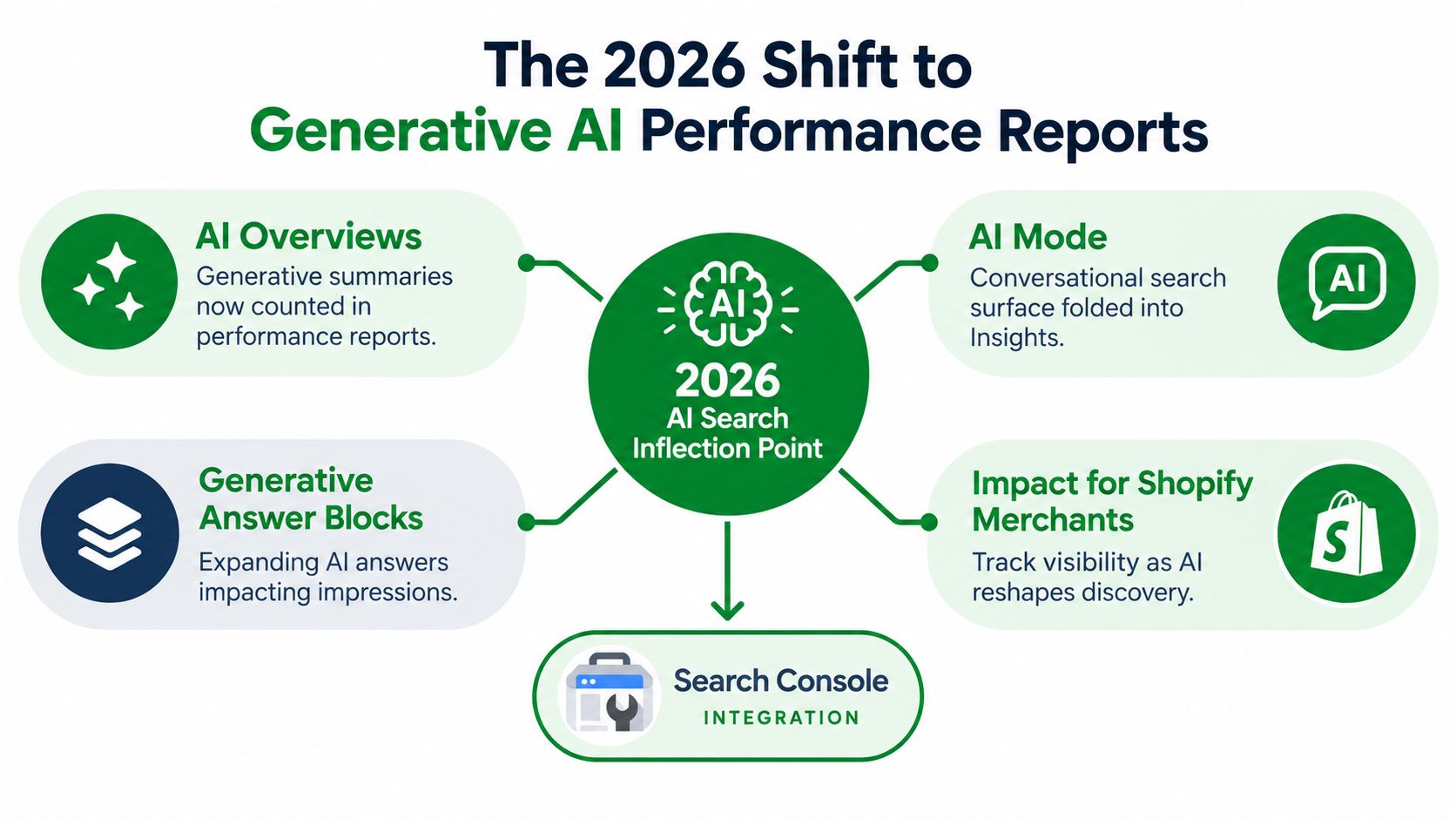
The biggest reason Search Console changed from “helpful dashboard” to “strategic visibility signal” is the arrival of generative AI reporting.
In June 2026, Google introduced generative AI performance reports in Search Console. By late August 2026, those reports had rolled out worldwide and showed impressions for AI Overviews, AI Mode, and generative AI features in Discover, with page, country, and date breakdowns. At publication, click data still wasn't included, and some sites with too few AI impressions might not see a report, according to Google's generative AI performance reports announcement.
The question merchants should ask now
For a Shopify merchant, this changes the reporting question.
The old question was often: did this page get clicks from Google?
The sharper 2026 question is: is this page showing up in AI-heavy search surfaces at all, and is it structured well enough to be cited?
That's a meaningful shift because many AI-assisted search experiences don't behave like classic blue-link search. Impression visibility can matter even when click behavior stays unclear.
A broader market overview can help here. If you're comparing monitoring approaches beyond Google's native reports, this roundup of tools that find AI search monitoring software gives useful context on how teams are trying to measure visibility in emerging AI surfaces.
What Insights can and can't tell you about AI search
Insights can help surface the existence of AI visibility. It cannot prove AI ROI on its own.
That's why merchants watching these reports should treat them as directional:
- Useful for: seeing which pages surface in AI-related contexts
- Less useful for: proving traffic value from those appearances
- Not enough for: tying AI exposure directly to sales outcomes
If you're preparing your store for those surfaces, a practical next step is to review how your pages support AI search optimization through structure, product detail quality, and machine-readable signals.
A short walkthrough helps make the shift concrete:
AI impression data is still a visibility signal, not a revenue report. Treat it as evidence of presence, then verify readiness page by page.
Practical Ways Shopify Merchants Use Insights Day to Day
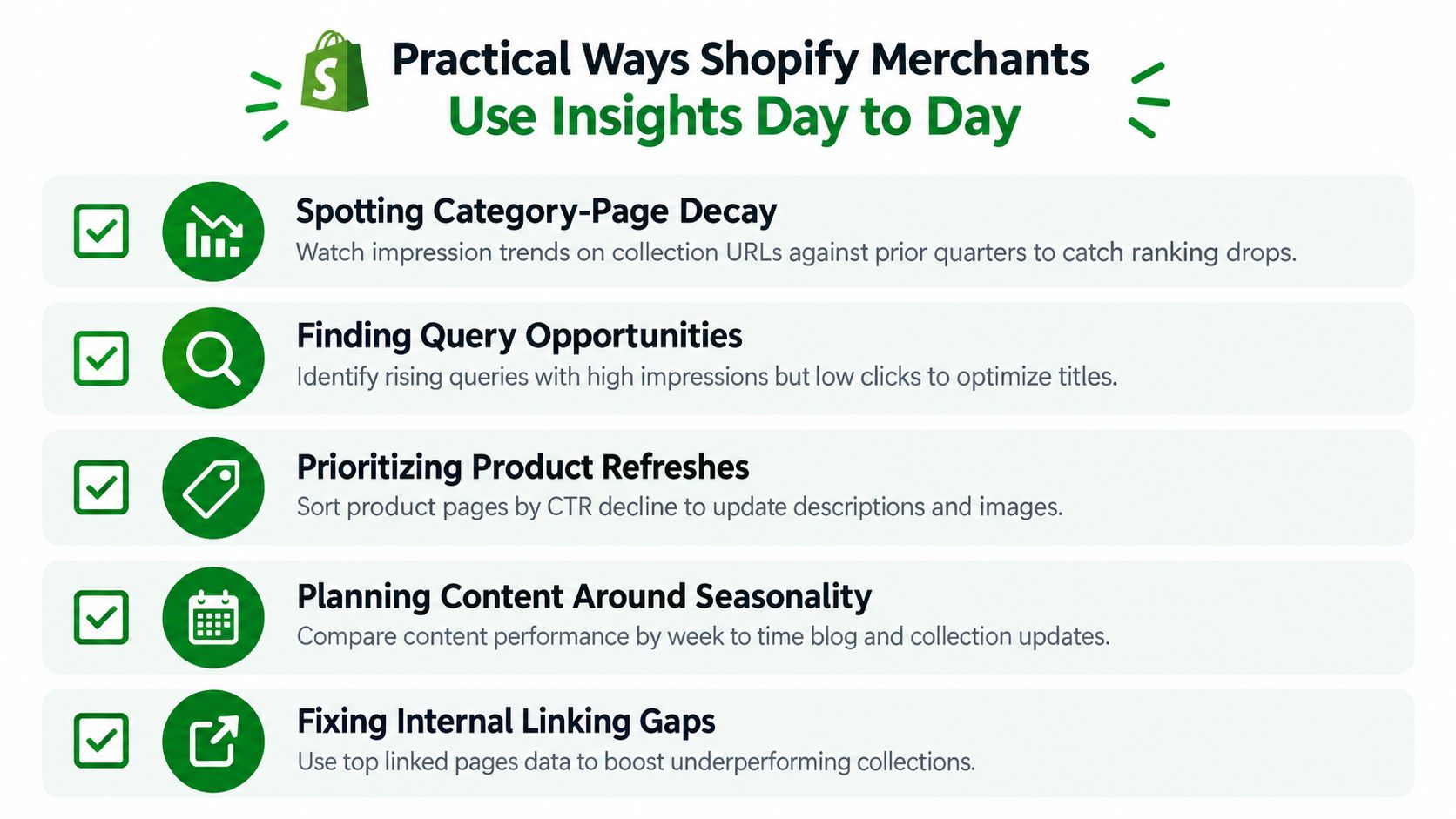
Most merchants won't open Insights to admire charts. They open it because something feels off. A category slowed down. A product launch didn't land. A blog post ranks but doesn't pull visits. That's where the report becomes practical.
Catch category-page decay early
A collection page often weakens before the store team notices a revenue problem. Insights can help you spot that softening through visibility trends and changes in top content placement.
If your “running shoes” collection used to appear regularly among your visible pages and starts fading, that's a prompt to inspect the page. Recheck titles, copy depth, internal links from related collections, product availability, and whether adjacent categories are cannibalizing the same search intent.
Find pages that show up but don't win the click
This is one of the cleanest uses for Insights. A page gets surfaced often, but users don't choose it.
That usually points toward snippet issues:
- Title mismatch: the title may be too generic for the query
- Weak description: the meta description may not explain the offer clearly
- Intent gap: the page ranks for searches that don't match what the shopper expects
A merchant can rewrite the title, tighten the description, and then watch whether click behavior improves after the next reporting window. For query discovery work, this guide to Google Search Console for keyword research is a useful next step because it turns those query hints into a tighter optimization list.
Validate schema and product-detail work
Suppose your team updates product structured data or improves key product fields on a group of pages. Insights won't validate code implementation in a technical sense, but it can help you see whether those product URLs start showing up more clearly in visible content and query patterns.
That's not proof by itself. It's an operational checkpoint. If improved product pages begin appearing around stronger transactional queries, you likely have something worth investigating further in deeper reporting.
Merchant shortcut: Use Insights to notice momentum. Use your technical tools to confirm cause.
Use top content and top queries as content briefs
A lot of Shopify teams guess what Google thinks their store is “about.” Insights gives you a faster answer.
If your top queries cluster around “gift sets,” “sensitive skin,” or “organic dog treats,” that's a signal about topical association. You can turn that into content plans, collection expansion ideas, FAQ updates, or internal linking changes that support pages already getting some trust.
Watch for country-level demand shifts
Many merchants expand internationally too early or too late. The country view inside Insights can help you see whether a market is already finding your pages.
If one country starts surfacing more often across key product groups, that may justify closer review of shipping messaging, currency support, local language adaptation, or a future Shopify Markets rollout. If another market never appears, don't assume localization is the next fix. The issue might be that your current pages aren't relevant there yet.
The repeatable workflow is simple:
- Read the signal.
- Form a hypothesis.
- Change the page or page group.
- Recheck after the next data window.
Done consistently, that process keeps Insights grounded in store operations instead of turning it into another passive dashboard.
Pairing Insights with RankEngine for Verified SEO Monitoring
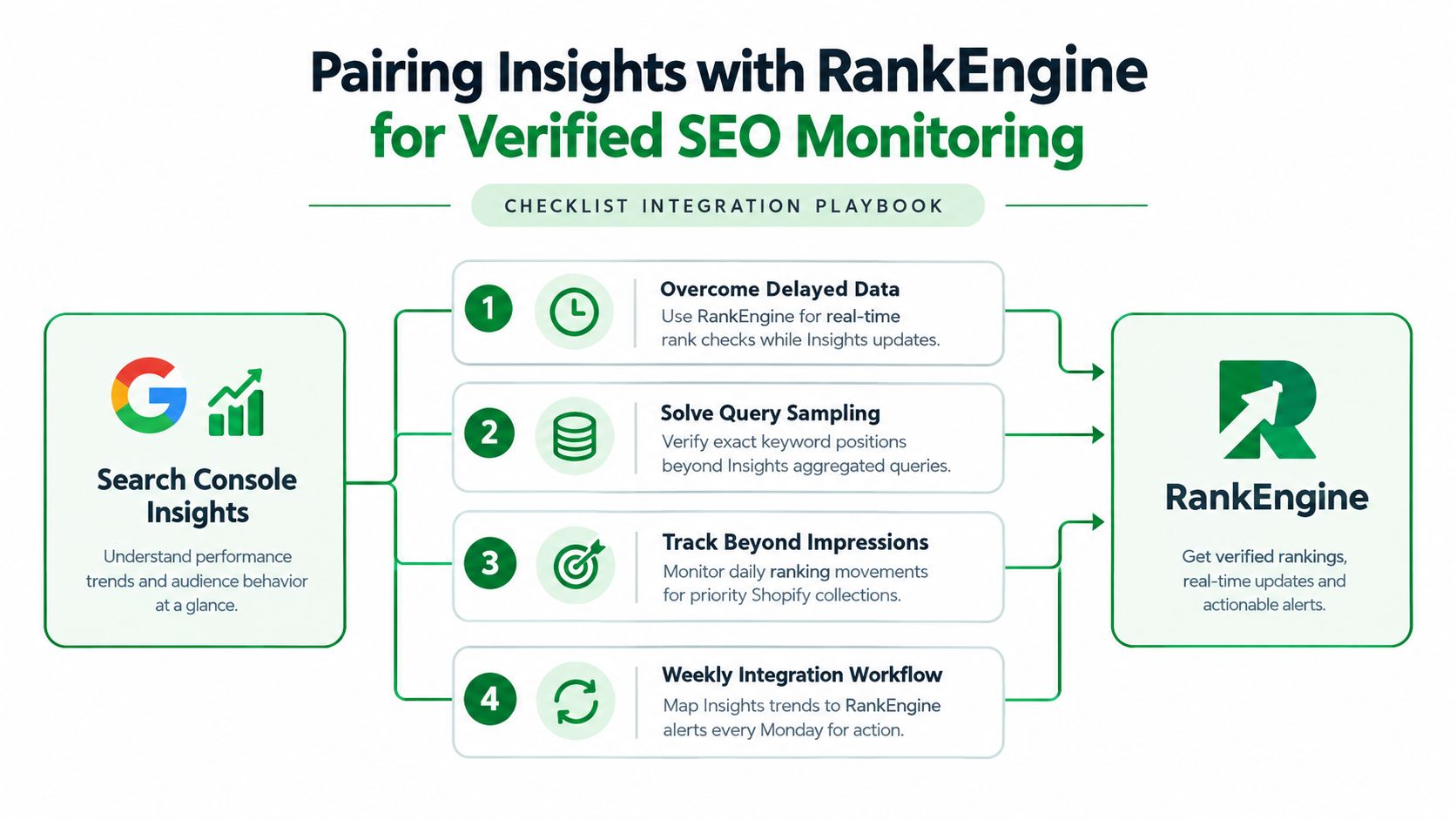
Insights works best when you give it a partner. On its own, it's fast but incomplete. It helps you notice changes, but it doesn't fully verify ranking movement, implementation quality, or whether a fix reached the live Shopify store.
A practical weekly cadence
A workable rhythm for merchants looks like this:
- Monday: open Insights and scan for page, query, and country shifts
- Tuesday: verify anomalies against fixed keyword tracking and store-level SEO records
- Friday: review what changed, what was fixed, and what still needs action
That second step matters most. If Insights suggests a collection gained visibility, you need a way to verify whether your target terms moved. If a product page starts surfacing more often, you need a record of what changed on the page and whether schema, metadata, or linking updates were live.
A dedicated tracker such as this keyword rank tracker helps close that gap by keeping a stable view of ranking movement that doesn't depend on the simplified Insights interface.
The three connection points to set up
To keep both systems aligned, merchants should define three basics early:
Property mapping
Make sure the same verified store property sits behind your Search Console workflow and your monitoring layer.Shared page segments
Group URLs the same way in both places, especially collections, products, and blog content.Alert thresholds
Decide which visibility drops or query shifts deserve review so teams don't react to every small fluctuation.
Used this way, Insights becomes the discovery layer and verified reporting becomes the proof layer. That combination is much more useful than either one by itself, especially on a Shopify store where SEO fixes need to be checked against real pages, not just reported as “done.”
If you want that proof layer, RankEngine gives Shopify merchants one place to audit pages, apply supported SEO fixes, monitor rankings, and verify changes against the live store. It fits this workflow well because Insights can show you where visibility is shifting, while RankEngine helps confirm what changed and what to do next.