 RankEngine
You shared a product link in chat. The preview pulled your store logo, not the product. You edited the meta description in Shopify, saved it, and shared again. Same logo.
That loop wastes hours. The meta description image problem you're seeing usually isn't in the description field at all. It's in a separate tag your theme emits, a duplicate tag from an app, or an image URL a crawler can't fetch. Fix the wrong field and nothing changes.
Table of Contents
- What a Meta Description Image Actually Controls
- Keeping Alt Text, og - image - alt and Descriptions Separate
- Setting the og - image Tag on Shopify Pages
- Adding Structured Data Image Fields to Each Page
- Verifying Previews on the Live Store
- Choosing Between Manual Edits and Automated Fixes
- Building a Fallback Hierarchy and Your Next Step
What a Meta Description Image Actually Controls
Three mechanisms get blurred together. Separate them first.
Meta description comes first. That's the HTML text summary that can inform your search snippet. Google doesn't describe a mechanism where an image attached to that description controls the organic result, and it may generate a different snippet from page content instead, as Google's snippet documentation explains.
Preferred image signals come second. Google recognizes og:image and structured data such as primaryImageOfPage as ways to indicate a preferred image. Its image guidance also covers standard <img> references and formats including BMP, GIF, JPEG, PNG, WebP, SVG, and AVIF, per Google's image best practices for Search.
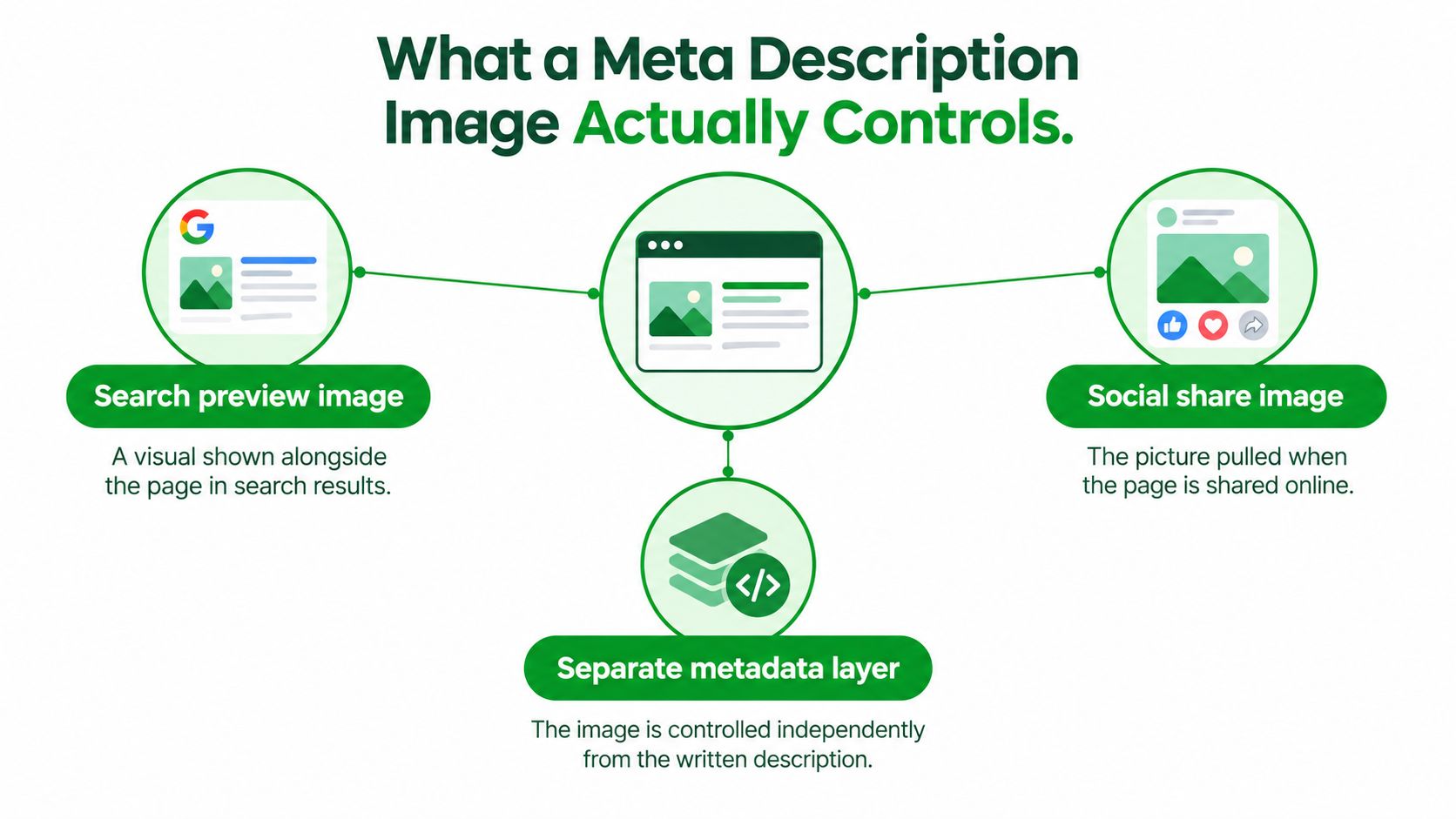
Social preview metadata comes third. That's og:image, og:description, and related tags read by sharing clients. Improving an OG image improves link previews. It isn't a direct Google ranking factor, so don't judge it by rankings.
Diagnose in This Order Before You Rewrite Anything
Don't rewrite copy until you've located the defect. Work through this order:
- Meta description missing: Check the SEO field and the live head. If you've already worked through a guide to Shopify meta descriptions, confirm your theme outputs what you saved.
og:descriptionmissing: Inspect the head separately. A good meta description doesn't guarantee a good social description.og:imagemissing or wrong: Look for exactly one intended tag. Duplicates let crawlers guess.- Image URL invalid: Test whether the URL loads publicly over HTTPS without login or redirect loops.
- Google chose another image: Compare the declared image with sharp, relevant images near related text on the page.
Practical rule: A poor preview is a diagnostic question, not a copywriting prompt. Name the failed field before you touch any text.
Merchants often bring in outside help at this stage. Agencies offering Sprints & Sneakers search marketing services can audit that split between snippet, image selection, and preview. You can also run the checklist above yourself in minutes. Either way, don't spend an afternoon polishing a description when the defect is an inaccessible social image.
Keeping Alt Text, og - image - alt and Descriptions Separate
Alt text isn't a shorter meta description. og:image:alt isn't alt text either. Each field has a different consumer, and copying one sentence into all three serves none of them well.
Google describes alt text as a concise explanation of an image and its relationship to surrounding content. It helps search systems understand the image, and it serves screen-reader users and people on low-bandwidth connections. The meta description summarizes the whole page for potential snippets. Those jobs overlap less than most merchants assume, a distinction Google's SEO starter guide makes clear.
Which Text Field Serves Which Consumer
| Field | Primary Consumer | What It Should Say on a Product Page |
|---|---|---|
| Meta description | Search-result reader | What the product is, who it's for, why click. Page-level summary, not a photo description. |
| Alt text | Screen-reader user, search crawler | What this specific image shows, such as color, angle, material detail. |
og:image:alt |
Link-preview client | What the shared social image shows. Descriptive context, not a caption. |
Take a walnut sideboard. The meta description might sell storage and free delivery. The alt text should describe the sideboard's doors, grain, and legs as photographed. The og:image:alt should describe the social card itself, which might show the sideboard in a styled room with branding.
Weak catalogs mix this up. You'll find a persuasive meta description, alt text that just says product image, and no og:image:alt at all. That's three missed signals, not one.
Where Copying Breaks Down
Don't paste promotional claims into alt text. A screen-reader user needs to know what the photo shows, not that shipping is free. Don't repeat keywords across every field either. Duplicated text looks like automation laziness and misleads at least one consumer.
Visual quality matters here too. Clean, well-lit source photos make descriptive text easier to write, which is why editing furniture photos for online stores is worth getting right before you describe the result. For deeper rules on the alt field itself, this breakdown of image alt text for SEO covers length and keyword traps.
One description for every image isn't an optimization strategy. It creates duplicated, misleading metadata while the actual image context stays unresolved.
Audit each field separately. Accessibility, search relevance, and social sharing need separate checks and separate success criteria. A field passes only when its own consumer gets what it needs.
Setting the og - image Tag on Shopify Pages
The image that accompanies your description is a separate social-preview implementation. Treat it that way on product, collection, article, and landing pages.
Start with the tag itself. The screenshots below show where these settings surface in a typical editing workflow.
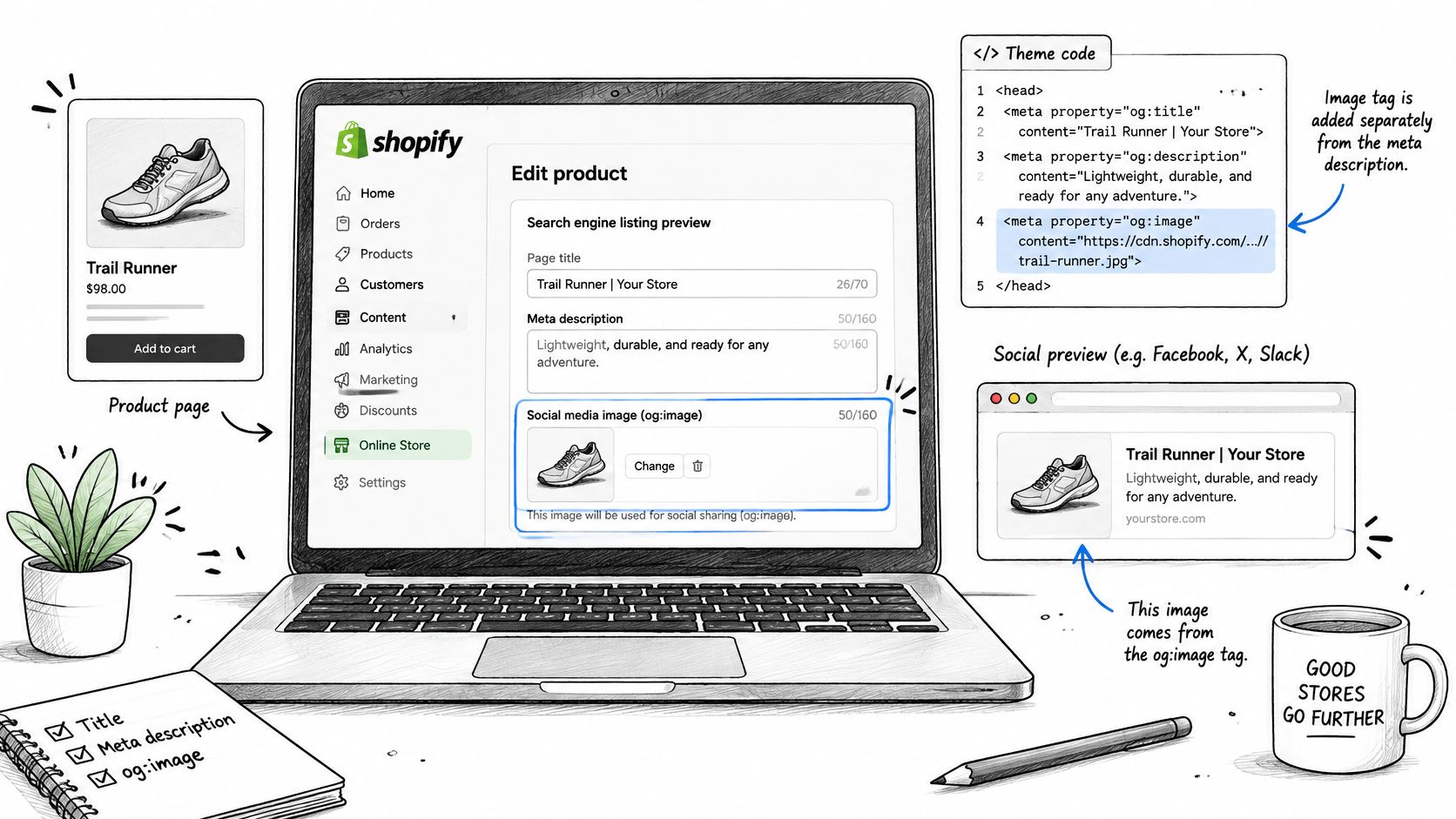
The Tag Set You Need in the Head
Add an absolute HTTPS og:image URL in the document head. Then add the companion properties:
og:image:type: Declare the MIME type, and make sure it matches the actual file.og:image:width: Declare pixel width so clients don't have to fetch and measure first.og:image:height: Declare pixel height for the same reason.og:image:alt: Describe the shared image. The Open Graph specification identifies URL, MIME type, dimensions, and alternative description as distinct properties and recommends supplyingog:image:altwheneverog:imageis present, according to the Open Graph protocol specification.
Missing dimensions slow rendering. Mismatched MIME types confuse parsers. Relative URLs and HTTP assets break fetching outright.
Sizing the Master Image
Use a 1200×630-pixel master at 1.91:1 as your cross-platform baseline. Keep important text and logos inside a central safe area. Text near crop boundaries gets clipped on mobile cards, and clipped branding looks broken even when the tag is technically correct.
Stores built with outside partners, including those using websites for independent online retailers, should confirm who owns this tag output. Themes, SEO apps, and social apps can each emit og:image. When two systems emit it, previews become unpredictable.
This walkthrough shows the editing flow in practice before you test your own pages.
Pitfalls That Produce Blank Cards
Watch for relative URLs like /cdn/image.jpg instead of a full HTTPS address. Watch for stale previews after you swap an image, since sharing clients cache aggressively. Watch for the declared image pointing to a variant photo instead of the main product shot.
Check first: If the preview is blank, fetch the image URL directly before you touch the theme. Half the time the asset itself is the problem.
Adding Structured Data Image Fields to Each Page
Structured data works differently from head tags. Search engines evaluate the relationship between an image and each page where it appears. A file sitting in your media library carries no page context by itself.
That means one product photo needs a page-level association every time it's used. The same image on a product page, a collection grid, a recommendation module, and a blog article has four contexts. Markup tells search systems which context applies where. Reuse doesn't remove the need, according to Google's image license metadata guidance.
The Fields That Matter
Start with primaryImageOfPage. It requires an image URL or an ImageObject. Use it to declare the image that best represents that specific page, not your store in general.
Then complete rights metadata where it applies:
contentUrl: Point to the actual image file.- Creator and credit: Name who made the image and how credit should read.
- Copyright notice: State ownership clearly for licensed or commissioned photography.
- License information: Link the terms under which others can use the image.
You can supply this information through structured data or IPTC photo metadata. Pick the route your workflow can maintain. Structured data can also qualify an image for enhanced presentation in Google Images, including certain rich-result treatments and prominent badges. Eligibility depends on the structured data type and compliance with Google's guidelines, so don't promise badges you haven't validated.
A Workflow That Holds Up
Audit each page independently. Check the image reference, the alt text, the social-preview image, the structured data, and the licensing information as separate items. A pass on one doesn't imply a pass on the others.
If your schema setup is thin overall, this guide to Shopify schema markup covers the page types worth prioritizing. Start with product pages. They carry the most commercial weight and the most reused images.
Declare the image where it's used, not where it's stored. Page context is the signal.
Confirm the live page exposes the values you intended. Theme updates and app changes can drop markup you've already written.
Verifying Previews on the Live Store
Saving a change proves nothing. Verification proves it reached the live page in a form crawlers can use.
Run this sequence on every changed template. It takes minutes and catches most failures.
The Live Verification Sequence
- Fetch the live HTML: View source on the published URL, not the theme editor preview. Confirm exactly one intended primary image is declared.
- Request the image itself: Open the
og:imageURL directly. Confirm a 200 response and the correctContent-Type. - Compare dimensions: Check the declared
og:image:widthandog:image:heightagainst the actual binary. CDN transformations can change delivered dimensions after you generate metadata. - Inspect mobile cropping: Preview the card at phone width. Confirm text and logos survive the crop.
- Match the subject: Compare the preview against the visible product or editorial subject on the page. A valid tag pointing at the wrong product still fails.
Dealing With Cached Previews
Sharing clients hold stale previews. You fix the tag, share the link, and see the old image. That doesn't mean your fix failed.
Refresh the cache where the platform allows it, then test again. Test in a fresh chat or an unpublished draft post so you're not staring at a cached card from last week. Record what you see each time.
Don't infer success from an HTML write alone. Re-read the live page and request the image as an external crawler would.
Record Before and After
Save a screenshot of the preview before your change and one after. Note the image URL, the dimensions, and the date. That record turns arguments into evidence when a preview regresses after a theme update.
Build the habit on high-traffic pages first. Products that get shared in ads, email, and affiliate posts deserve proof, not assumptions. Once the sequence is routine, extend it to collections and articles.
Choosing Between Manual Edits and Automated Fixes
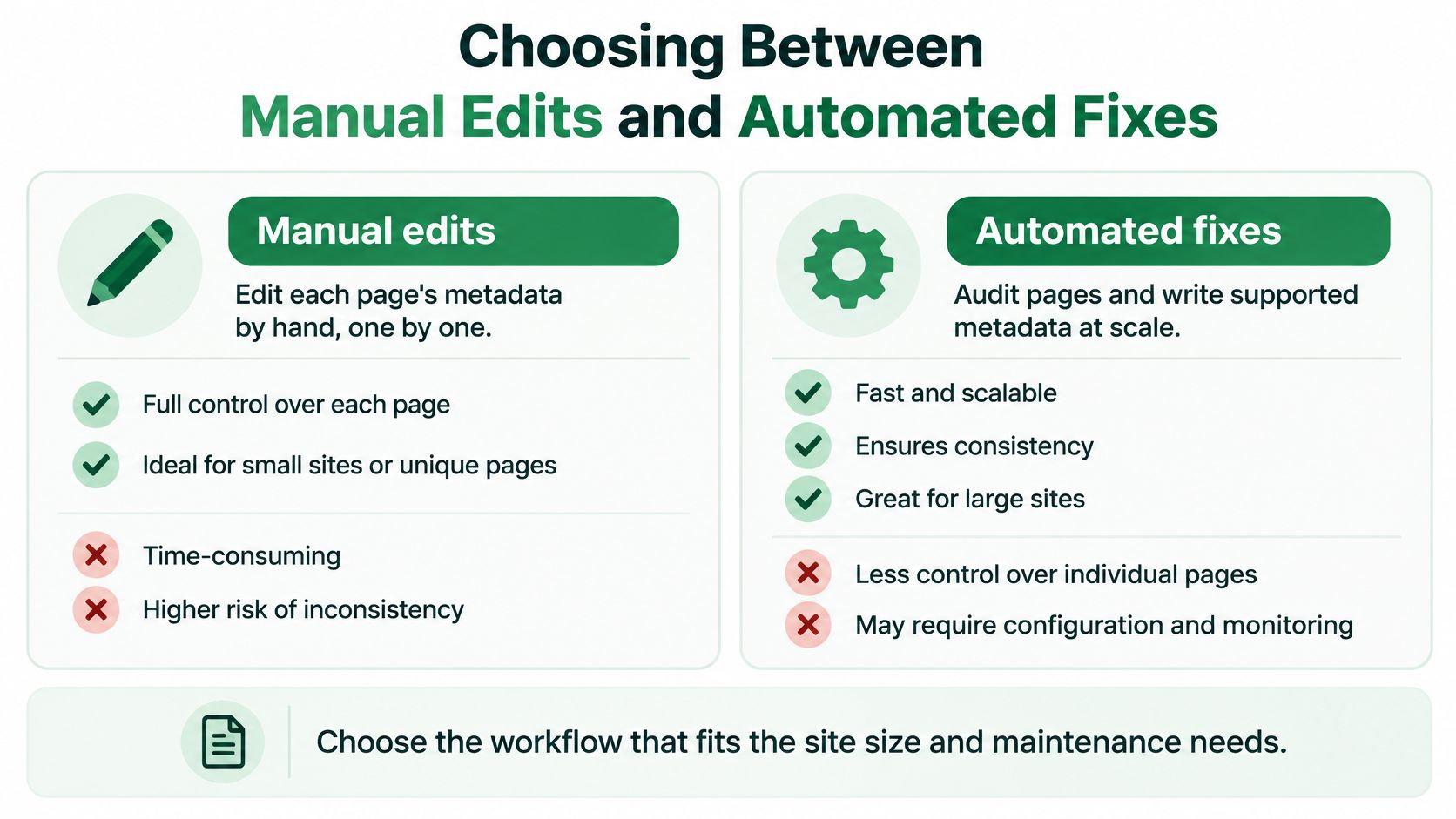
Manual edits work. They also stop working at a certain catalog size. The comparison below frames the trade-off before the criteria that follow.
Where Manual Edits Win
Hand-editing suits small catalogs and flagship pages. You control every word of alt text. You choose each social image deliberately. For a hero product with custom photography, that judgment beats any template.
Manual work also suits edge cases. Licensed images, seasonal campaigns, and editorial features need a human call on rights and relevance. No workflow should guess those.
Where Manual Edits Break
The cost shows up in consistency. Different team members write alt text differently. Someone forgets og:image:alt. Someone else uploads a relative URL. Multiply that across hundreds of products and your audit becomes a permanent project.
Rollback is the other gap. If a bulk manual edit goes wrong in a spreadsheet import, undoing it means reconstructing old values from memory or exports. That's slow and error-prone.
What an Automated Workflow Should Actually Do
Judge automation by verification, not by how many fields it claims to edit. A credible workflow does four things:
- Audits first: Reports alt-text coverage and structured data status across products, collections, pages, and articles before changing anything.
- Writes through the platform: Applies supported fixes via the Shopify Admin API rather than fragile theme hacks.
- Verifies against the live store: Re-reads Shopify values before marking a fix done. Optimistic success states hide unresolved issues.
- Keeps restore points: Lets you roll back supported changes and routes judgment calls to a manual review queue instead of guessing.
Decide by catalog size, team time, and how much confidence you need that changes landed. Small store, few products, plenty of care available? Stay manual. Large catalog, thin team, constant product churn? Automate the repeatable fields and keep humans on the judgment calls.
Building a Fallback Hierarchy and Your Next Step
One generic store-wide image is the lazy default. Build image metadata from each page's canonical entity instead, so the preview always traces back to what the page sells or says.
The Fallback Order
Use a deterministic hierarchy and apply it everywhere:
- Page-specific social image: A purpose-built card for this exact page.
- Product featured image: The main product photo when no custom card exists.
- Collection or article hero: The leading image for non-product pages.
- Branded default: A clean store fallback so no page ships a blank card.
Log which tier each page used. That log makes missing coverage measurable. You'll see exactly how many products sit on the branded default, and that's your work list.
Four Checks Before Publishing
Validate every page against four dimensions:
- Semantic relevance: The image matches the page subject, not just the brand.
- Absolute HTTPS fetchability: The URL loads publicly without redirects breaking it, within implementation limits such as at least 200×200 pixels and at most 4096×4096 pixels noted in Open Graph compatibility and requirements references.
- Declared versus actual dimensions: Metadata matches the delivered file.
- Accessibility text: Alt text and
og:image:altdescribe the image, not the offer.
Prefer JPEG for photographic product imagery and PNG for logos or typography when size permits. Keep assets below 1 MB as an operational target, even where platform limits run higher. Oversized files increase transfer cost and can delay or prevent unfurling.
Start this week. Pick your highest-traffic pages, audit their meta description, alt text, og:image, and structured data image fields, set the fallback order in your theme logic, then rerun the live verification sequence. Record before and after previews so the improvement is visible.
If your catalog is too large to audit field by field, RankEngine audits Shopify meta descriptions, alt-text coverage, and structured data, writes supported fixes through the Shopify Admin API, and re-reads live values before marking them done. Run an audit on your highest-traffic products first and see exactly which preview fields are failing.