 RankEngine
Your collection page looks sharp in the theme editor and still feels heavy on a phone. The usual cause is a studio file that never got cut to the card it fills. Shoppers download every pixel you send, even when the layout only paints a small rectangle.
Large sized images are files whose transfer size sits far above the slot they occupy. A high pixel count on the master is fine. Shipping that master into a grid, a swatch, or a blog card is not.
Judge each asset by the rendered width of its slot, the role of the page, and whether a shopper needs zoom. I would set those ceilings first, then audit, then compress, and stop to read the live URL before any bulk replacement.
Table of Contents
- Target Sizes Every Shopify Image Slot Needs
- How to Audit Image Weight Across Your Catalog
- Lossless vs Lossy Compression and Format Choice
- How to Resize and Serve Images Without Breaking Zoom
- Alt Text and File Names After Resizing
- Bulk Compression, Restore Points and Pilot Rollout
Target Sizes Every Shopify Image Slot Needs
Say a jacket shoot is 4,000 px wide and the collection card renders near 350 px. On a phone, that shopper can still pull the full studio file for a picture the size of a card. The raw pixel count did not make it large. The mismatch did.
Treat the table as the reference you reopen for every template. The middle column is the width you should serve. The last column is the file-size ceiling I would not cross for that role.
| Image slot | Rendered width | Target file size |
|---|---|---|
| Homepage hero, desktop | 1,440-1,920 px | 150-300 KB |
| Homepage hero, mobile | 390-768 px | under 120 KB |
| Collection grid card | 300-400 px | under 80 KB |
| Product main image | 1,200-1,600 px | under 200 KB |
| Product zoom master | up to 2,000 px | not served by default |
| Blog featured image | 1,200 px | under 150 KB |
| Swatch or thumbnail | 160 px | under 10 KB |
Why the ceilings differ
A desktop hero can carry 1,440 to 1,920 px because it fills the viewport, at roughly 150 to 300 KB. The mobile hero should be its own 390 to 768 px file, kept under 120 KB. A card that renders at 300 to 400 px only needs about 600 px for a 2x screen, and it should stay under 80 KB.
The product main image can sit at 1,200 to 1,600 px and under 200 KB so the first view stays sharp. Keep the zoom master, up to about 2,000 px, off the default request and load it only when someone opens zoom. Blog features at 1,200 px under 150 KB cover article headers. Swatches at 160 px should stay under 10 KB, or a colour grid becomes its own weight problem.
Banner crops that change by breakpoint belong in a banner image size pass, so one hero file is not reused everywhere.
Practical rule: If the delivered width is more than twice the rendered slot, that file is too large for the template, even when the photo looks clean in the admin.
The HTTP Archive's 2024 Web Almanac reports that the largest image on a mobile page has a median transfer size of 135 KB. At the 75th percentile it reaches 404 KB, and at the 90th percentile it reaches 1,002 KB, approximately 1 MB. Galleries, thumbnails, and lifestyle shots stack on top of that single file, so these ceilings are the filter for a catalog audit.
How to Audit Image Weight Across Your Catalog
Export URLs before you touch a single file. A catalog clean-up fails when you optimize the prettiest hero and leave a heavy collection banner on dozens of pages.
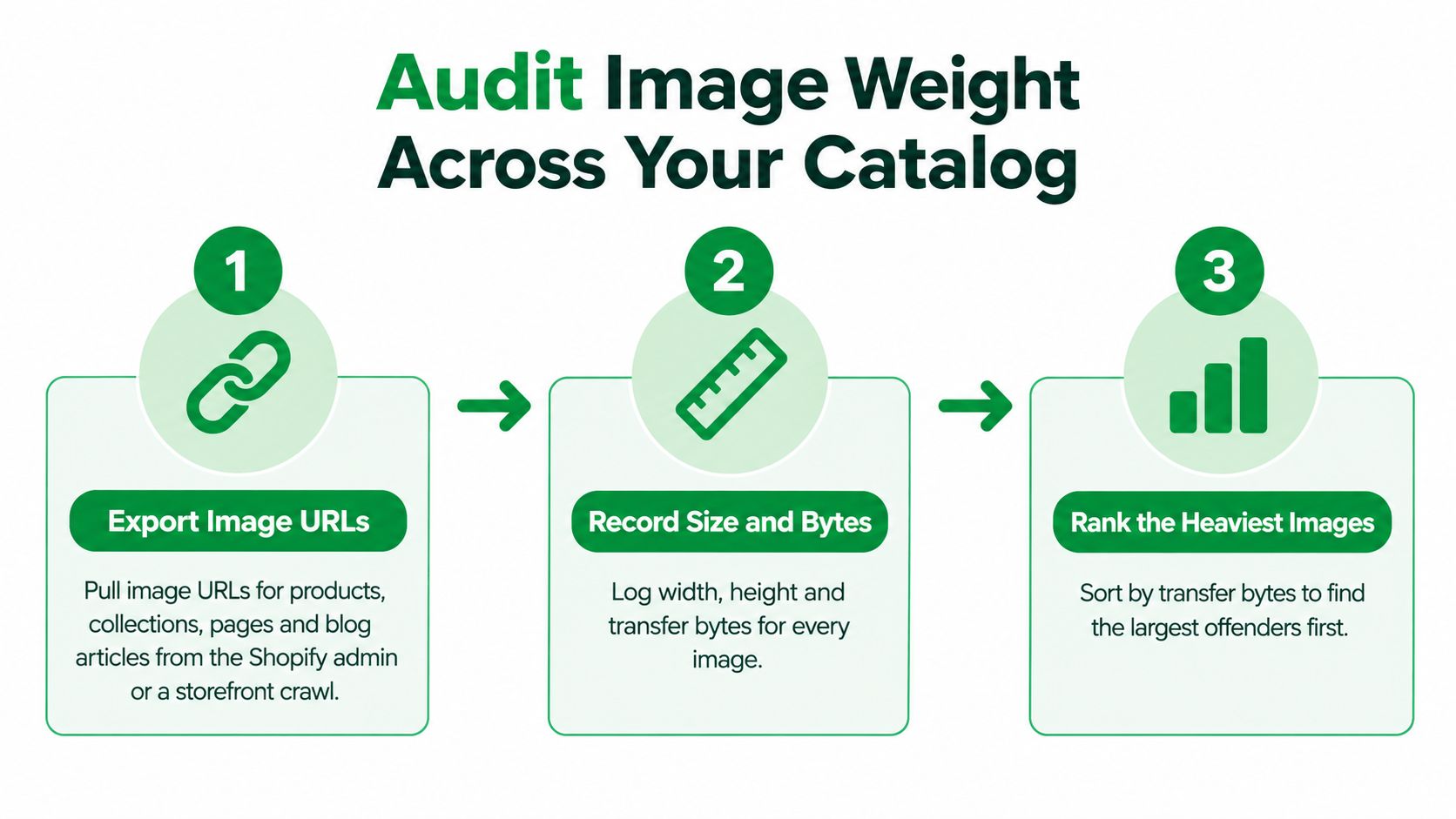
The 2020 HTTP Archive ecommerce chapter found that the median ecommerce page contains approximately 34 images and transfers about 1,208 KB of image data on mobile. The upper 10% of home pages reach roughly 5.5–5.8 MB of image payload. That spread is why a full inventory beats a handful of hero swaps.
Seven checks before you replace anything
- Export image URLs for products, collections, pages, and blog articles from the Shopify admin, or from a storefront crawl. You need the URL the theme requests, not only the filename in a spreadsheet.
- For each URL, record width, height, and transfer bytes in the browser network panel filtered to images, or from a Lighthouse run. Bytes on the wire matter more than the file size shown in a design app.
- Group every image by role: above-the-fold hero, product gallery, collection grid, and below-the-fold content. A heavy file below the fold is a different job from the first image a shopper sees.
- Compare each row with the slot ceiling. Flag anything over twice the rendered width, or over its byte target.
- Sort the flagged list by transfer bytes multiplied by how many pages show the image, not by how many files you have. A 900 KB collection banner on 40 pages outranks a 900 KB blog photo used once, because the banner is what shoppers keep downloading.
- Mark the likely LCP image on each template in PageSpeed Insights. That file gets a separate tag so you do not lazy-load it later by habit.
- Tag each flagged image as keep-master, when zoom still needs it, or replace. Masters stay in a folder you do not overwrite.
Run this on 50 URLs first. If the flags match what you see on a phone, scale the same sheet to the rest of the catalog.
Lossless vs Lossy Compression and Format Choice
Lossless re-encoding removes redundant data without changing pixels, so the savings stay modest. Lossy encoding discards detail the eye may not miss, so the savings are larger and you have to look.
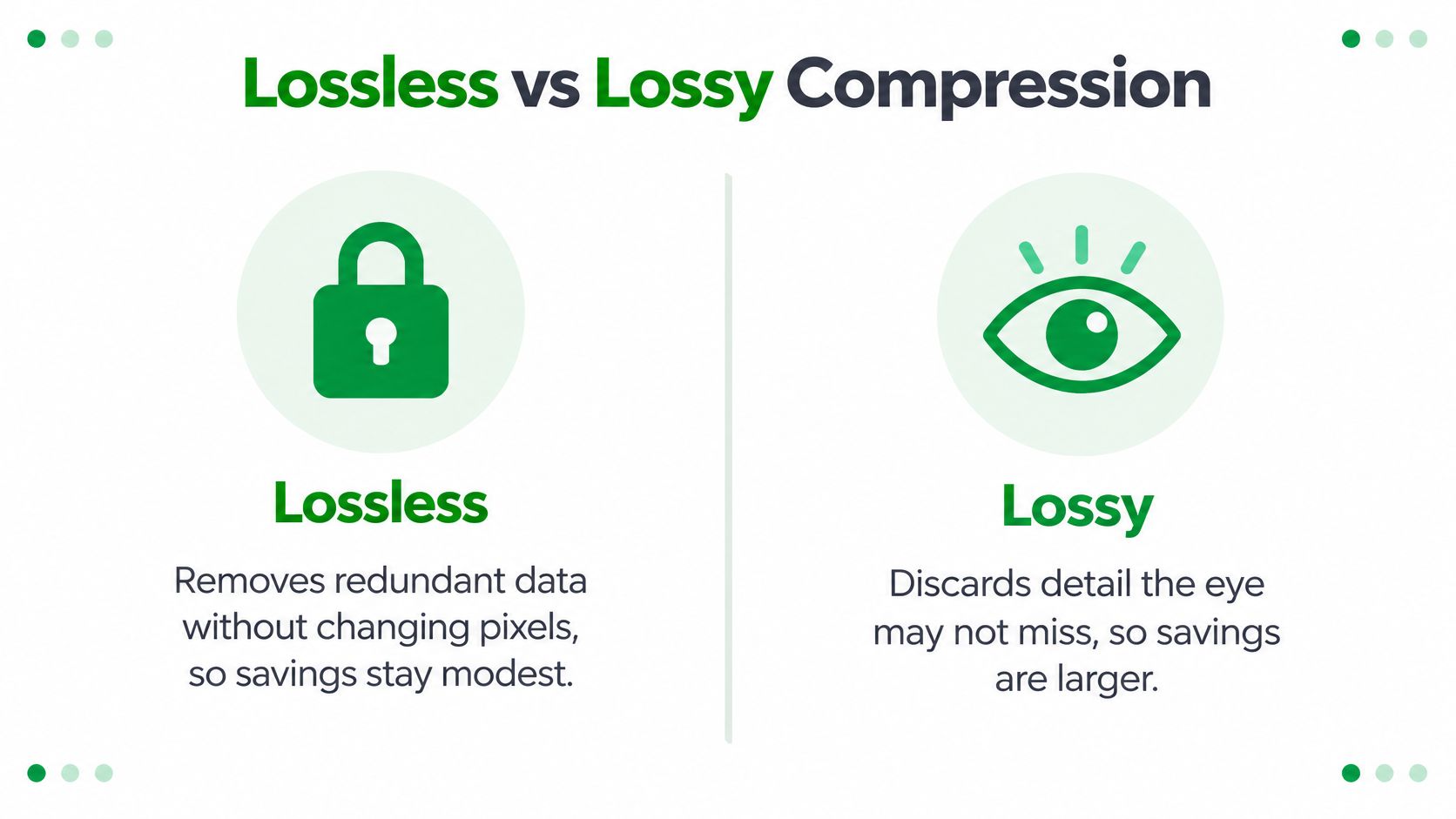
For a photographic product shot, I would start lossy WebP or JPEG around quality 75 to 85, then inspect at 100% zoom and at the size the slot actually paints. A soft preview in a thumbnail hides banding that shows up on the product page.
| Format or mode | Compression | Best for | Watch for |
|---|---|---|---|
| Lossless re-encode (any format) | lossless | masters, zoom sources, archive copies | small savings; keep as master, not default |
| JPEG | lossy (lossless option exists) | product photos, compatibility baseline | visible artefacts at low quality |
| PNG | lossless | transparency, flat graphics, logos | large files for photographs |
| WebP | lossy or lossless | default delivery for product and blog photos | confirm the theme serves it |
| AVIF | lossy (lossless possible) | smallest photos where supported | theme and browser support; decode cost, test first |
A workflow you can repeat
Web.dev's image performance guidance lays out a practical order: preserve the original master, strip unnecessary metadata, resize to the maximum required display width, encode several quality levels, compare perceptual quality at 100% and at the storefront's actual rendered size, then keep the smallest version that passes review. The same guidance reports that AVIF can produce greater than 50% savings versus JPEG in some tests, while WebP generally compresses better than JPEG, PNG, or GIF.
Google notes that most origins with poor LCP spend less than 10% of p75 LCP time downloading the LCP image. Compression alone will not fix a late-discovered hero. Log original bytes, optimized bytes, dimensions, format, and savings per URL so you rank work by bytes and visibility, not by file count.
A 1.2 MB lifestyle shot can often fall to around 150 to 200 KB at quality 80 in WebP. A jacket with a fine knit may band at that setting and needs a higher one. If you want a side-by-side on formats before you lock a preset, choose image formats and compression with the same master, not with a file you have already crushed.
This short walk-through shows the preview step that catches a bad quality slider before it hits the theme.
Pair the format test with a best web image check so the file you keep is the one the slot can actually use.
How to Resize and Serve Images Without Breaking Zoom
A 2,000 px original inside a 300 px card is the failure I would hunt first. The browser can scale it down on screen. It cannot give the shopper back the bytes already sent.

Images are the dominant Largest Contentful Paint element on 85.3% of desktop pages and 76.0% of mobile pages, according to the 2025 HTTP Archive performance chapter. An oversized hero or first product photo hits perceived speed directly. Blanket compression still damages zoom and high-density screens, so the master stays.
Serve the slot, not the camera file
- Set a width ceiling per template from the slot table, and keep the full master for zoom. The ceiling is what the theme may request. The master is what zoom may open later.
- Use Shopify's image URL width parameter, or a
srcsetlist such as 400, 800, 1,200, and 1,600 px. The browser can then pick the smallest acceptable file. - Write a
sizesvalue that matches the CSS grid. A 350 px card should not request a 1,600 px file because the attribute still says the image is full viewport width. - Add lazy loading only below the fold. Gallery angles the shopper has not reached can wait.
- Keep the likely LCP hero eager, add
fetchpriority="high", and confirm the tag is in the HTML. A hero hidden behind a script is late even when the file is small. - Keep width and height attributes so the layout does not jump as images arrive. Missing dimensions are a layout bug, not a compression bug.
- Re-read the live URL. If the storefront still serves the wide original, the theme or an app is ignoring the file you uploaded.
The smallest file is not the goal. The smallest file that still looks like the product at the real display size is the goal.
Do not strip the zoom master to win a byte target. High-density phones and detail shots need that source. Derivatives do the everyday work.
Alt Text and File Names After Resizing
Resizing does not rewrite what the image means. Sort by purpose in the same bulk pass that cuts the files, or you will ship smaller photos with the same noisy text.
What each image is for
A navy knit jacket on a model can read Navy knit jacket, front view, worn by a model. A second angle that only repeats the product name can take a short distinct line, or an empty alt attribute when the visible title already says it.
Decorative images get an empty alt attribute so assistive technology skips them. That includes a background texture and a colour swatch whose name is printed beside it. A hero with a text overlay needs the offer in the alt text, because the overlay is otherwise unavailable to someone who cannot see it.
A size chart is too much for one alt string. Put that detail in the product copy next to the image. Keyword stuffing every angle does not fix a missing variant label, and it makes a screen reader repeat the same phrase down the gallery.
Names you can restore
Rename files only during a bulk run that already has a restore CSV. Use lowercase, hyphenated names such as navy-knit-jacket-front.jpg. Record the old URL and the new URL in that CSV so internal links, redirects, and sitemap entries can be updated together.
Check text and bytes in one pass. A file that meets its slot ceiling and still has a useless alt attribute is only half finished. The image alt text rules for purpose versus keywords belong in that same review, not in a later cleanup you never schedule.
Bulk Compression, Restore Points and Pilot Rollout
One bad quality setting on 3,000 product images can soften every zoom view at once. Bulk tools are useful. They are also how a single slider becomes store policy.
| Tool or method | How it works | Best for | Built-in undo |
|---|---|---|---|
| Squoosh | browser, manual, lossy and lossless with preview | testing quality on a few hero images | none, keep originals |
| ImageOptim | desktop app, batch, lossless and lossy | cleaning a folder of masters before upload | none, keep a copy |
| Photoshop or Lightroom export | manual preset with crop | banners and art-directed hero images | version history in the file |
| Shopify admin replacement | one file at a time | single fixes and urgent swaps | No, the old file is lost unless you duplicated it first |
| Bulk optimization app with rules | automated batch with rules and logs | catalogs of several hundred images or more | Only if the app stores restore points and logs |
Before the first batch
Export current image URLs, alt text, and file names to a CSV. Keep untouched masters in a separate folder. Set the run to skip masters and hero images. Test 20 products, then stop.
If that batch fails visual review, restore from the CSV and the master folder before you change the quality setting. Do not “fix forward” on the next 200 products with a preset you have not accepted.
What the pilot has to prove
Pick 20 to 50 URLs across templates. Record PageSpeed Insights or Lighthouse results and total image bytes before and after. On a phone and on a desktop, check LCP, layout shift, and zoom at 100%.
Confirm the live URL serves the optimized width. A green upload in the admin means nothing if the theme still points at the old file.
Roll out one template at a time. Start with collection grids, then product pages, then blog articles. Leave heroes and masters for last, after you have seen real pages.
If LCP barely moves, look at discovery and render delay before you compress further. Another quality drop will not help a hero the browser finds late.
Stop the rollout the moment zoom looks soft or a card still requests a multi-thousand-pixel file. Fix the rule, then continue.
We can run that audit in the store, compress images with WebP conversion, and write alt text by reading each image. Schema, redirects, canonicals, and every write back to Shopify stay on deterministic code, with a log you can review before a wider rollout.
After the pilot holds, run the audit on the full catalog this week. Then set a monthly check on new uploads, because the next photoshoot will arrive at camera size unless someone applies the same ceilings.
RankEngine audits Shopify images for size, compression status, and alt text, then writes supported fixes through the Admin API and re-reads the live store before a change is marked done. If large sized images are weighing down collection grids and product pages, start with a catalog audit and a small pilot instead of a storewide quality drop. Visit RankEngine to review image savings, alt-text coverage, and restore points in one workspace.