 RankEngine
You've restyled the search box in a Shopify Dawn header, and it finally matches the rest of the store. Then you open Safari and the field looks different. On your phone, the keyboard action has changed, and the clear button you expected has disappeared.
A dependable search input HTML CSS implementation needs more than a border and a magnifying glass. The input type, browser controls, keyboard behavior, touch targets, and Shopify's query parameter all need to work together. Treat them as a production contract, and you can change the design without breaking the search.
Table of Contents
- The Search Input Markup Browsers Expect
- Build the Form and Its Suggestion Layer
- CSS Rules That Beat Native Search Chrome
- Focus Rings and Touch Targets That Pass
- Wire the Pattern into a Shopify Theme
The Search Input Markup Browsers Expect
Start with the form, before changing the header's styling. This compact version gives the browser a search landmark, the shopper a visible label, and Shopify a named query to receive:
<form role="search" action="/search" method="get">
  <label for="site-search">Search the store</label>
  <input id="site-search" name="q" type="search">
  <button type="submit">Search</button>
</form>
The for and id values must match. That connection gives the field its accessible name and lets someone select the label to focus the input. If the theme already contains site-search, choose a unique identifier and update the label alongside it.
The WHATWG HTML Standard describes the primary difference between the search and text states as stylistic: browsers and operating systems may give search controls a platform-specific appearance. That's why the same markup can look different before your theme applies any CSS.
Search Input Versus a Plain Text Field
| Behavior | type=search | type=text |
|---|---|---|
| Primary difference | Platform search styling | Ordinary text-field styling |
| Line breaks | Stripped automatically | Not stripped by the search state; text-state sanitization also removes them |
| Clear control | Often provided by the browser | Not a search clear button |
| Mobile action key | Often Search | Usually Enter or Go |
| Unknown-type fallback | Renders and submits as text | Already a text field |
| Precise CSS hook | input[type=search] |
input[type=text] |
Read these as browser behaviors, not promises about identical rendering. A search field can expose a native clear control or search-oriented keyboard action, but your stylesheet shouldn't assume every browser draws the same interface.
Also, line-break removal isn't an exclusive advantage of search inputs. Ordinary text inputs are single-line controls too. Choose the search state because it describes the field's purpose, not because it turns a multiline input into a single-line one.
Keep Meaning Separate From Decoration
A placeholder such as Products, collections, and more can suggest what to enter, but it can't replace Search the store as the label. Once someone types, the placeholder disappears. The label should remain available.
Leave browser autocomplete available unless a custom suggestion system deliberately replaces useful browser assistance. Setting autocomplete="off" isn't a prerequisite for a styled search field.
Before styling: Lock in a visible label,
name="q",type="search", and a submit control with an accessible name.
Unknown input types fall back to text, so choosing semantic search markup doesn't remove basic usability in older clients. Keep that foundation intact instead of switching to type="text" to escape a styling problem.
Build the Form and Its Suggestion Layer
Build ordinary form submission first, then add predictive results. A shopper should still reach the results page if the suggestion script fails, loads slowly, or isn't present.
The MDN input reference distinguishes an input's actual behavior from accessibility metadata: aria-autocomplete communicates predictive behavior, but it doesn't implement predictions or keyboard interaction. That distinction matters when a header looks finished while its suggestion popup remains unusable.
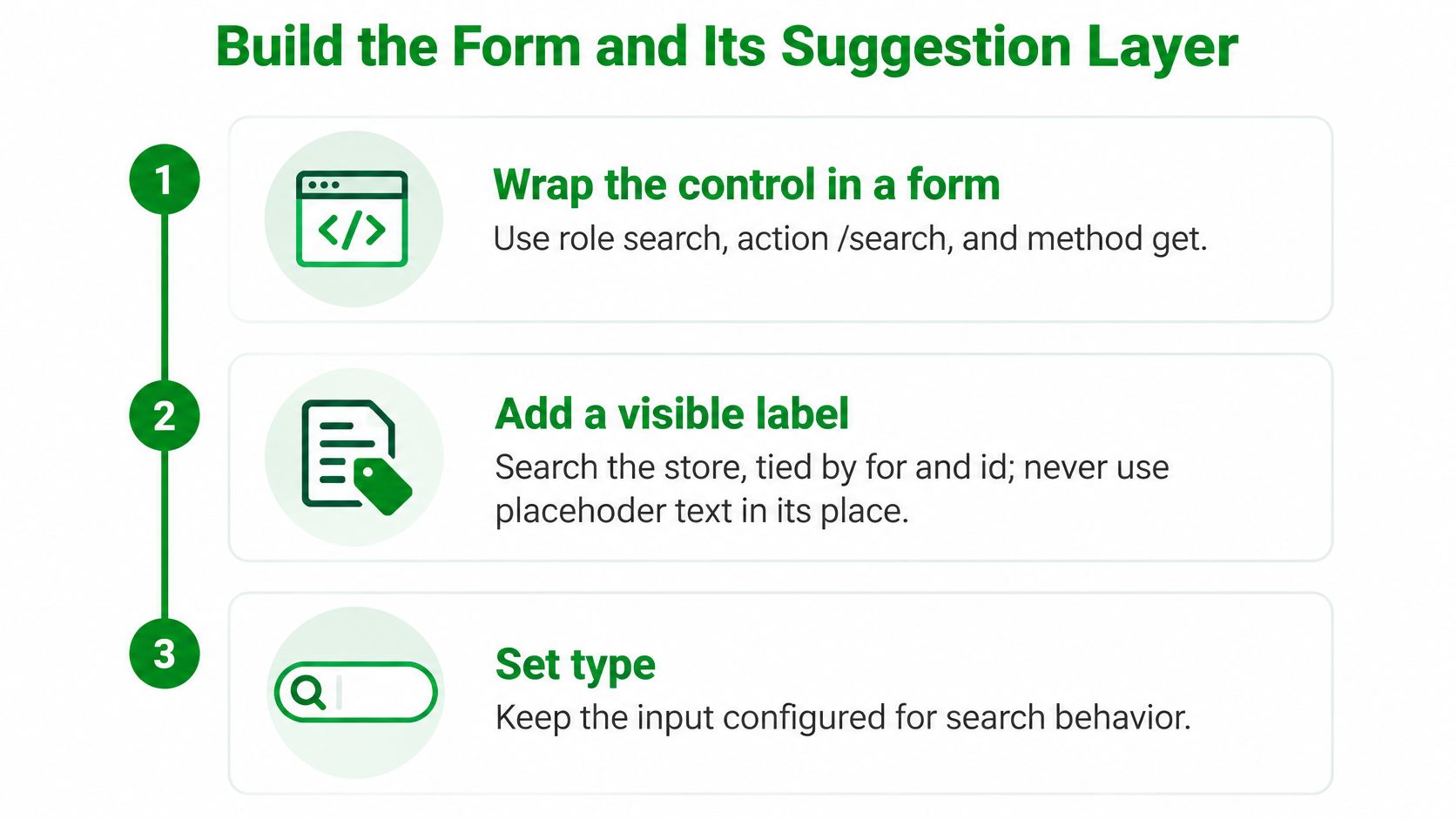
Use this sequence to establish the underlying control.
Establish the Submission Path
Choose the destination. Use
action="/search"andmethod="get"for the basic Shopify storefront pattern. The browser serializes named fields into the results URL.Connect the label. Keep the visible label outside the input, with its
forvalue matching the field'sid. Don't let a header redesign turn it into an unlabelled magnifying-glass control.Give the query its platform name. The input needs
name="q", not just an ID or a JavaScript reference. An input can appear in the DOM and accept typing without contributing the expected parameter to submission.Provide a real submit button. A text button labelled Search is straightforward. If the design uses an icon, supply visually hidden text or an
aria-label, and hide the decorative graphic from assistive technology.Enhance rather than replace submission. Attach query cleanup to the form's
submitevent so it applies to both the button and Enter. Trim leading and trailing whitespace, normalize repeated whitespace if appropriate, and prevent enhanced submission when the result is empty.
Don't intercept every submission merely to rebuild a URL in JavaScript. Let the browser perform its normal GET navigation after cleanup. It already handles encoding, including spaces and characters that would otherwise alter the query string.
A native required attribute can reject an empty value without JavaScript, but whitespace-only input needs additional handling. If the enhanced form rejects a query, leave focus in the field and provide a clear message rather than doing nothing.
An optional maxlength is a content policy, not a layout fix. Long queries should scroll within the input rather than stretching the header; use CSS to constrain layout instead of assuming a character limit will protect it.
Add Predictions Without Blocking Typing
Connect the suggestion layer to Shopify's predictive-search implementation or the theme's existing request mechanism. Confirm which resource types it returns before designing groups for products, collections, and pages.
Debounce live requests, not form submission. The shopper's decision to press Enter shouldn't wait for a predictive-search timer. Keep the input responsive while a request is pending, and don't replace the query with a loading message.
Handle the request lifecycle explicitly:
- Cancel superseded requests. Use an
AbortControllerwhere the implementation supports it. - Reject stale responses. Compare the response's query or request token with the current request before rendering.
- Treat clearing as a state change. Close obsolete suggestions and cancel work when the field becomes empty.
- Keep failures nonblocking. A failed prediction request mustn't prevent access to the full results page.
A slow response for linen must never overwrite fresh suggestions for linen shirt. Cancellation helps, but checking that the response still belongs to the current query protects against timing races.
Implement the Interaction Behind the ARIA
For a listbox-based autocomplete, implement the complete combobox pattern. Give the input the appropriate combobox semantics, connect it to the popup with aria-controls, and keep aria-expanded synchronized with whether that popup is open.
Use aria-autocomplete="list" to describe the behavior. Give options stable identifiers, track the active option, and update aria-activedescendant when DOM focus stays in the input.
The script must support these distinct actions:
- Arrow keys: Move the active option through the available suggestions.
- Enter: Open an active result, or submit the query when nothing is active.
- Escape: Close the popup, clear its active state, and leave or restore focus in the input.
- Outside interaction: Close the popup without unexpectedly moving focus.
Announce suggestion availability through a status region without pulling focus away from typing. An empty state such as No matching products should describe the result, not pretend to be a selectable product.
ARIA describes the interface you built. It doesn't supply the missing event handlers.
Before release, submit an empty field and a multi-word query. Then type a partial SKU, move down through suggestions, press Escape, and press Enter. Check the actual results URL, not merely whether the popup appeared.
CSS Rules That Beat Native Search Chrome
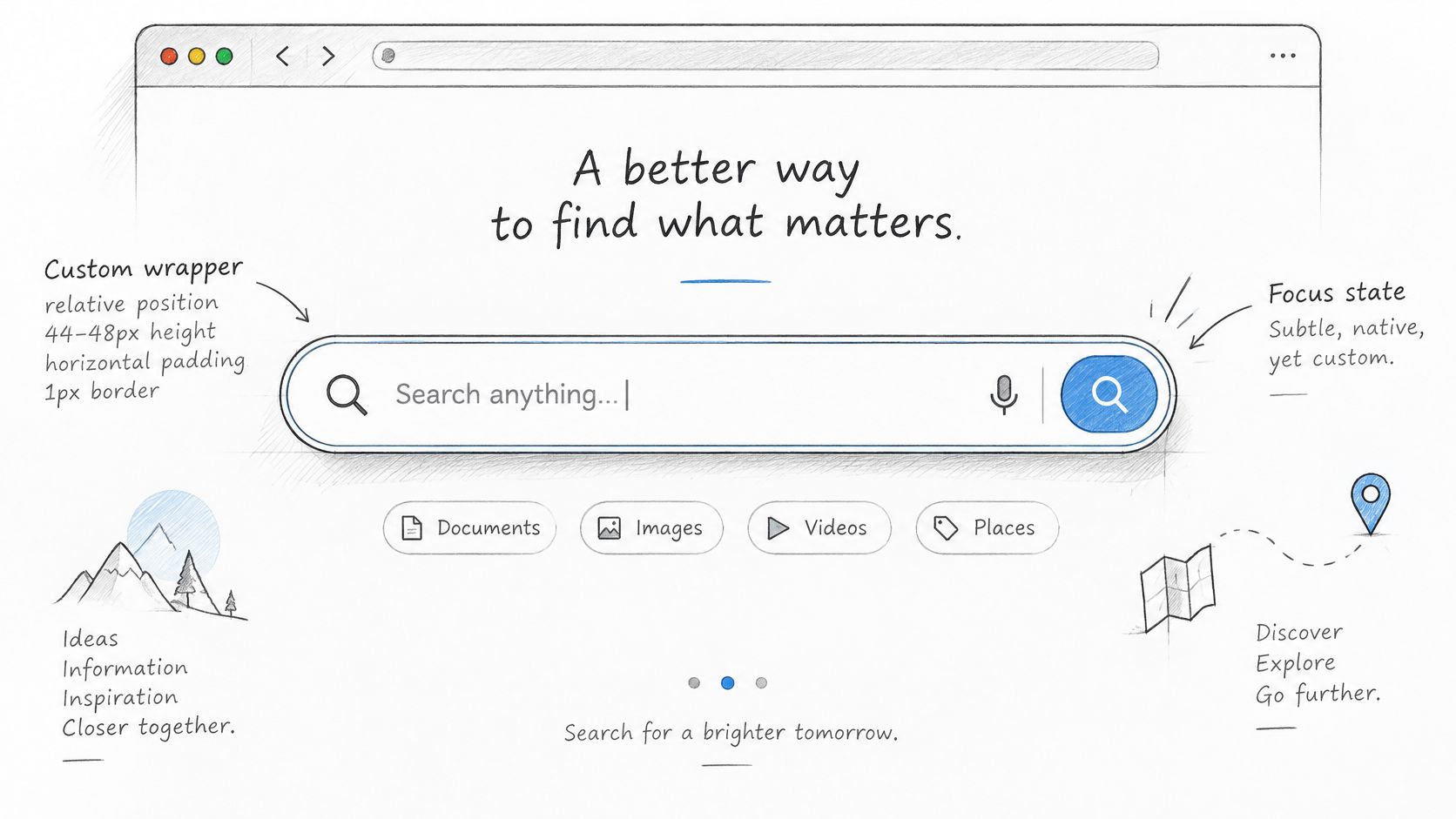
Use appearance: none when you need to replace native search-field styling, but don't treat it as a complete component reset. Size and position the wrapper deliberately, then style the input inside it.
Safari is a useful example of why generic advice fails. According to MDN's advanced form styling guide, Safari's historical restrictions on search-input height and font-size no longer apply in Safari 16 and later, while older versions may still need an appearance reset.
This sketch shows the spacing decisions to settle before adding theme-specific colors.
Scope the Reset to the Search Component
Use a header-specific selector rather than a global input rule. A practical starting point is:
.header-search__group {
  position: relative;
  display: flex;
  align-items: stretch;
  inline-size: 100%;
  min-inline-size: 0;
}

.header-search input[type="search"] {
  -webkit-appearance: none;
  appearance: none;
  box-sizing: border-box;
  min-inline-size: 0;
  inline-size: 100%;
  font: inherit;
  color: inherit;
}
This leaves account, newsletter, and checkout-related fields alone. Put the label above the group, and make the group responsible for the relationship between the input and submit button.
Use logical properties such as padding-inline-start and inset-inline-start for icon placement. Reserve enough space that text doesn't run underneath the graphic, and set pointer-events: none on purely decorative overlays.
Give the component a flexible width inside a constrained header slot. A fixed input width can push a cart button off-screen even when the query itself remains neatly clipped inside the field.
Make an Explicit Clear-Button Decision
Chrome and Edge can hide their native clear button when the input loses focus; Safari can keep it visible. That difference can make a header appear to gain or lose an icon when you click elsewhere.
Choose a policy:
- Keep the native control. Leave room for it and accept the browser's rendering and visibility behavior.
- Replace it deliberately. In supporting WebKit-derived implementations, target
::-webkit-search-cancel-button, then provide your own accessible clear button. - Avoid accidental duplication. Don't display a custom clear button directly on top of the native one.
A replacement button needs type="button" so clearing doesn't submit the form. Its handler should clear the value, update suggestions, and return focus to the field. Setting the value programmatically also requires updating any application state that normally follows an input event.
Browser check: Test the clear control with text entered, with focus inside the field, and after focus moves elsewhere.
Use :valid and :invalid only if the field has meaningful validation constraints. They don't replace whitespace cleanup or empty-query handling.
Finish with Safari, Chrome, Edge, Firefox, and a mobile browser. Inspect the clear control specifically, rather than accepting a screenshot of an empty field as proof that the styling works.
Focus Rings and Touch Targets That Pass
The WCAG 2.2 recommendation sets a 24-by-24 CSS-pixel target minimum at Level AA, subject to exceptions, and an enhanced 44-by-44 CSS-pixel minimum at Level AAA. Its Level AAA Focus Appearance criterion requires an indicator with at least the area of a 2 CSS-pixel perimeter around the unfocused component and 3:1 contrast between corresponding focused and unfocused pixels.
These are separate checks. A large input can still have an undersized clear button, and a generously sized button can still have an invisible focus indicator.
Search Control Size and Focus Minimums
| Check | Level | Minimum | Apply it to |
|---|---|---|---|
| Target size | WCAG 2.2 AA | 24 by 24 CSS pixels | Whole control, with exceptions |
| Enhanced target | WCAG 2.2 AAA | 44 by 44 CSS pixels | Mobile header search and icon button |
| Practical mobile bar | Design guideline | 44 by 44 CSS pixels | The input itself |
| Focus area | WCAG 2.2 Focus Appearance, AAA | Area of a 2 CSS-pixel perimeter | Unfocused component edge |
| Focus contrast | WCAG 2.2 Focus Appearance, AAA | 3 to 1 | Focused pixels versus unfocused pixels |
The table summarizes the thresholds cited above. AA is the floor; the enhanced target is a sensible mobile-header design goal, not a claim that every AA interface must meet AAA.
Size Each Action and Preserve Its Focus
Measure the input, clear button, and submit button independently. Enlarging the surrounding wrapper doesn't enlarge a child button's clickable area unless your layout makes that button occupy the space.
Use an outline as the baseline focus treatment, then refine keyboard presentation with :focus-visible. Keep a :focus fallback for browsers that don't support the more selective rule, and don't remove outlines globally.
A wrapper's :focus-within styling can help shoppers locate the search component. It shouldn't be the only indicator when keyboard users need to distinguish between the query field and adjacent buttons.
For a broader explanation of hierarchy and control states, Figr's user interface design basics is a useful companion. Apply the same attention to actionable icons that you would give an add-to-cart button, rather than treating header controls as decoration.
Test Beyond the Computed Box
Use browser DevTools to inspect computed dimensions and check focus contrast. Then run manual checks that measurements alone can't settle:
- Zoom and narrow layouts: Check that labels, controls, and suggestions don't overlap or disappear.
- Forced-colors mode: Confirm that the focus indicator survives system color overrides.
- Dark mode: Inspect the actual focused and unfocused colors, not just the theme's default palette.
- Right-to-left layout: Verify icon placement and text padding using logical directions.
- Touch and keyboard use: Tap near button edges and tab through every action while the sticky header is active.
A correctly sized target can still sit beneath an overlapping header layer. Test what shoppers can reach, not just what the CSS box reports.
Wire the Pattern into a Shopify Theme
Place the form in the header section or the snippet that owns the search interface. Depending on the theme, that might be sections/header.liquid or a header-search snippet. Follow the existing component structure instead of pasting another form beside an already functioning search drawer.
Prefer a shared responsive instance where the design allows it. If desktop and mobile require separate instances, give them unique IDs and ensure the inactive interface is neither focusable nor exposed as an extra usable search field.
Integrate Without Widening the Change
Keep the input's query name intact and use Shopify's route helper where the theme supports it, such as action="{{ routes.search_url }}". That avoids hard-coding a route when the storefront needs localized navigation.
Load styles through the theme's stylesheet structure, scoped under the search component. On mobile, let the field use the available row; on desktop, constrain its container so it doesn't crowd navigation, account, or cart controls.
Review a Shopify product page template alongside the header change, because sticky positioning and page-specific sections can expose collisions that the homepage doesn't.
If an app contributes part of the interface, keep responsibility clear. Convot's Shopify app support is a relevant resource when assessing that app's integration, but the theme's base search form should remain usable without an optional app block.
Verify the Saved Theme and Live Result
Back up the affected files, preview the change, and read the saved markup and CSS back before publishing. Keep this manual search-component edit separate from automated SEO changes.
Our theme-code safeguard at RankEngine is narrowly scoped: the only fix that edits theme code moves a heading that sits before the page's H1, and runs only when the user applies it. For that fix, we check the theme's CSS to preserve appearance, keep a backup, read the file back, and restore it if anything differs.
Check these destinations after deployment:
- Homepage: Inspect header spacing and keyboard order.
- Product page: Test the search while the header is sticky.
- Search results: Submit a query containing a space and an ampersand, then confirm the complete value reaches
q.
Paste the base form into a duplicate theme, run the browser clear-button checks, and confirm an encoded query on the live results page before calling the change complete.
RankEngine is built only for Shopify and offers SEO audits, supported fixes, and live verification of changes. Once your search component works reliably, visit RankEngine to check the store's headings, metadata, and technical SEO alongside your theme work.