 RankEngine
About 7 in 10 carts that already hold products never become an order. Baymard Institute checkout research puts the global average cart-abandonment rate at 70.19%, and estimates about $260 billion in orders could be recovered with better checkout usability, equal to a potential 35.26% conversion-rate increase. The add to cart button is where that path starts. A click only records intent. The next second has to show the right variant, the right price, and a cart the shopper can use without friction.
On Shopify, that button is a chain of states, not a single control. Labels, placement, theme markup, post-click feedback, keyboard behavior, and the order metric you keep all have to agree. A pretty button that lies after the click still loses the sale.
Table of Contents
- Button States and the Copy Each One Needs
- Choosing Button Placement by Product Type
- How to Add the Button to a Shopify Theme
- Confirming the Add Worked for Every Shopper
- Keyboard and Screen Reader Checks After the Click
- Testing Placement Changes Against Orders
- Choosing the Metric That Keeps a Change Live
Button States and the Copy Each One Needs
A button with one label fails the moment a size is missing, the request hangs, or stock changes. Each state needs its own words, its own enabled or disabled rule, and a message the shopper can see without hunting.
Default stays enabled and says Add to cart. Price and options sit above it. No extra sentence.
Options incomplete is where most themes go quiet. If size, color, or a required personalization field is empty, disable the control and change the label to Select options. Put the missing choice in an inline sentence, such as "Choose a size." A tooltip is easy to miss, and many screen readers skip it.
Request running should read Adding... and stay disabled only for that request. Hold the button's width so the price line doesn't jump. A layout shift here makes people think the click missed.
Added changes the label to Added to cart, then turns the button back on so a second unit can go in. Place a View cart link beside it. Disabling the control after one success blocks the next legitimate add.
Sold out should say Sold out and stay on the page, with a back-in-stock signup or a similar product. Hiding the button leaves a dead end.
Error returns an enabled Try again, with the reason under the button. "This size sold out since the page loaded" is useful. "Something went wrong" is not.
| State | Button label | Button behavior | What the shopper sees |
|---|---|---|---|
| Default | Add to cart | Enabled, submits the selected variant | Price and options above it, no extra text |
| Options incomplete | Select options | Disabled until every option is chosen | Inline message naming the missing option |
| Request running | Adding... | Disabled for the request only | Label change with no layout shift |
| Added | Added to cart | Re-enabled, still submits more units | View cart link beside the button |
| Sold out | Sold out | Disabled, no submission | Back-in-stock option or a similar product |
| Error | Try again | Enabled, error text below | Reason such as stock changed since the page loaded |
Write one line per state before you touch Liquid: label, disabled condition, message. Hand that spec to whoever edits the theme. I would start with the error and sold-out lines, because those are the ones a single "Add to cart" string never covers.
Choosing Button Placement by Product Type
Shopify's own patterns leave the hard calls open. Shopify's storefront component docs show that adding an item can open a cart dialog, and that accelerated checkout can sit wherever an add to cart button exists. Cart abandonment is common across stores, so a faster button alone does not fix what happens after the click. You still have to decide whether the primary action adds to cart or skips to checkout, how an unavailable variant appears, what a failed AJAX request shows, whether the drawer opens on its own, and how Shop Pay or similar buttons sit next to subscriptions, bundles, or required personalization.
| Placement | Best for | Main risk |
|---|---|---|
| Static button under price and options | Single-variant or few-option products | Scrolls out of view on long mobile pages |
| Sticky bottom bar on mobile | Products with three or more options or long descriptions | Covers variant selectors and cookie banners |
| Sticky trigger that opens a drawer | Multi-option products that need room to choose | Adds a tap and needs correct focus handling |
| Accelerated checkout beside add button | Simple products with no required personalization | Conflicts with bundles, subscriptions or required fields |
| Skip to checkout as primary action | Single-option impulse items | Removes the cart review step |
I would keep drawer auto-open off on mobile. It covers the product on a small screen and adds a step the shopper didn't ask for. Put accelerated checkout under the add button whenever a field is required. A side-by-side Shop Pay button lets someone skip engraving, a bundle choice, or a subscription term the store needs. Test any sticky bar on the longest product with the most options. That is the page where the bar covers size chips and cookie banners.
If a shopper must choose before they can buy, the button belongs after the choice, not before it.
A personalized product shows why ordering matters. If the engraving field sits below the buttons, a shopper can hit Shop Pay and skip it entirely, and the order arrives without the name they meant to add. Required inputs belong above both buttons.
Products that need custom text or file uploads follow the same rule. A product customization setup belongs above the button so the required field is filled before submit. For the wider page, FOMOchat's product page optimization guide is a useful pass on proof, offer, and layout around that control.
The click starts a chain, so measure the whole chain. Track add completion, error recovery, drawer use, and checkout progress separately on mobile and desktop. Native themes and custom carts don't share the same post-click behavior, and a sticky bar that raises adds while hiding failed AJAX errors produces more abandoned checkouts. Each of those four numbers earns its own line before you call a placement a win.
How to Add the Button to a Shopify Theme
Most Shopify themes build the button inside a product form snippet. The file name depends on the theme, so don't search the whole codebase first.
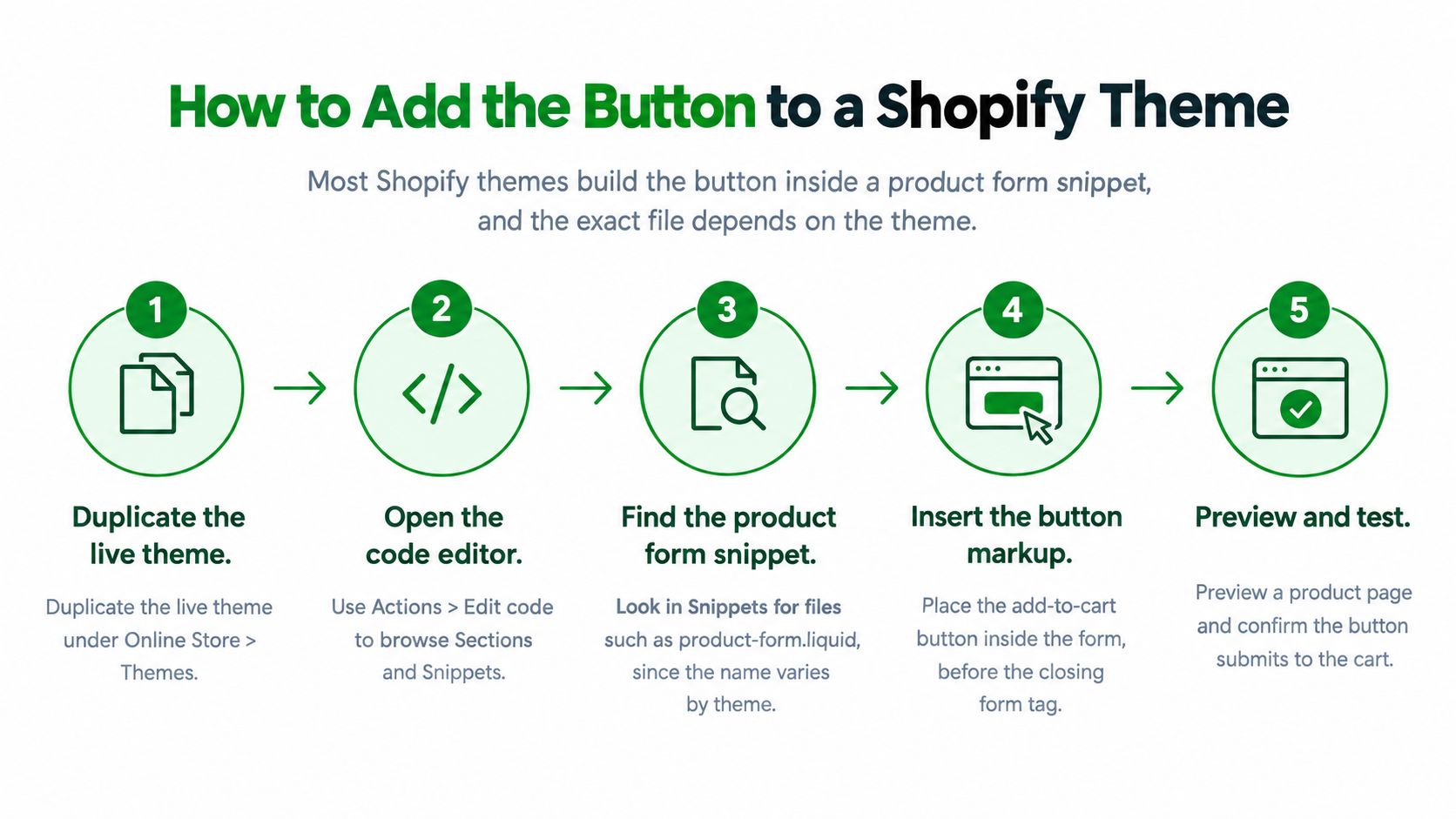
Work on a copy, then the form
- Duplicate the live theme under Online Store, Themes, Actions. The test copy never reaches shoppers.
- Open Actions, Edit code and find the product form. On Dawn-based themes the button usually lives in
snippets/buy-buttons.liquid, with the form wired from the product template. Older or custom themes often useproduct-form.liquidinstead. - Confirm the form posts to the cart with a hidden variant ID that updates when an option changes. If that ID stays on the first variant, no label tweak will hold.
- Set the label in theme settings or the snippet, and move new strings into the locale files so each language gets its own copy.
- Bind
disabledto variant availability so sold-out and unselected options can't submit. - Turn on accelerated checkout in Settings, Payments only after you've checked it on each product type, including subscriptions and bundles.
- Test a multi-option product, a sold-out variant, and a quantity field before you publish.
- Publish, then buy the same product on mobile and open the cart page.
If the theme is custom, ask for the snippet name. Guessing through every Liquid file is how a second, unused button gets left in a section you didn't mean to ship. A Shopify product page template review helps when the form is split across a section and a snippet and you're not sure which one renders.
The walkthrough below shows the same path in the theme editor, from the duplicate theme through a product preview.
After publish, add one unit, change the variant, add again, and confirm the cart lines match. A button that only works on the first variant is the usual miss.
Confirming the Add Worked for Every Shopper
Two failures show up again and again once you watch real sessions. Shoppers can't tell whether the click worked, and they can't tell which options were added. A store can have a visible, working add to cart button and still lose the purchase later, because cart access, shipping clarity, and checkout friction sit downstream of that click.
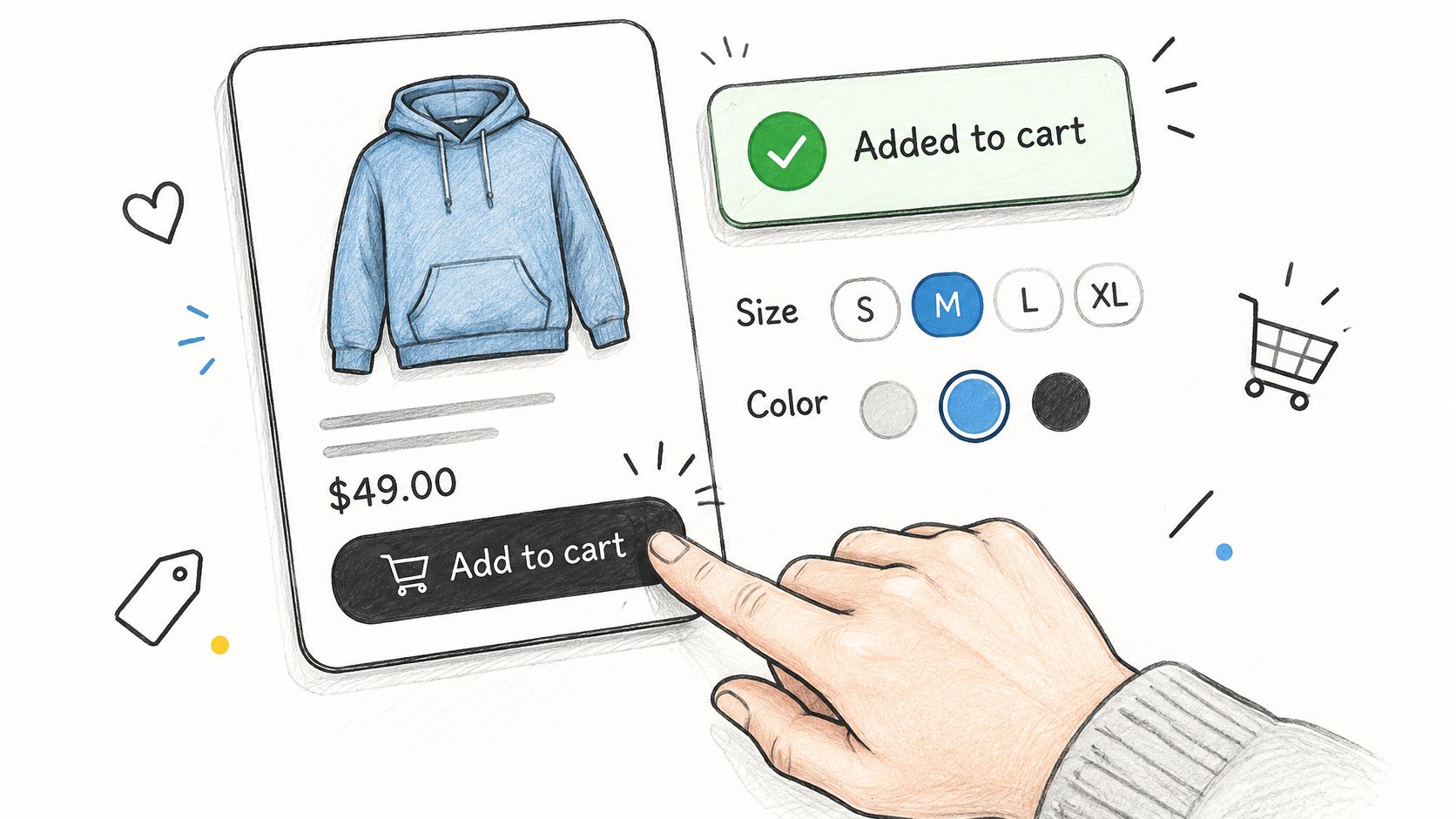
Run the checks in the order a shopper meets them.
- Confirm the selected variant, quantity, and price before the request goes out.
- Submit the action once.
- Show confirmation next to the button, not in a banner at the top of a long page.
- Update the cart icon or quantity badge in the same moment.
- Leave a way to keep shopping, and show View cart at the same time.
The pattern that holds up is a persistent overlay or mini-cart with the product title, options, and price, plus a badge update, plus a button state that says the item is already in the cart without blocking another quantity. Say a hoodie has forty color and size combinations. A shopper who sees nothing change will tap again, and the duplicate becomes a second line.
A cart-count animation far from the control is not confirmation. People miss updates that appear away from the click.
Test four cases before you call it done: a fast network, a throttled network, a double tap, and a variant change immediately after a successful add. On the slow case, Adding... must stay visible until the response returns. On the variant change, the "added" label has to clear so the new combination doesn't look like it's already in the bag.
Keyboard and Screen Reader Checks After the Click
The click is where the accessibility work begins. An AJAX add removes the page navigation that used to announce the result, so nothing tells a screen reader what happened unless you build that announcement yourself. A button can pass a contrast checker and still leave a shopper stranded after the press.
Shopify's product page accessibility guidance asks for three things on a cart drawer: focus moves into the drawer, the drawer has dialog semantics and a clear label, and focus returns to a sensible element when it closes. Plenty of live stores still fail that short list, and product pages and checkout flows are where the failures cluster.
| Moment | What must happen | How to test |
|---|---|---|
| Option selection | Each option is a labelled control reachable by Tab | Tab through the product with no mouse |
| Validation | The missing option is named and focus moves to it | Submit with no option chosen and listen to the announcement |
| Request starts | The busy or disabled state is exposed to assistive tech | Check the button is not announced twice |
| Success | Confirmation sits in a polite live region | Trigger an add with a screen reader running |
| Drawer opens | Focus moves inside and the dialog has a label | Open the drawer using Enter alone |
| Drawer closes | Focus returns to the add button | Press Escape and check where focus lands |
| Error | Error text is linked to the button and announced | Force a sold-out variant and listen to the result |
| Zoom | Layout and tap targets stay usable at 200% zoom | Set browser zoom to 200% and finish an add |
A short test order
Run keyboard only first, then one screen reader, then 200% zoom. The first pass catches most of it: a size swatch rendered as a plain div, a drawer that traps focus on its last element, a sticky mobile bar drawn over the field that just received focus.
Announce success softly and errors loudly. Confirmation text belongs in a polite live region so it does not cut off a reading mid-sentence. Errors should use an assertive announcement and stay tied to the button with aria-describedby or an equivalent, so the shopper hears which control failed, not just that something did.
Sticky bars need the same pass. A control that exists only as a pointer target still has to be reachable by Tab, named for the screen reader, and visible when the page is zoomed. If a keyboard shopper can reach the bar at 200% zoom and hear the item land in the cart, that state is done.
Testing Placement Changes Against Orders
More clicks are not more sales. In one published ecommerce A/B test, a sticky desktop add-to-cart area produced 8.6% more add-to-cart actions and 7.9% more completed orders, at a reported 99% significance. The test ran 14 days with about 2,000 conversions per variant, according to Growth Rock's sticky add-to-cart write-up. On mobile, a sticky control that opened the add area as a drawer raised clicks 11.8% and orders 5.2%. A version that only scrolled people to the original button raised orders by no statistically significant amount. Treat these as one store's results, not a benchmark for yours.
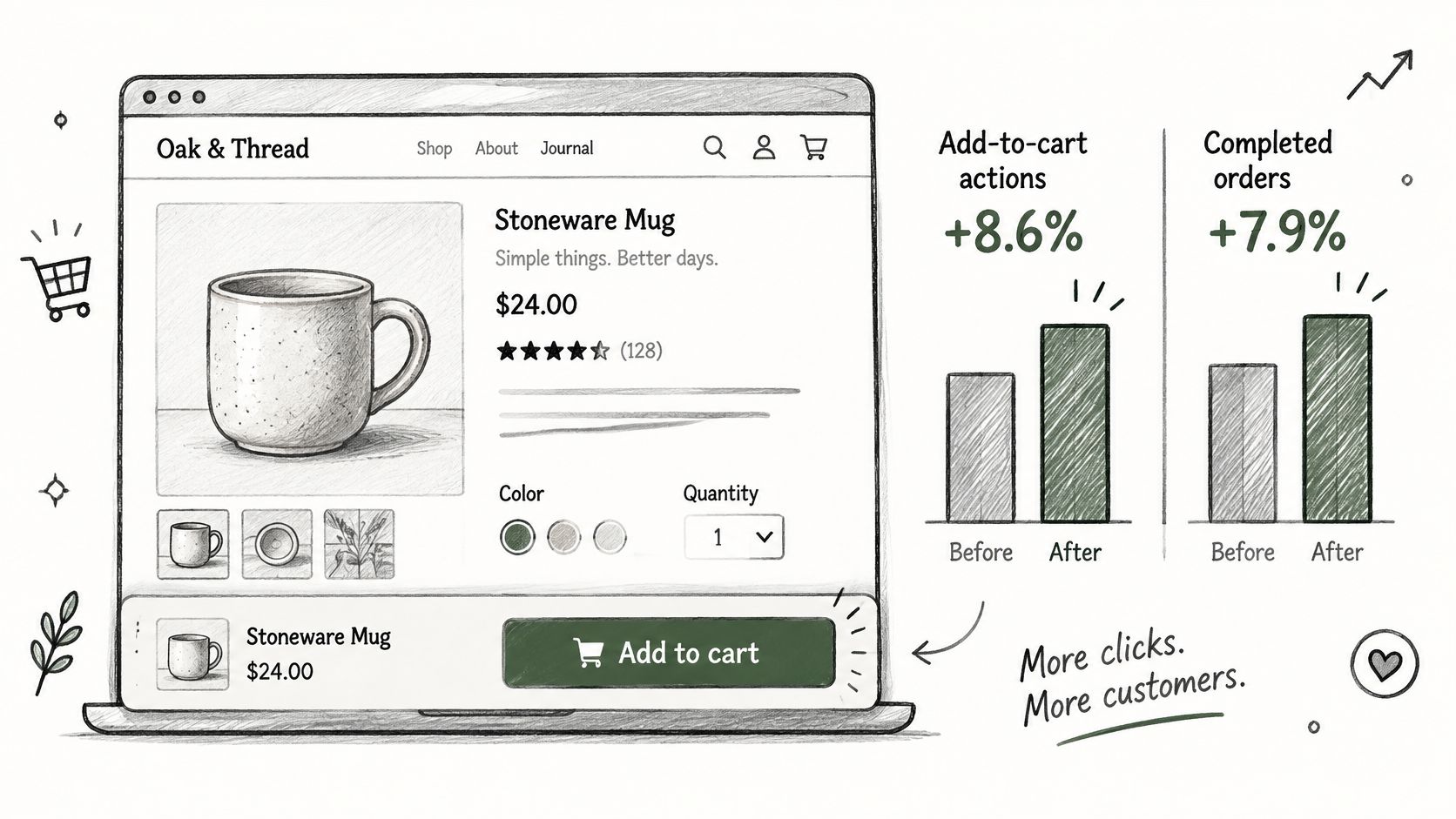
How to run the test so the lift is real
- Randomize visitors within device type. Don't mix a mobile win into a desktop readout.
- Hold price, promotion, traffic source, and assortment constant.
- Set sample size and duration before launch, then stop on that rule.
- Report confidence intervals, not the percentage lift alone.
- Check accessibility, viewport coverage, page speed, and revenue per visitor before rollout.
On the test page, look for a sticky bar sitting on the variant selector, a purchase that fires before options are chosen, a collision with the cookie banner, and events that fire twice. The last of those inflates add counts and hides a drop in completed checkouts. A rise in adds with flat orders means the change fed the cart and not the register.
Pair the test with the on-page work in a Shopify product page SEO pass so title and content stay stable while the button moves. For a wider read on what to hold constant, conversion advice for growing DTC brands is a practical companion to this kind of test design.
Choosing the Metric That Keeps a Change Live
Log the scorecard before the change goes live, split by mobile and desktop: add-to-cart completion rate, erroneous-variant rate, duplicate-submission rate, cart views, checkout starts, and purchases per visitor. Nielsen Norman Group's cart feedback guidance is clear that clicks alone don't describe the loop. You also want confirmation visibility from usability sessions, because a shopper who never noticed the success state will often tap again.
Set the events first so every metric shares one window. Comparing a launch week with a quiet week will invent a winner. Check that each action fires once. Duplicated events inflate adds and hide the drop later in the funnel.
Before you read results, compare product prices, variants, and availability in your Shopify data with the live storefront. Our audit reads the store's Shopify data first, then crawls the live storefront, which is the same order you want here so a stale variant doesn't masquerade as a UX win.
Read the window you declared, with confidence intervals, not a single day's spike.
Keep the change only if purchases per visitor rise and checkout completion holds on both devices across the full test window.
If add-to-cart clicks rise while orders stay flat, the change added friction. Roll it back. A button state, a sticky bar, or a drawer is only worth keeping when the order follows the click.
RankEngine audits Shopify product pages and the technical signals around them, then writes supported fixes through the Admin API and re-reads the live store before a change is marked done. If your add to cart button, template, or product data is drifting from what shoppers and search engines see, start with a store audit in RankEngine.