 RankEngine
Images were the Largest Contentful Paint element on 85.3% of desktop pages and 76.0% of mobile pages in HTTP Archive's 2025 performance measurements. For a store owner, that reframes image sizing: the product photo or hero banner often determines when shoppers see the page's main content, not just how attractive it looks.
If you're searching for images for web size recommendations, start with the space the image occupies on the page. The right dimensions come from the rendered slot and the candidates available to the browser, not a universal upload width. A correctly sized JPEG can be a better delivery choice than an oversized AVIF.
Table of Contents
- Recommended Image Dimensions for Every Web Layout
- Why Image Size Decides Your Page Weight
- Choosing Between JPEG, PNG, WebP and AVIF
- How to Compress Images Without Visible Loss
- Serving Several Sizes With srcset and sizes
- Lazy Loading, Alt Text and the LCP Image
- Audit Your Store Image Sizes Before You Publish
Recommended Image Dimensions for Every Web Layout
| Placement | Rendered CSS width | Aspect ratio |
|---|---|---|
| Product grid card | Measure the card inside its grid container | 1:1 or 4:5 |
| Product detail main image | Measure the main gallery pane, excluding thumbnails | 1:1 |
| Full-width desktop hero | Measure the banner at the widest supported desktop layout | 16:9 |
| Mobile hero | Measure the mobile content area after page padding | 4:5 art-directed crop |
| Blog featured image | Measure the article's image container | 16:9 |
Treat these as layout templates, not mandatory upload specifications. Aspect ratio describes the frame's shape; rendered CSS width describes how much horizontal space it occupies. Candidate width describes the actual pixel width of a downloadable file.
For hypothetical starting points, say your product cards reach 400 pixels wide. Offer 400-pixel and 800-pixel candidates for standard and high-density displays. A blog image displayed at 800 pixels could similarly use 800-pixel and 1600-pixel candidates.
Calculate from the slot, not the original
Open Chrome DevTools, inspect the image, and read its rendered dimensions. Resize the browser through your theme's layouts, because the widest image slot isn't necessarily on the widest screen. A gallery can occupy more space when the layout stacks than when it sits beside product information.
For an unlisted placement, use this working calculation:
- Find the maximum slot width. Measure the image's actual content box, not the whole browser window.
- Create a standard candidate. Export near that measured width.
- Add a high-density candidate. As a practical starting point, double the measured width, then check whether the additional detail is visible.
Say a product gallery reaches 700 pixels in a hypothetical layout. A 1400-pixel candidate provides a sensible high-density ceiling for that display role. A separate zoom viewer may need another resource, but that doesn't justify sending the zoom image to every thumbnail.
Practical rule: Keep a large source master for editing. Deliver smaller derivatives for the places shoppers actually view.
Make deliberate exceptions
A wide desktop hero deserves a separate mobile composition when shrinking it would make the product too small. Art direction means changing the crop to preserve the subject, not merely reducing the same file.
Likewise, a percentage width resolves against the containing element. A banner reused inside a narrow recommendation card shouldn't inherit the banner's delivery dimensions. For print-on-demand catalogs, Skup's guide to product photo sizing for POD stores provides useful Shopify-specific context for planning those placements.
Don't confuse a large upload with a typical web image. The median web image measured 0.058 megapixels in 2024, approximately 25% larger than the previous measurement, according to HTTP Archive's media chapter. That isn't a sizing target, but it's a useful reminder that many on-page assets are much smaller than their source photographs.
Why Image Size Decides Your Page Weight
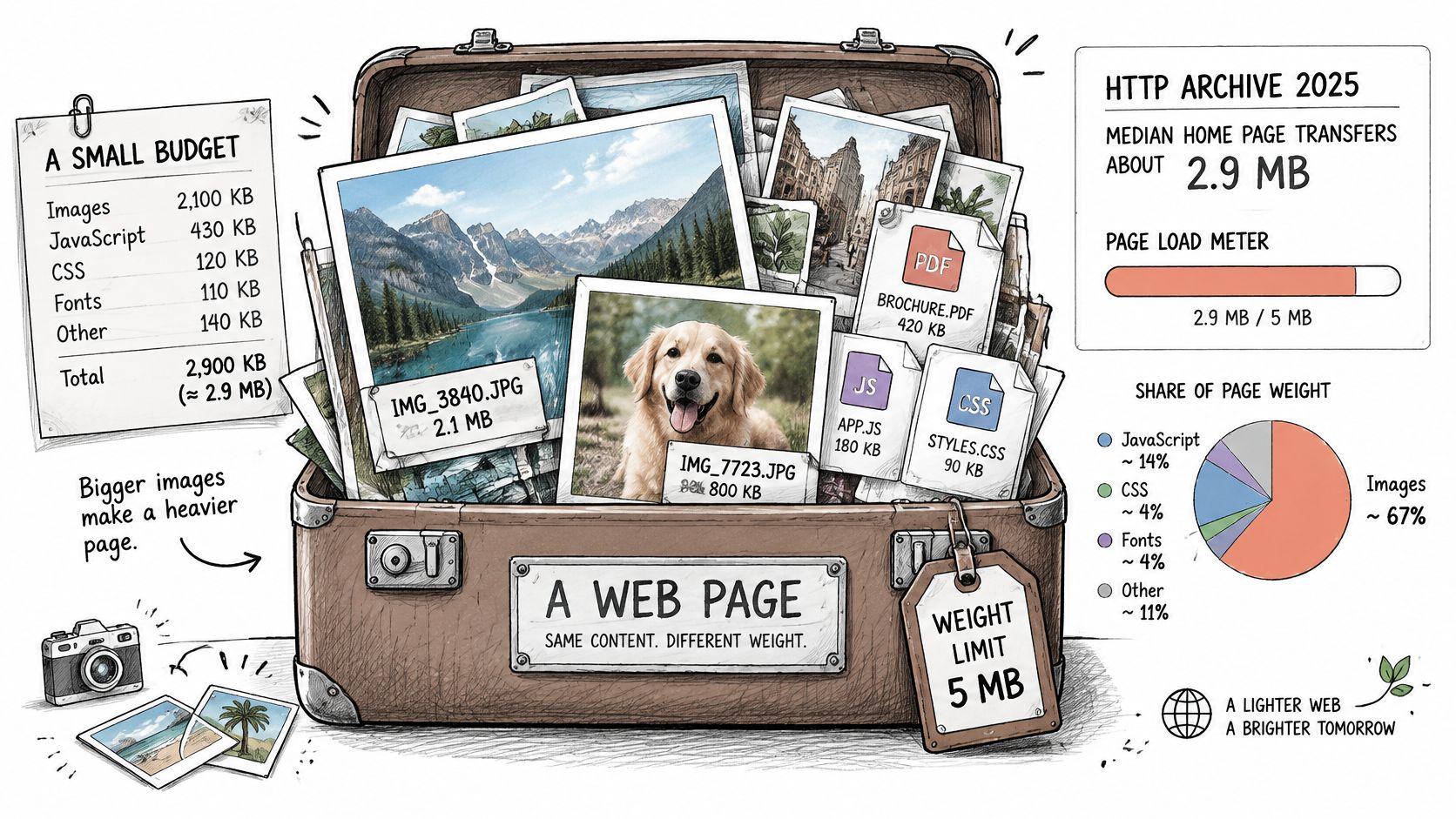
Say you publish a hypothetical collection grid containing forty cards, each downloading a two-megabyte original. Those product images alone would transfer roughly eighty megabytes. Each photo might look perfectly reasonable in the media library, while the collection page becomes unnecessarily heavy.
Think of page weight as a packing budget. Your images share the available download capacity with scripts, styles, fonts, and other resources. There's no universal hard limit, but shoppers still have finite bandwidth and patience.
This illustration shows how those resources share the load.
Measure the page, not just the photograph
In 2025, the median home page transferred about 2.9 MB on desktop and 2.6 MB on mobile, while images accounted for approximately 1.06 MB and 911 KB, respectively, according to HTTP Archive's page-weight chapter. These are general web measurements, not Shopify-specific limits.
Ecommerce pages also carry substantial image inventories: HTTP Archive's 2020 ecommerce chapter reported median counts of 34 images on mobile and 37 on desktop, with median image transfer of 1,208 KB and 1,271 KB, respectively. Use those historical measurements as context, not a pass-or-fail standard for a current store.
A collection page and a minimalist landing page shouldn't receive identical budgets. The useful question is whether each downloaded resource contributes something the shopper needs at that moment.
- Reduce bytes per image. Remove unnecessary pixels, select an appropriate format, and compress with a visual check.
- Reduce simultaneous image loading. Avoid downloading hidden gallery slides, distant recommendations, and off-screen assets before they're needed.
These decisions belong within a broader Shopify speed optimization workflow, because an efficient image library won't compensate for every theme or app problem. Still, image payload gives merchants a concrete place to start: inspect what the browser downloads, then remove work that doesn't improve the visible page.
Choosing Between JPEG, PNG, WebP and AVIF
| Format | Best use | Transparency | Main trade-off |
|---|---|---|---|
| JPEG | Photographs and product shots | No | Often larger than WebP at similar visual quality |
| PNG | Flat graphics and logos with transparency | Yes | Large files for photographs |
| WebP | Most product and blog photos | Yes | Older tools may need a fallback |
| AVIF | Highly compressed, high-quality photos | Yes | Slower to encode and less widely used |
| SVG | Logos and icons | Yes | Unsuitable for photographs |
A format is a tool for a job, not a substitute for correct dimensions. An AVIF export can still contain far more pixels than a card needs. Compare the actual bytes and visible detail rather than assuming the newest extension wins.
Choose JPEG when you need a dependable photographic fallback or your publishing workflow doesn't reliably preserve newer formats. It remains useful for continuous-tone images, especially when exported at the correct dimensions.
Choose PNG when a flat graphic needs transparency and raster delivery makes sense. Don't use it automatically for product photography just because your editing software offers it as a default.
Pick the smallest acceptable result
WebP is a sensible starting point for most product and blog photos. Test it against the source, especially around labels, fabric texture, and fine edges.
AVIF can produce very small photographic files, but it isn't guaranteed to win every comparison. Encoding takes more work, and aggressive settings can damage details shoppers use to assess a product.
SVG suits logos and icons because vector shapes can scale cleanly. Use a trusted, sanitized asset rather than treating arbitrary uploaded SVG files as interchangeable with ordinary photographs.
Choose the export that preserves useful detail at the lowest practical transfer cost, not the format with the most impressive reputation.
Keep delivery compatible
For a responsive <picture> implementation, list modern-format sources and retain a JPEG fallback in the img element. A browser that can't use a listed source can then display the fallback rather than leaving the image unavailable.
If Shopify's delivery layer negotiates formats automatically, inspect what it returns before adding another conversion system. Test the storefront rather than relying on the extension displayed in the media library.
Check transparent edges against your real background color, not just a checkerboard preview. Compare gradients, shadows, and product lettering on the devices customers use. A marginal byte reduction isn't worthwhile if a leather texture becomes muddy or packaging text becomes difficult to read.
How to Compress Images Without Visible Loss
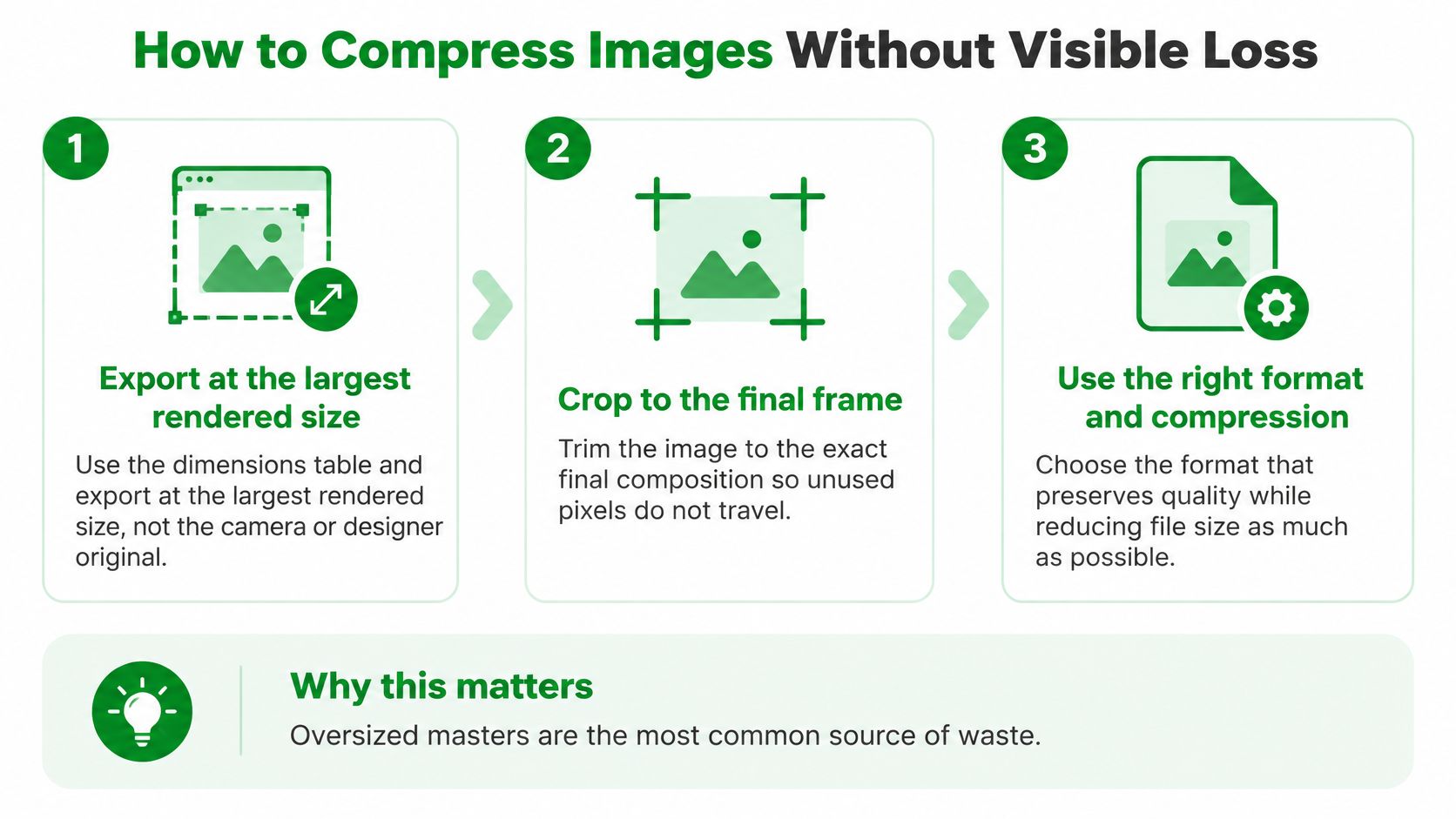
Compression works best after you remove pixels the page doesn't need. Starting with an oversized master and lowering quality can leave you with a softer image that still costs too much to download.
Use this sequence to prepare the asset before judging its final file size.
Prepare, export, and inspect
Resize for the largest delivery role. Export enough pixels for the intended display and density allowance, rather than retaining the camera's dimensions. The common slip is confusing the archival master with the file the browser should receive.
Crop to the final frame before encoding. Unused background still contributes pixels when you leave cropping entirely to CSS, so make a dedicated crop when the composition is stable.
Test the appropriate formats. Use Squoosh or your image editor to compare WebP, AVIF, and JPEG at equivalent dimensions. Don't assume the same quality-slider value produces equivalent results across encoders.
Inspect the result at 100% zoom, then at its intended display size. Gradients, skin tones, fine text, and sharp product boundaries reveal artifacts quickly; checking only a tiny preview can hide damage.
Compare the exported bytes and useful detail. Keep reducing quality only while the image still represents the product accurately. If the savings are negligible, stop rather than introducing softness merely to reach a round-number target.
Remove unneeded metadata and use a descriptive filename. Preserve the original separately, and don't remove information your rights-management workflow requires.
For a closer look at the resizing operation itself, RevelRaw explains how to adjust image size for clear results. That distinction matters because resizing changes the pixel inventory, while compression changes how the remaining information is encoded.
Set a visual acceptance test
Use the same checks across your catalog: can shoppers read the product label, distinguish the material, and see the edge against the background? Have the person approving images compare exports on the actual storefront rather than in an editing window alone.
Quality check: Preserve the details customers use to make a buying decision. Remove detail they can't see at the intended display size.
Avoid repeatedly opening and resaving a lossy export during editing. Make adjustments from the retained master, then generate a fresh derivative.
There's no universal kilobyte ceiling that suits both a tiny swatch and a detailed hero. In a hypothetical case where a 320-pixel card downloads a two-megabyte file, investigate dimensions and candidate selection before squeezing the quality slider further.
Serving Several Sizes With srcset and sizes
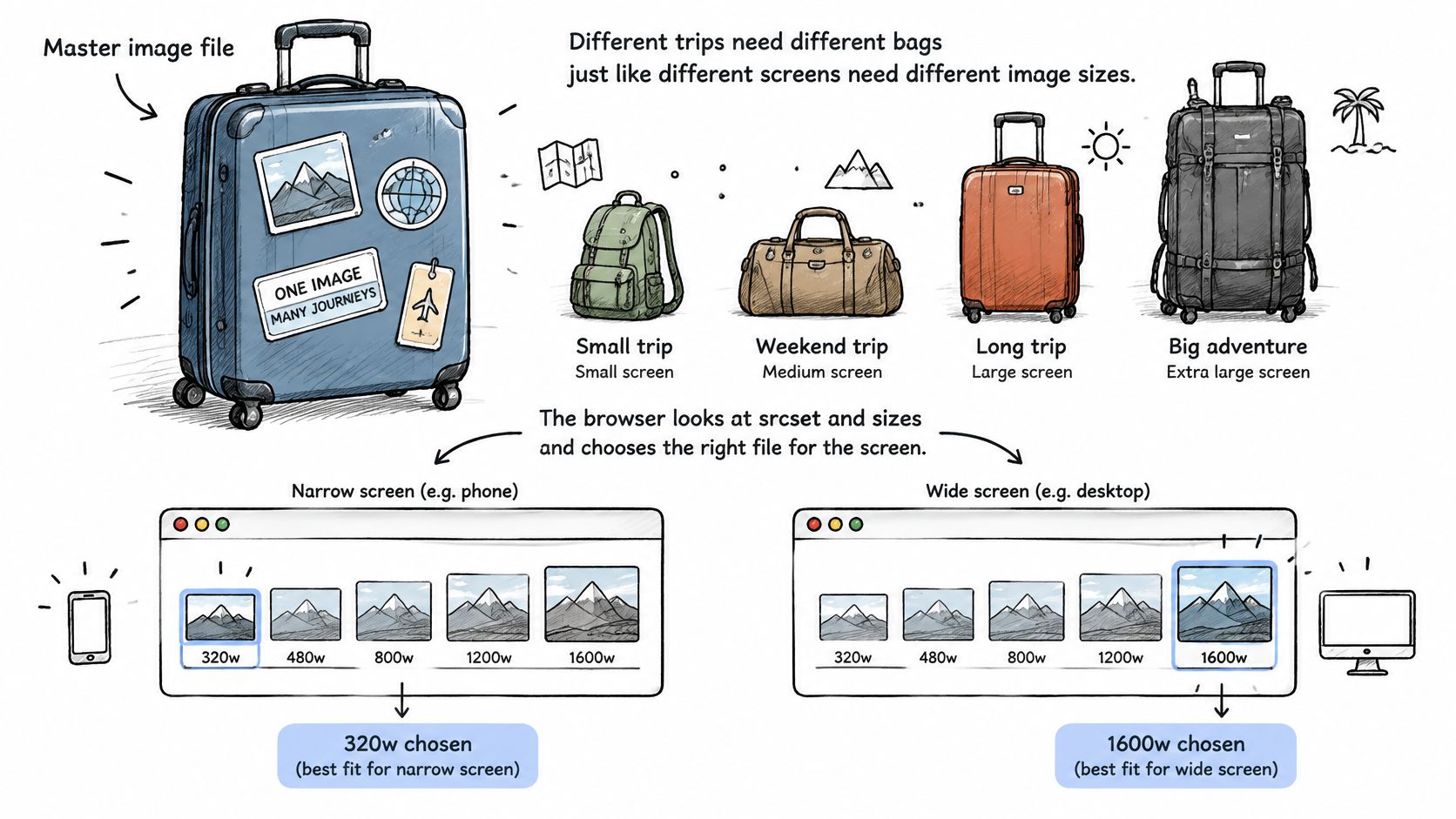
Sending one master file everywhere is like carrying a full suitcase for every trip. srcset gives the browser a choice of bags, while sizes describes how much space the image will occupy.
The browser needs both the available resources and an accurate description of the layout. This illustration separates those responsibilities.
Describe the files and the slot separately
A width-based srcset lists candidate URLs with descriptors matching their actual intrinsic widths. The sizes attribute tells the browser the expected CSS slot width at relevant layout conditions; it doesn't resize the image on the page.
The browser can then consider viewport width, pixel density, zoom, orientation, and network conditions when selecting a resource. In MDN's responsive-image example, an 800-pixel image at 128 KB becomes a 480-pixel version at 63 KB, saving 65 KB for that asset.
For a hypothetical Shopify grid, say a card occupies half the available phone layout and becomes a fixed 300 pixels on desktop. Describe that behavior in sizes: on phones, half the viewport minus the relevant padding and gutter allowance; on desktop, the fixed card width.
Don't blindly write 50vw if your theme has substantial outer padding. The browser needs the image's slot, not an approximation that ignores the container.
Match the theme's real layouts
Generate candidates around the roles your theme uses: small thumbnails, multi-column cards, and larger stacked layouts. In Shopify theme code, request those variants through the image-delivery filters rather than manually uploading a separate library entry for every candidate.
Use this video alongside the markup when reviewing responsive delivery.
A misleading sizes value can make the browser choose an unnecessarily large file even when a smaller candidate exists. Conversely, underselling the slot can produce a visibly soft result.
Verify the result in DevTools with a fresh load at each layout, because browsers may retain a larger resource already downloaded during testing. Inspect the selected image URL or the image element's currentSrc, not just the candidate list in the HTML.
- Candidate coverage: Confirm that each important display role has an appropriate resource available.
- Slot accuracy: Compare
sizesagainst computed CSS dimensions, including gutters, padding, and container limits.
A correct candidate list is only half the implementation. The browser's choice is only as useful as the layout information you give it.
Lazy Loading, Alt Text and the LCP Image
| Image role | Loading | Fetch priority | Alt text |
|---|---|---|---|
| LCP hero or main product image | Eager | High | Descriptive |
| Product grid below the fold | Lazy | Auto | Descriptive |
| Decorative divider or texture | Lazy when below the fold | Auto | Empty |
| Header logo | Eager | Auto | Brand name |
Don't lazy-load the main image shoppers need immediately. The LCP hero or principal product photo should be discoverable in a normal img element, load eagerly, and receive high fetch priority when it's the likely LCP resource.
Reserve high priority for that main visual rather than assigning it to every image. When everything is marked urgent, you've stopped expressing a useful preference.
Reserve the image's space
In 2024, 66% of mobile pages contained at least one image without explicit dimensions, according to HTTP Archive's performance chapter. Missing dimensions can allow surrounding content to move when the image arrives.
Include HTML width and height attributes that express the image's intrinsic aspect ratio. Your CSS can still make the image responsive, while the browser uses that ratio to reserve space before download.
For art-directed crops, ensure the reserved frame matches the active composition. Reserving a wide shape and replacing it with a portrait image can still produce unwanted movement.
Describe purpose, not keywords
Alt text should communicate what matters about the image in its context. For a product photo, identify the relevant product and visible characteristics rather than repeating a search phrase or listing every possible attribute.
A purely decorative texture should have empty alt text, written as alt="", so a screen reader can skip it. Don't omit the attribute and assume that means the same thing.
Use these decisions consistently:
- Main visual: Load eagerly when it appears on the first screen and communicates the page's primary content.
- Distant grid image: Lazy-load when it sits below the fold and isn't needed immediately.
- Decorative asset: Keep its alternative text empty unless it conveys information the visitor needs.
For product-specific wording decisions, use this guide to product image alt text for SEO. The objective is useful description, not keyword density.
Lazy loading saves transfer for shoppers who never scroll far enough to see an image. The trade-off is timing: defer something needed early, and it can appear late despite having a small file size.
Audit Your Store Image Sizes Before You Publish
A useful image audit connects the downloaded resource to the place it appears. A media-library list can reveal large files, but it can't tell you whether the storefront selected the right version.
Start with a representative product, collection, article, and landing page. Test the live storefront, including the layouts and image interactions shoppers use in practice.
Check the resource, the slot, and the role
- Measure transfer size. In Chrome DevTools' Network panel, filter for images and inspect the largest downloads. Record the template and placement responsible, not just the filename.
- Compare intrinsic and rendered dimensions. Flag resources that exceed the intended density allowance, then check whether the problem is the candidate list,
sizes, or an inappropriate source asset. - Review format and semantics. Confirm the delivered format, loading behavior, dimensions, and alt text against the image's job.
This guide to large-sized images can help you turn an oversized-file warning into a specific investigation. Don't replace a file until you know whether the same source also supports a legitimate zoom or larger placement.
Track cumulative image transfer by template as well. A page can contain individually modest assets and still download too many of them.
Scale the review across the catalog
Manual inspection explains the cause; a catalog-wide audit helps locate related problems. Use the automated results to prioritize work, then verify the affected templates in the browser after making changes.
RankEngine is one option for that workflow. Our audit checks products, collections, pages, articles, and images against 14 on-page rules; both plans include image compression with WebP conversion and AI alt text that reads the image.
The storefront still needs a visual review after image changes.
Choose your highest-traffic templates, run the audit, and fix the largest unnecessary downloads first. Then reload each affected layout and check that the main product image remains sharp, correctly framed, and available without delay.
RankEngine offers image compression with WebP conversion, image-aware AI alt text, and a catalog-wide SEO audit to help you find image issues beyond a single page. Visit RankEngine to audit your store, prioritize oversized assets, and build a repeatable image-publishing workflow.