 RankEngine
Images accounted for more bytes than any other resource category in the 2025 HTTP Archive Web Almanac, whose median page weights reached approximately 2.86 MB on desktop and 2.56 MB on mobile, according to the page-weight analysis. A blog picture isn't just decoration. It's part of what readers must download before they can use your page.
When looking for pictures of blogs, start with the decisions behind the picture rather than the download button. Every image needs a suitable file, permission to publish it, and an accessible meaning. Think of a shop window: the display should fit the space, belong there legitimately, and communicate something useful.
Table of Contents
- Image Sizes and Formats for Blog Posts
- Where to Find Blog Pictures and Which Licences Allow Reuse
- Choosing Pictures That Match Each Part of the Post
- Writing Alt Text by Picture Role
- How to Compress and Load Blog Pictures Without Losing Quality
- Upload, Log and Check Each Picture Before Publishing
Image Sizes and Formats for Blog Posts
Blog images make page-speed, readability, and accessibility decisions visible at once. For each picture, decide how much space it should take on the page, whether its format suits its contents, and what information a screen-reader user needs. The right export is like a well-sized shop-window display: clear in its allotted space without taking more room than necessary.
88% of bloggers reported including images in their articles, according to Copylume's summary of Orbit Media's blogger survey. Use that figure as context, not as a reason to adopt one export specification. Your theme's display area and the image's purpose should guide the choice.
Blog picture sizes, formats and qualitative file-size guidance
| Picture use | Pixel width | Preferred format | File-size guidance |
|---|---|---|---|
| Featured image (hero) | Match the theme's hero slot and crop | WebP or JPEG | Export the smallest file that stays clear at its display size |
| In-body photo, full column | Match the article column, with responsive variants | WebP with JPEG fallback | Compress while retaining important photographic detail |
| In-body photo, half column | Match the narrower content slot | WebP or JPEG | Usually lighter than a full-column version |
| Screenshot or text-heavy graphic | Keep interface text readable at its displayed width | PNG or lossless WebP | Preserve lettering and sharp edges |
| Chart or infographic | Fit the column without making labels unreadable | PNG or SVG | Keep labels clear and remove unnecessary detail |
| Decorative divider or icon | Match its small rendered slot | SVG or PNG | Keep the file minimal, or omit the image |
These are working specifications, not universal pixel limits, and the file-size guidance is qualitative rather than a fixed target. A theme determines the available space; image detail determines how much compression it can withstand. A strict file-size ceiling can make chart labels unreadable, while an oversized export makes readers download detail they may never see.
Match the file to its job
Choose the hero crop before exporting, since it establishes the subject within a fixed space. A full-column photo needs enough detail for that width. A half-column image usually can use a smaller export instead of inheriting the full-size version.
Screenshots have different needs. Their letters should remain readable at the displayed width, while charts need legible labels and icons usually need very little data. Each choice affects page weight as well as what a screen reader can communicate: an informative chart may need an equivalent text description, while a purely decorative divider may not need one. The image's role should guide that description.
Practical rule: Find the slot the picture occupies before deciding how large the file should be.
Check the theme's actual rendered size instead of uploading a camera original unchanged. If a small icon looks soft on a high-density screen, test a sharper variant rather than enlarging every image. Keep an original master for future crops, and record the asset's source and purpose so its usage rights and meaning remain clear. A guide to choosing web images can help with image selection; use your live theme to confirm sizing.
Where to Find Blog Pictures and Which Licences Allow Reuse
Begin your search with your own photographs, licensed stock libraries, and collections labelled public domain or CC0. Treat these as starting points for checking permission, not automatic guarantees. A free download button doesn't tell you whether the image belongs in a product-led article.
Your own photograph is often the most specific editorial choice: it can show your actual product, packaging, or process. Still, consider whether people, artwork, or other protected material within the photograph require additional review.
Licence types and what each allows on a blog
| Licence | Commercial use | Editing or cropping | Attribution needed | Watch-out |
|---|---|---|---|---|
| Public domain or CC0 | Generally permitted, subject to other rights | Generally permitted | Usually not a copyright condition | Verify the rights statement and source |
| CC BY | Permitted under its terms | Permitted under its terms | Creator and licence information | Preserve the required credit and notices |
| CC BY-SA | Permitted under its terms | Permitted with applicable conditions | Creator, licence, and applicable notices | Check share-alike requirements for adaptations |
| CC BY-NC | Don't assume permission for a monetised blog | Subject to the licence's conditions | Required | Seek another asset or permission for commercial use |
| Royalty-free stock licence | Within the purchased licence's scope | Usually, subject to restrictions | Check the agreement | Review resale, template, and other use restrictions |
| Editorial-only stock | Not a general commercial-use permission | Check permitted changes | Check the agreement | Don't assume product promotion is covered |
Keep permission with the picture
Use the table to identify what to investigate, then read the actual asset licence. As a conservative publishing policy, treat advertising, affiliate content, and product promotion as reasons to exclude noncommercial-only images unless you obtain permission.
A credit line should identify the creator, source, and applicable licence, with any required links or notices. A useful working format is “Photo: creator / collection, licence,” completed with the actual details rather than copied as a generic caption.
For AI-generated pictures, review the service's terms and relevant rights requirements before publishing. Don't assume that generating an image guarantees ownership, exclusivity, or freedom from other claims; seek advice where the intended use makes those questions important.
- Save the evidence: Record the source address, licence text or receipt, and download date.
- Check the intended change: Confirm that cropping, editing, and promotional placement fit the permission.
- Connect the records: Keep the permission record attached to the exported file's entry in your image log.
Choosing Pictures That Match Each Part of the Post
Approximately 50% of bloggers reported adding two to three images to a typical post in 2024, according to the summary of Orbit Media's survey published by ElectroIQ. That's a description of publishing habits, not a requirement to fill every article with the same number of pictures.
Start with a more useful question: Does this picture show something the paragraph describes? An article about feeding sourdough starter benefits from a photograph of the starter at its peak. A handsome loaf on a wooden table doesn't show readers when their starter is ready.
Separate atmosphere from explanation
A desk flatlay can establish the mood of an article about setting up a writing space. It doesn't explain how to configure a publishing tool or assess a product.
Consider this image as an example of atmosphere rather than instruction.
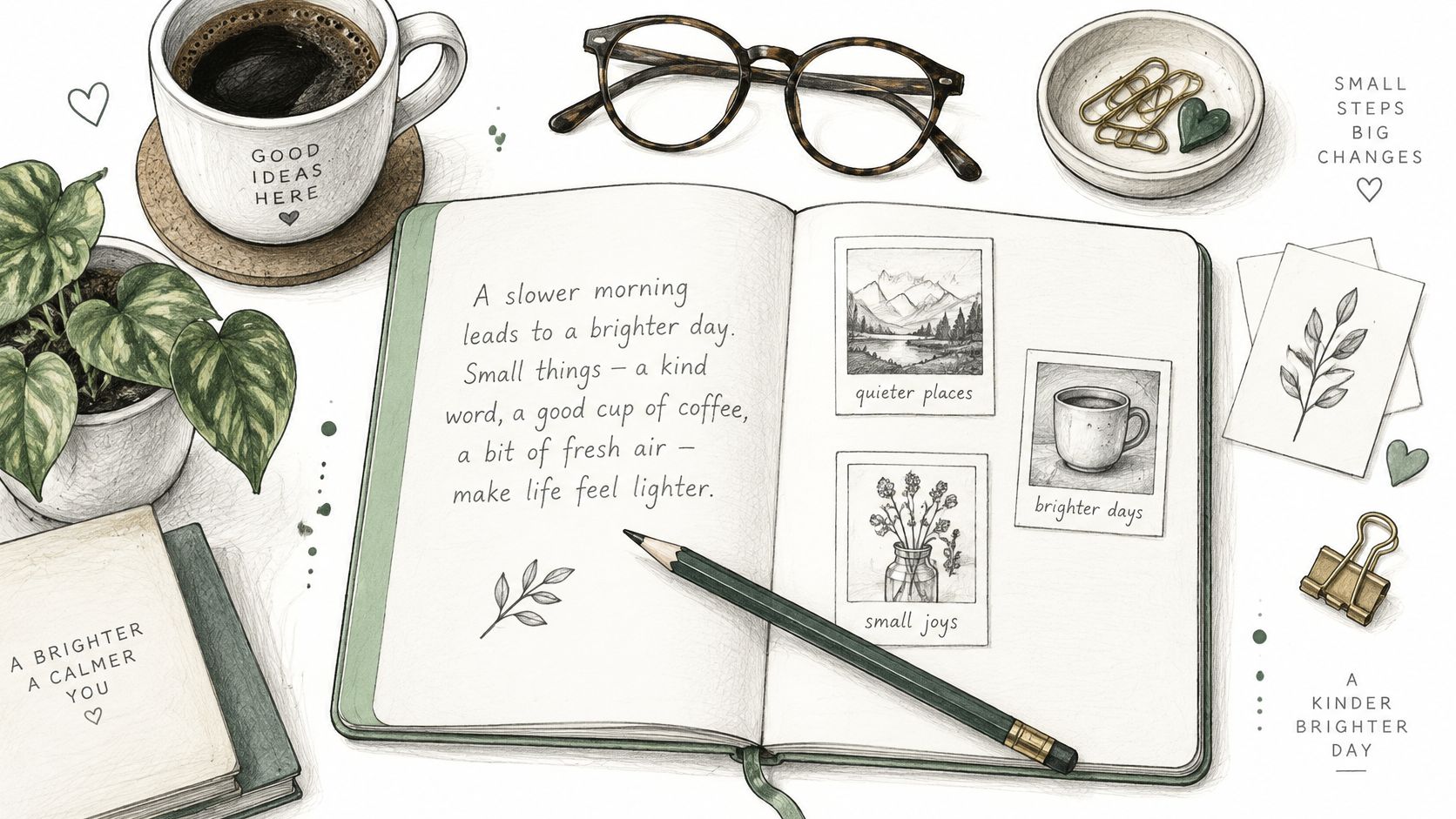
The distinction changes your selection decision and, later, your accessibility decision. If the surrounding text discusses arranging a notebook and reference materials, the photograph may contribute information. If it merely fills space between unrelated paragraphs, reconsider whether readers need to download it.
Watch for these common mismatches:
- Generic symbolism: Handshakes and laptops can suggest a topic without teaching anything about it.
- Overtight crops: Removing surrounding context can make the subject difficult to recognise.
- Panoramic banners: A crop that looks balanced on desktop may lose the important subject on mobile.
Place evidence beside the claim
Google recommends descriptive image context and explains that nearby text and alt text help establish an image's subject. Its image SEO guidance also recommends standard HTML image markup that exposes the asset through the src attribute.
For a practical walkthrough, choose a featured photograph that identifies the task, a screenshot beside the relevant instruction, and a comparison graphic alongside the results discussion. These are proposed editorial choices, not a formula for every post.
Remove the picture temporarily. If the explanation becomes harder to follow, you've identified what the image needs to communicate.
If nothing changes, the picture may still serve an intentional atmospheric purpose. Just don't mistake that purpose for evidence or instruction.
Writing Alt Text by Picture Role
Decorative and informative pictures need different treatment. A decorative separator can have an empty alternative, while an instructional photograph needs text that preserves its useful meaning.
The W3C defines a text equivalent around conveying the same information or function in its accessibility guidance for non-text content. That's the central editorial test: alt text isn't a keyword field, and it isn't an inventory of every visible object.
Alt text approach by picture role
| Picture role | Alt text to write | Example | Where the detail goes |
|---|---|---|---|
| Decorative divider | Empty alt attribute | alt="" |
Nowhere, if it adds no information |
| Editorial photo | Brief subject description tied to the paragraph | Sourdough starter at peak, domed and bubbling | Body paragraph |
| Product photo | Product name, colour, and a relevant visible feature | Natural oak cutting board with a recessed juice groove | Product description |
| Screenshot | Interface name and the result shown | Store settings page with image compression enabled | Instruction text |
| Chart or infographic | Main takeaway in a sentence | Comparison of image weights across resource types | Visible data table or long description |
| Text inside image | Meaningful wording, with an equivalent in the article | Allow the starter to rise before using | The same instruction in the body |
Describe the purpose, not every pixel
Think of alt text as a museum label. It should help someone understand why the exhibit is there, not catalogue the frame, wall, lighting, and every brushstroke.
For a product photograph in a comparison article, the relevant detail might be the handle shape. In a colour-selection guide, the finish matters more. The same photograph can therefore need different wording in different contexts.
For charts and infographics, a short description cannot carry every relationship or value. The University of Florida's accessible-image decision guidance distinguishes brief alternatives for simple images from longer explanations for complex visuals.
- Lead with useful content: Usually omit “image of” and begin with the subject or result.
- Avoid duplicated narration: Don't copy a nearby caption automatically; decide what information the alternative must preserve.
- Keep complex information visible: Provide the chart's data or explanation in readable article content rather than squeezing it into an overlong attribute.
A filename such as starter-upload.jpg says little about an image's meaning. Sourdough starter at peak, domed above the jar's fill mark gives the reader information connected to the lesson.
The alt-text and image SEO guide can help standardise editorial review. Keep the final judgment contextual: a technically populated field can still contain an unhelpful description.
How to Compress and Load Blog Pictures Without Losing Quality
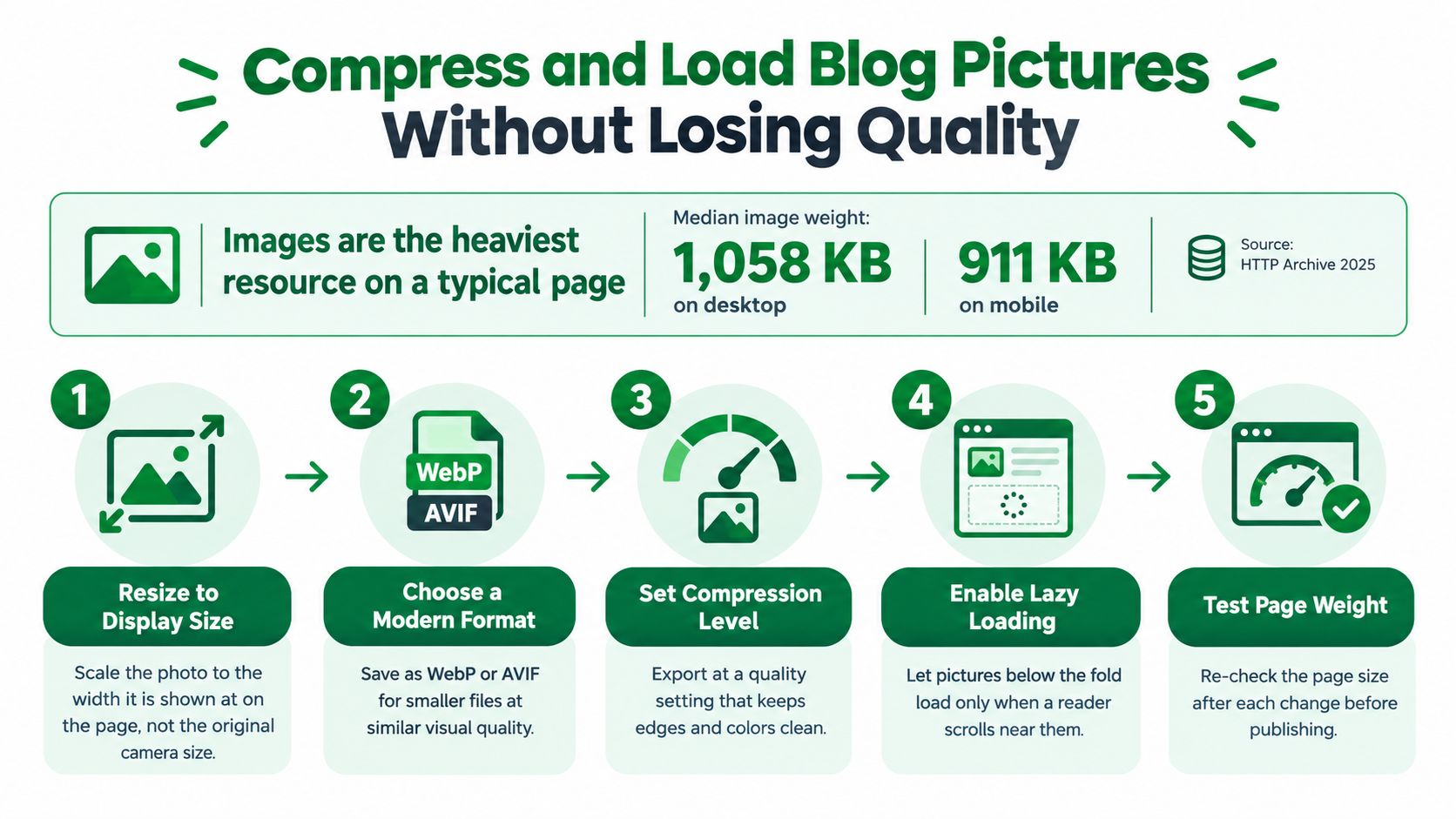
A smaller export is only part of performance work. Responsive delivery, reserved space, and appropriate loading priority determine how the browser handles the pictures you've chosen, as explained in the Web Almanac's performance guidance.
Use the following visual as a workflow reminder, then verify the additional sizing and priority details in the live page.
Follow the export and delivery sequence
Resize for the actual slot. Export for the layout you measured and provide responsive variants where your template supports them. The common slip is reducing the displayed width while still delivering the oversized original.
Choose a suitable format. Test WebP or AVIF for photographs, with an appropriate fallback where needed. Don't convert every asset blindly: a screenshot must retain readable interface text, and a diagram may suit SVG.
Compress and inspect. Compare the export with the master at its intended reading size and inspect fine details more closely. Watch lettering, gradients, edges, and product textures. A smaller file isn't an improvement if readers can no longer see what you're teaching.
Reserve the space. Declare width and height or an appropriate CSS
aspect-ratioso the browser can allocate room before the asset arrives. Don't assume that a correctly proportioned editor preview proves the published markup includes this information.Defer below-the-fold pictures. Lazy-load images readers won't encounter immediately. Avoid applying the same treatment indiscriminately to the prominent image that readers need as the page opens.
Prioritise the genuine lead asset. Consider
fetchpriority="high"or preload only when the image is genuinely the Largest Contentful Paint element. Marking every picture high priority creates competition rather than a useful order.
For a companion video, use the embedded player below.
Verify what readers actually receive
Open the published page on narrow and wide screens, then inspect its rendered markup and image requests. Confirm that the delivered format, dimensions, and loading behaviour match your intended setup.
Completion test: An editor setting is an instruction. The live page is the result you need to check.
Use the website image optimisation workflow to organise further investigation. Keep the permission record and accessible description attached when replacing an export, so a performance fix doesn't accidentally discard another part of the image decision.
Upload, Log and Check Each Picture Before Publishing
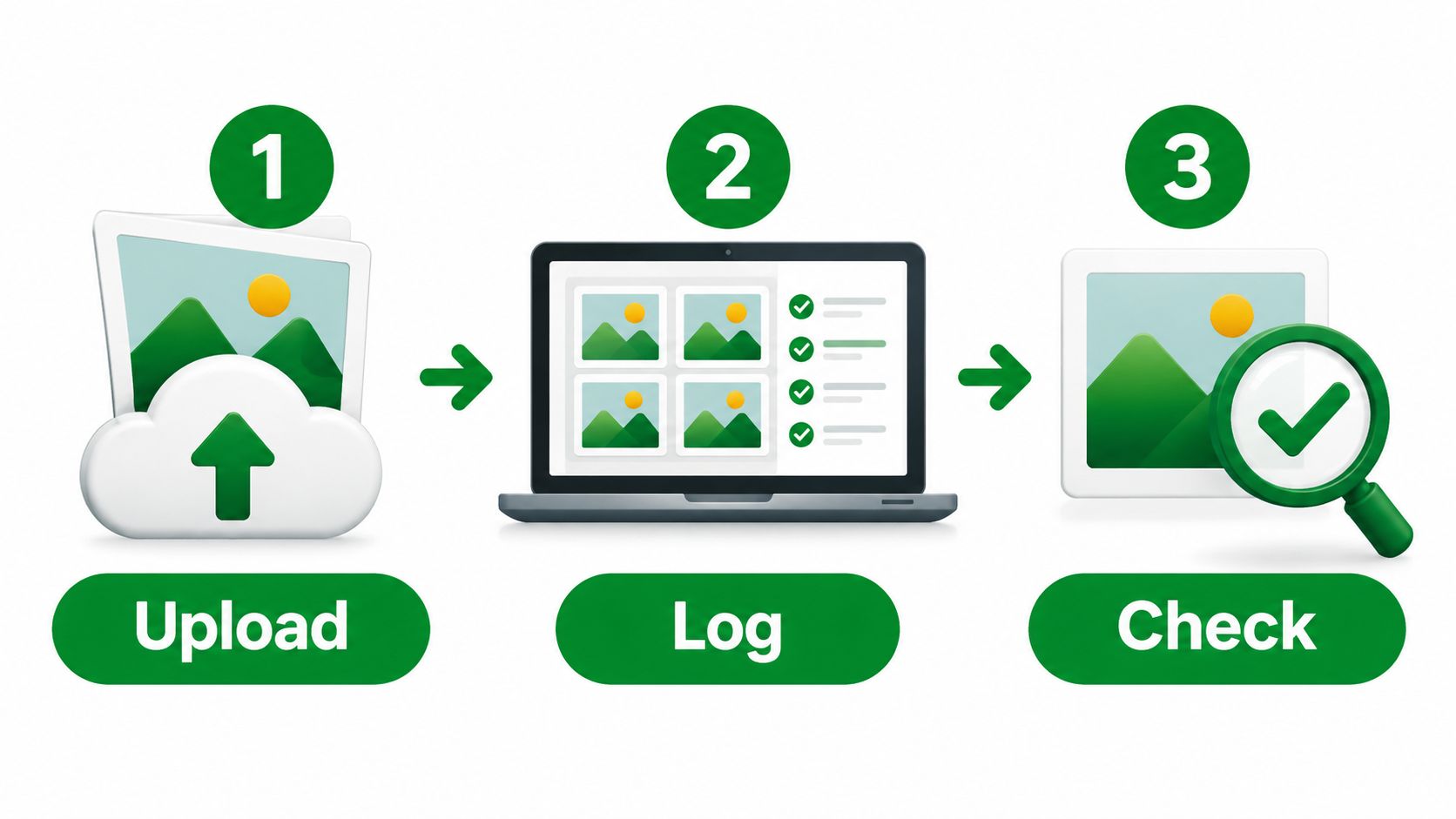
Give each export a descriptive filename such as sourdough-starter-peak.webp, then upload it through your publishing workflow, whether that's the WordPress Media Library or Shopify Files. Enter the contextual alternative you prepared and put the required rights information in the visible credit location your template supports.
Keep an image log beside the article record. Record the source address, licence or permission, acquisition date, filename, intended slot, and any required credit wording.
Use this process graphic as a reminder to retain the evidence behind each upload.
Review a sample article as a complete set
For a hypothetical sourdough guide, choose a hero photograph showing the finished task, a process screenshot where a tool needs explanation, and a chart only if the comparison genuinely helps. Give each asset a separate log entry rather than assuming the hero's permission covers everything in the post.
The hero entry should connect its source and permission to its final crop. The screenshot entry should identify the interface and intended result. The chart entry should point to the underlying information and the visible explanation that preserves its meaning.
Then review the published article as a reader would:
- Inspect the presentation: Check mobile crops, readable labels, and whether each picture sits beside the relevant explanation.
- Inspect the delivery: Confirm that the template applies the intended sizing and loading treatment.
- Inspect the meaning: Read the alternatives alongside the surrounding prose and remove unnecessary repetition.
- Inspect the permission: Confirm that credits survived publication and that the intended use matches the recorded terms.
Automation can identify missing fields and technical inconsistencies. It can't decide whether a photograph has the right permission for your use or whether a chart takeaway fairly represents the information.
Choose your most-viewed post this week and work through its pictures from source record to live rendering. Fix the unclear decisions first, then save the corrected specifications for the next article.
RankEngine offers Shopify blog-image audits covering alt-text coverage, compression status, and image optimisation insights, alongside supported fixes that it verifies against the live store. Visit RankEngine to review your article images and build a practical correction queue, while keeping permissions and contextual descriptions under human review.