 RankEngine
Posts containing images received 94% more views on average than posts without images, according to industry research summarized in the GrowthBadger blog statistics roundup. That number gets repeated as if adding any picture doubles traffic. It doesn't. It's an observational benchmark, and for a Shopify merchant the useful question isn't whether to use images. It's whether each image has a job, fits a file budget, and survives verification on the live page. Treat Blogs with Pictures as a system, not decoration, and the decisions get much clearer.
Table of Contents
- Why Blog Posts Need Pictures Now
- How Many Images a Blog Post Should Carry
- Which Image Types Earn Their Place
- Writing Alt Text for Each Image Role
- Sizing and Compressing Images Without Losing Quality
- How to Audit Blog Images on a Live Shopify Store
- Start With One Post and Set Your Image Standard
Why Blog Posts Need Pictures Now
As of August 2023, a worldwide survey reported that more than 9 in 10 bloggers included images in their typical posts, a baseline covered in that same GrowthBadger roundup. Your text-only article isn't competing against other text-only articles. It's competing against finished-looking guides from stores that show the product, the process, and the result. Next to those, a wall of paragraphs reads as unfinished before a visitor has judged a single claim.
The 94% more views figure needs its caveat stated plainly. Posts with images tend to come from publishers who also invest in topics, promotion, and site authority. Images may contribute, but the figure isn't proof that images alone caused the difference. I wouldn't budget for a traffic lift from pictures. I'd budget for what good pictures reliably do.
What a Picture Actually Does
A relevant image helps a reader scan, confirms they're in the right place, and holds attention while they decide whether to keep reading. It also gives search systems extra context, but only when the image relates to the surrounding text and is described accurately. It acts as a road sign. A sign helps when it points at the correct turn. A sign pointing somewhere random is worse than no sign, because it sends people the wrong way with confidence.
Every image also carries costs you're accepting on the reader's behalf:
- File weight: bytes that delay rendering, especially on mobile connections
- Alt text and captions: words you must write, check, and keep accurate
- Metadata: filenames and structured data that can either support the page or contradict it
This is why context matters more than the picture itself. A manufacturer explaining materials, for instance, can learn from how consumer goods manufacturing insights pair product visuals with specific claims rather than generic lifestyle shots. The image earns its place by proving something nearby.
Pictures are now expected, they must be earned, and every image needs a job you can name.
If you can't state the job in a sentence, you're adding visual weight and hoping. Hope isn't a publishing standard.
How Many Images a Blog Post Should Carry
Start with what bloggers do, because most advice on image counts ignores how rare heavy image use is.
| Images per post | Share of bloggers | Reported outcome | Best fit |
|---|---|---|---|
| 1 image | 26% of bloggers | No separate strong-results figure reported | Short updates with a single hero image |
| 2 to 3 images | About 50% of bloggers | No separate strong-results figure reported | Standard news posts and product announcements |
| 4 to 6 images | The remainder between the 2 to 3 group and the 7+ group | No separate strong-results figure reported | Guides with several steps or sections |
| 7 to 10 images | 6% of bloggers use seven or more | 35% report strong results vs 20% overall | Long guides, comparisons and product roundups |
Those shares come from Orbit Media's annual survey, where approximately 50% of bloggers reported adding two to three images to each post, while 26% used one image, per the ElectroIQ blogging statistics summary. At the top end, 6% of bloggers used seven or more images in a typical article in 2024, according to Orbit Media's 2024 survey write-up.
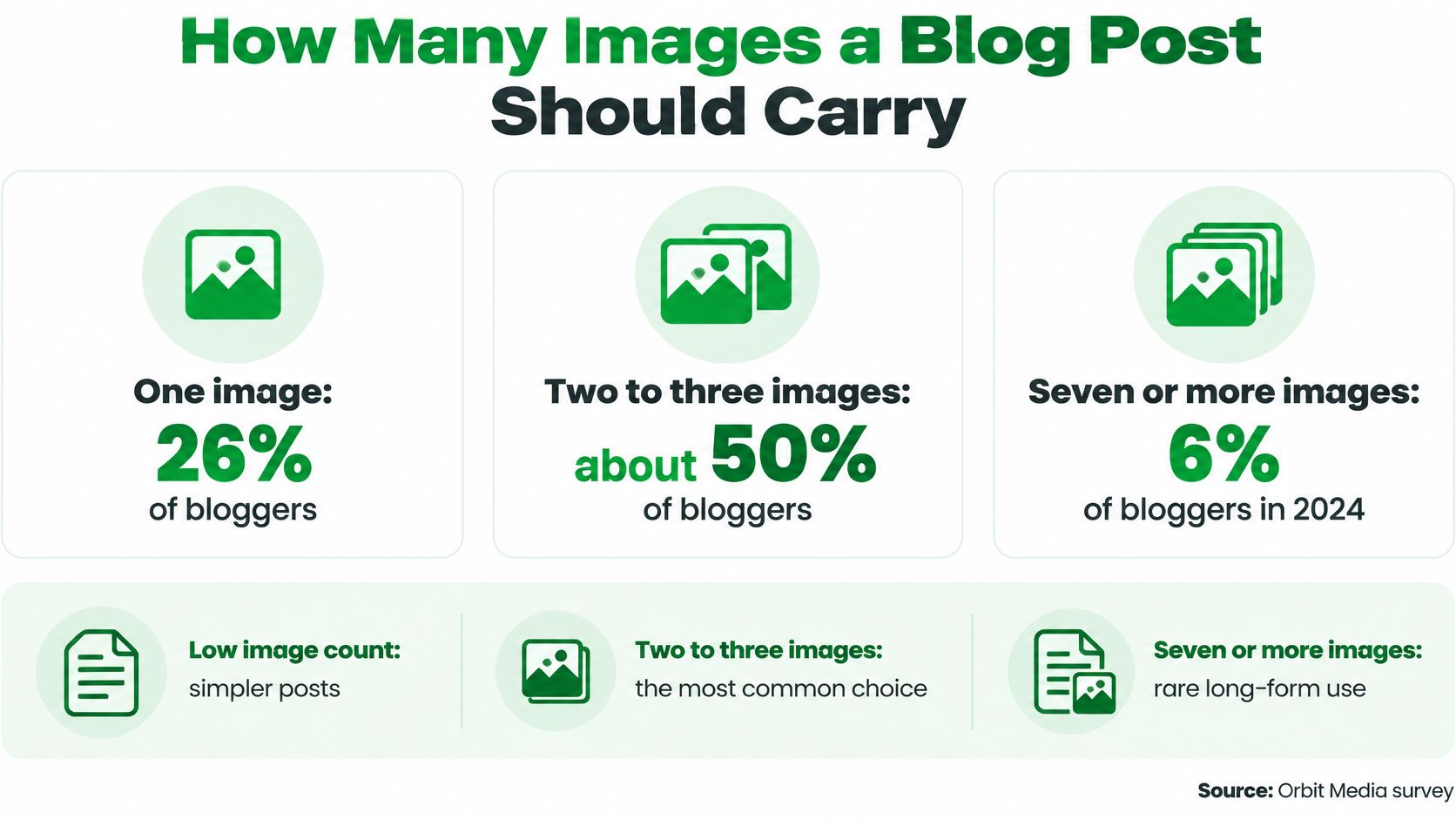
The outcome column deserves honest reading. In 2024, bloggers who used seven to ten images were 35% likely to report strong results, compared with 20% across all surveyed bloggers, according to Orbit Media's survey analysis. That gap probably reflects longer, better-resourced guides from teams with more time, not seven magic pictures. Adding four stock photos to a thin post won't move you into that group.
A Working Rule You Can Apply Today
For a buying guide or how-to, use one hero image plus one image for each major section that needs proof. For news or a product update, two to three images is usually enough. Go to seven or more only when each one answers a distinct question, such as a step, a comparison, or a product angle the reader can't judge from text.
Reader's test: Count your sections, then add an image only where a reader would otherwise have to imagine something.
Stop when images start repeating the same subject from slightly different angles, or when a second image pushes your first useful paragraph below the fold on a phone. That's the point where pictures stop helping scanning and start delaying the answer.
Which Image Types Earn Their Place
Say a candle shop publishes a guide called How to Choose a Wick Size. The hero shows three jars side by side so the reader sees the size range instantly. A labelled wick-size chart sits directly after the sizing paragraph, a product-in-use photo sits beside the burn-time claim, and a screenshot of the size calculator appears under the step that tells readers to use it. Four images, four different jobs, zero decoration.
The reference below shows the six types worth considering for most Shopify articles.
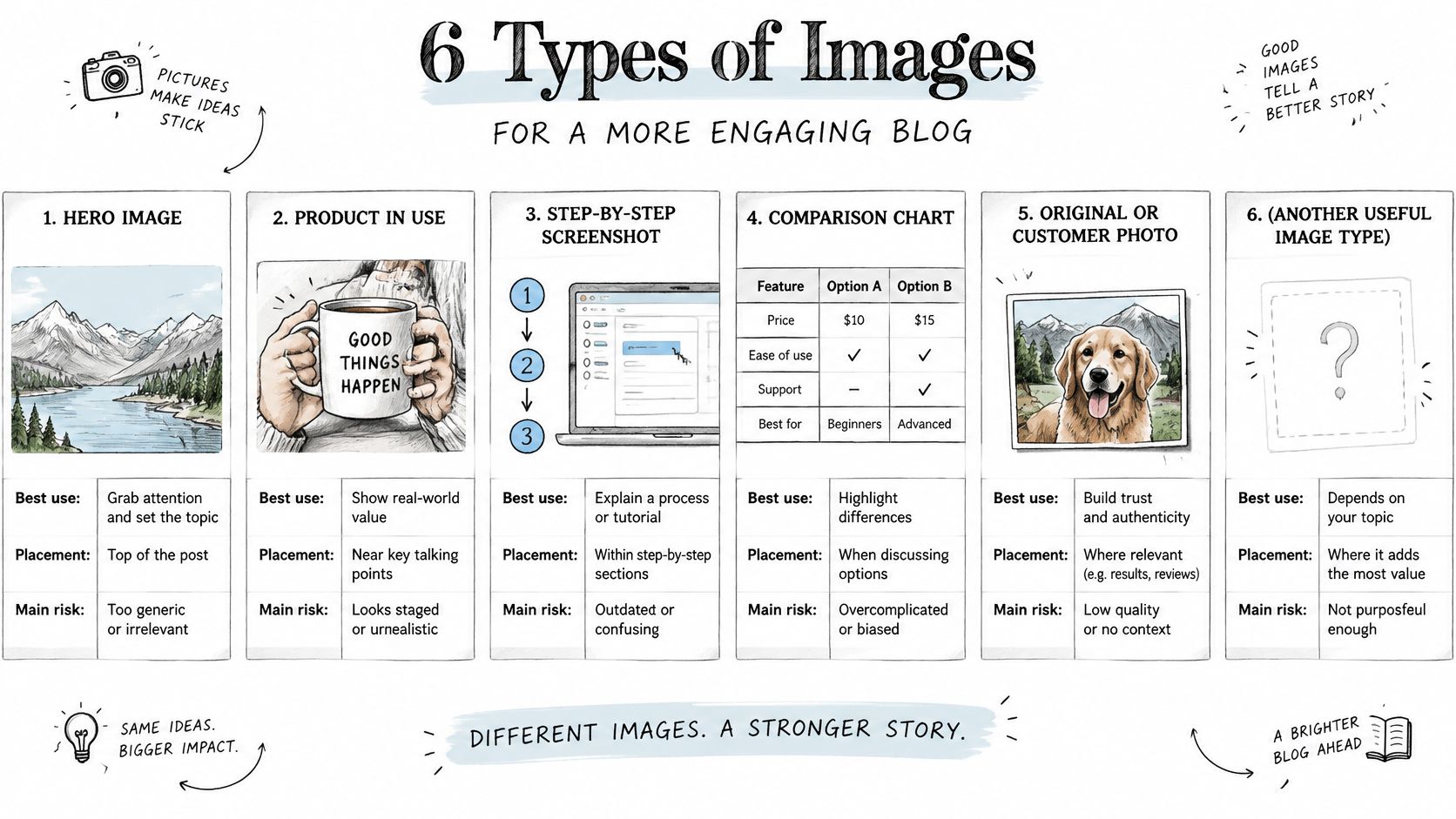
| Image type | Best use | Placement | Main risk |
|---|---|---|---|
| Hero or header image | Sets the topic at a glance | Top of post, above the first heading | Generic stock reads as filler |
| Product in use | Shows scale and context | Beside the paragraph describing that product | Staged shots can mislead on size |
| Step-by-step screenshot | Teaches a procedure | Directly under the step it shows | Small text becomes unreadable on mobile |
| Comparison chart or data graphic | Makes numbers scannable | Right after the claim it proves | Needs a text summary for screen readers |
| Original or customer photo | Builds trust and proof | Within the section it supports | Needs permission and consistent sizing |
| Short looping GIF or video poster | Demonstrates motion | Mid-post, after the context is set | Large GIF files slow the page |
Placement Beats Collection
The rule running through that table is simple. An image sits next to the text it illustrates, not in a gallery dumped at the bottom. A chart three sections away from the claim it proves forces readers to scroll back and forth, and most won't. Keep aspect ratios standard and consistent, too. A very tall, thin crop or an ultra-wide banner tends to get mangled by theme layouts and social previews.
Generic stock is the other quiet problem. If your hero is the same smiling-workshop photo three competitors use, it tells readers nothing about your store. An original photo of your actual product, even a plain one on a phone, usually carries more information.
When motion explains something, such as how a clasp works or how a fabric drapes, a short clip can beat five stills. Resources from video animation studios can help you judge when a produced animation is worth it versus a simple screen recording. The short walkthrough below is a good example of motion used to teach rather than decorate.
Skip purely decorative images with no meaning, duplicate product shots that show nothing new, and memes that don't support the claim. Each one still costs file weight and an alt text decision, and gives nothing back.
Writing Alt Text for Each Image Role
Alt text isn't a keyword field. It's the version of your image that a screen reader speaks aloud and that a browser shows when the file fails to load. The W3C text alternatives guidance requires informative and functional images to have text alternatives that convey equivalent information or purpose, while decorative images should use an empty alt attribute so assistive technology skips them. That single distinction drives every decision below, and it's why I'd classify each image before writing anything.
Role One Informative Images
Editorial photos, product demonstrations, and screenshots need descriptive alt text that says what the image shows and why it matters in context. "Waterproof hiking jacket in heavy rain" works. "Blog image" says nothing, and "best waterproof hiking jacket buy cheap outdoor gear" is keyword stuffing that helps nobody. Write what you'd say if you described the picture to someone on a phone call.
Role Two Functional Images
When an image is a link, the alt text names the destination or action, not the picture. A linked size chart thumbnail should read "Back to the size guide" or "Open the full wick size chart," because that's what clicking does. Describing the thumbnail's appearance leaves a screen reader user guessing where they'll end up.
Role Three Decorative Images
Background textures, flourishes, and spacer graphics get an empty alt attribute, written as alt="". That's not missing alt text. It's a deliberate instruction to skip, and it's the correct choice when removing the image wouldn't change the article's meaning at all.
Complex visuals sit between these roles. For a chart, keep the alt text short so it identifies the image, then put the actual data and interpretation in adjacent prose or a proper table. A screen reader user needs the numbers, not a 300-character alt attribute they can't handle.
A few practical limits keep this manageable:
- One clear sentence: usually under about 125 characters, so it reads cleanly aloud
- No filenames: "IMG_4821.jpg" is not a description
- No repeated keywords: if it sounds like an ad, rewrite it
- No "image of" openers: screen readers already announce that it's an image
Record each image's role in a checklist as you place it, with the alt text beside it. That list becomes your test sheet later. For a deeper treatment of how this affects search, our guide to writing image alt text that supports SEO walks through common failure patterns. Both our plans generate alt text from vision AI that reads the actual image, but a draft still needs a human check against the picture before it ships.
Sizing and Compressing Images Without Losing Quality
Most slow Shopify blog pages have one cause. Someone uploaded camera-sized originals, often around 4000 pixels wide, and let the theme shrink them in the browser. The reader still downloads the full file. Fix the hero first, because it's usually the Largest Contentful Paint element, meaning it's the thing the browser treats as the main content loading. A heavy hero delays everything the reader came for.
| Image role | Format and loading |
|---|---|
| Hero or featured image | WebP or AVIF, loaded eagerly with set dimensions |
| In-article photo | WebP, lazy-loaded |
| Screenshot or chart | PNG or WebP, text legible at phone width |
| Thumbnail or card image | WebP, lazy-loaded |
The Hero Gets Different Treatment
Load the hero eagerly, not lazily, and set its width and height in the markup. Lazy-loading your largest element tells the browser to fetch it late, which directly hurts loading speed. Set dimensions reserve the space before the file arrives, so text doesn't jump around as images pop in. Everything below the fold can lazy-load safely, since the browser fetches those files as the reader scrolls toward them.
Export at display size. If your article column renders images at about 800 pixels wide, exporting at 1600 pixels gives you retina headroom without the waste of a 4000-pixel original. Convert photographs to WebP, which typically compresses far smaller than JPEG at similar quality. Keep aspect ratios standard, such as 16:9, 4:3, or 3:2, so themes and social crops behave predictably. If you repurpose blog images for Pinterest, exporting a separate vertical crop is how you avoid cropped Pins in mobile feeds instead of letting the platform guess.
Check your work against two targets in PageSpeed Insights or your Shopify speed report:
- Largest Contentful Paint under 2.5 seconds: the hero and main text feel loaded
- Cumulative Layout Shift under 0.1: content stays still while images arrive
Test one screenshot at your chosen compression setting before batch compressing the whole blog. Heavy compression blurs small text first.
That trade-off is real. Photographs tolerate aggressive compression because slight softness is invisible. Screenshots and charts don't, because their value is crisp text. Compress one of each type, view them at phone width, and only then run the batch. Our breakdown of choosing the best web image format covers the format decision in more depth. I'll take a slightly larger file with readable labels over a tiny file nobody can read, every time.
How to Audit Blog Images on a Live Shopify Store
Your Shopify admin can look perfect while the live page tells a different story. Theme logic, lazy-loading apps, and image-link wrappers can strip, duplicate, or hide what you entered. So you audit the rendered page, not the CMS fields.
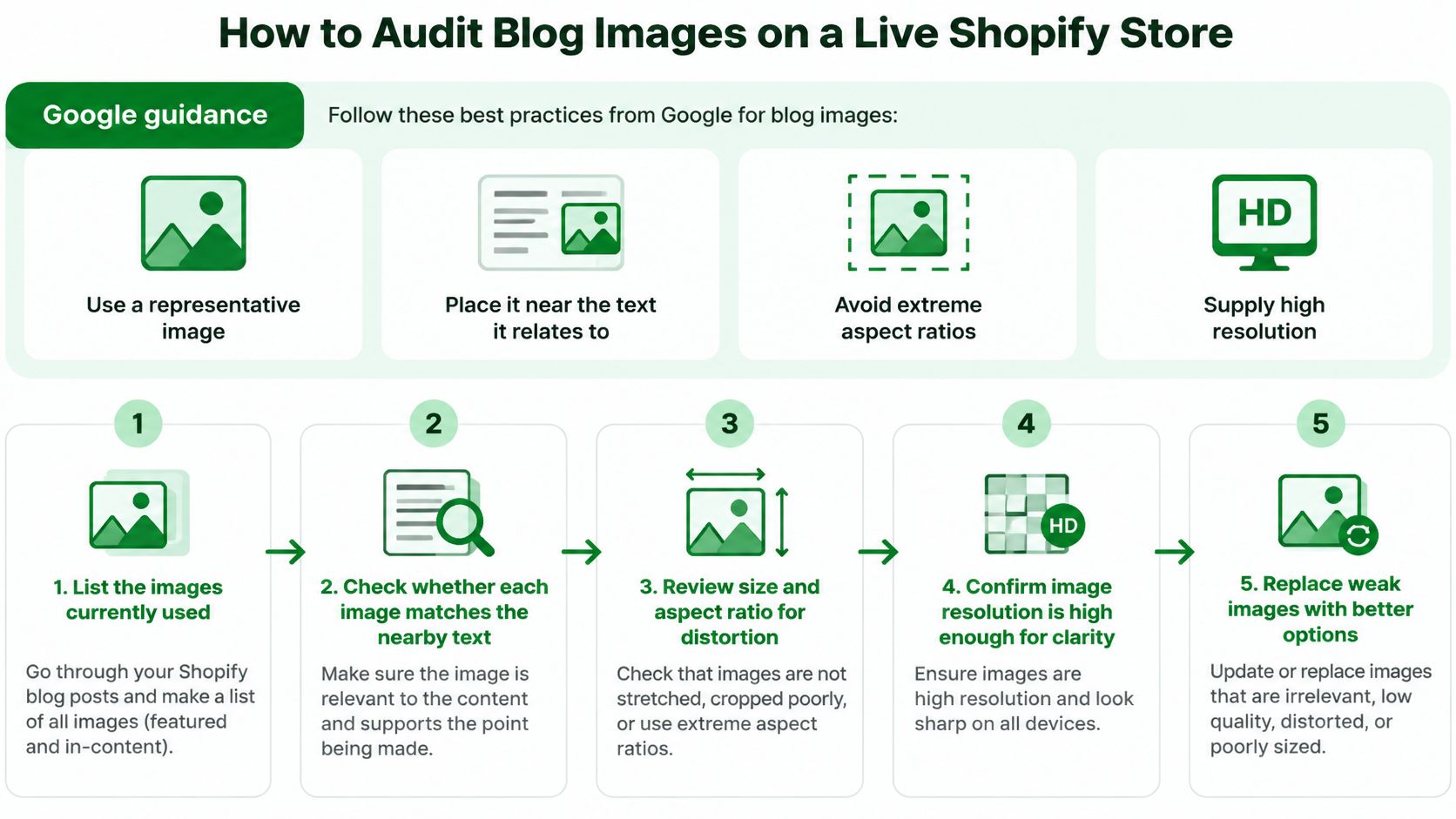
The standard you're auditing against comes from Google directly. The Google Images best practices documentation recommends using a representative image, placing it near text relevant to the image, avoiding extreme aspect ratios, and providing high resolution where possible. Google also uses alt text alongside computer-vision systems and page content to infer an image's subject, which means your alt text and nearby copy work as a pair.
The Eight-Step Live Audit
- List your top blog URLs: pull the articles with the most organic traffic from Google Search Console and start there.
- Check rendered alt text: view each post's page source and confirm every img tag carries the alt text you wrote.
- Verify the hero survived: confirm lazy-loading or a theme component didn't remove, defer, or hide the hero image.
- Test decorative and linked images: decorative files should carry an empty alt attribute, and linked images should describe their destination.
- Inspect file weights: open the browser network panel, sort by size, and flag any image above 200 KB or served as PNG when a WebP version exists.
- Validate structured data: check the Article schema for an image field that resolves to a live file, since Google states that field is required for certain image badges and rich-result presentations.
- Rank fixes by traffic: missing alt text on your most visited post outranks a slightly heavy image on a post nobody reads.
- Re-run after changes: repeat the audit after any theme, app, or template update, because those changes cause most regressions.
Step 2 catches the failures merchants miss most. A common pattern is alt text that exists in the article editor but never reaches the rendered HTML because the theme builds image tags its own way. Another is a lazy-loading app swapping the original source into a data attribute and leaving the visible tag incomplete. You won't see either problem from the admin.
This audit slots into a broader review of your store's search health, and our walkthrough of running a full ecommerce SEO audit shows where image checks sit alongside metadata and internal linking. Do the image pass on your top ten posts first. That's where a missing alt attribute or a 900 KB hero is costing you something measurable.
Start With One Post and Set Your Image Standard
Use one high-traffic post to set the image standard for the rest of the blog. Choose the article with the most organic traffic in Search Console, rebuild its images, and record the decisions that another writer can repeat.
The One-Post Rebuild
- Choose the post: Select the article with the most organic traffic in Search Console.
- Count the images: Compare the total with your guide, news, or roundup format, and remove images that repeat the same job.
- Assign each image a role: Label it as a hero, product in use, screenshot, chart, or decorative image.
- Write the alt text: Describe the image's role and key information. Use empty alt text for purely decorative images.
- Resize and compress: Export each file at its display size, convert photos to WebP, and set the hero dimensions.
- Verify the live page: Check the rendered alt text, image file weights, and Article structured data image field.
- Measure after about 30 days: Compare impressions and clicks in Google Search Console with the prior period.
RankEngine's Basic and Pro plans include image compression with WebP conversion and AI alt text generated from the image. Treat the generated description as a draft: check it against the actual picture before it goes live. A model might describe a jacket's colour while missing that the image's useful detail is its rain protection.
Once the post passes, write down the standard: image count by post type, export width, format, alt-text style, and live-page checks. Keep it short enough that anyone publishing for your store can follow it.
If you can't name an image's role and its alt text in one sentence, cut it.
If your Shopify blog has grown without a consistent image standard, RankEngine can audit article images for missing or generic alt text, compression status, and Article structured data, then verify supported fixes against the live store. Start with your highest-traffic post and use its finished image choices as the standard for the rest.