 RankEngine
Only 14% of mobile web images were portrait-oriented in the HTTP Archive's 2024 Web Almanac, compared with 33% square and 53% horizontal. A tall photograph isn't the default shape across the mobile web, so you shouldn't assume a storefront template will preserve it. The useful question isn't which portrait image size looks sharp, but which export keeps the face, garment, or product visible in its destination.
Table of Contents
- Portrait Sizes for Web Social and Print
- How Aspect Ratio Shapes a Portrait
- Print Portrait Sizes and Cropping
- Responsive Files for Narrow Screens
- Safe Zones for Ads Feeds and Social
- Shopify Product and Collection Portraits
- Verify Portrait SEO on Your Store
Portrait Sizes for Web Social and Print
Start with a generous tall master, then export for each placement. For a photographer's brief, that means leaving room around the subject rather than framing so tightly that every alternative crop removes something important.
A practical workflow uses a portrait master, a consistent catalog crop, and separate files for social placements and print. Keep the master untouched. Treat every exported image as a destination-specific version, not a replacement for the original.
Portrait image sizes by destination
The table below is an example export brief, not a list of universal platform requirements. Its working pixel sizes illustrate the files a merchant might commission; confirm the actual theme, advertising placement, social publishing tool, or print order before exporting.
| Destination | Ratio | Export pixels | Use it for |
|---|---|---|---|
| Web or blog master | 2:3 | 2000×3000 or 1500×2250 | Source file and full-width article figures |
| Product card | 3:4 or 2:3 | For example, 1200×1600 or 1600×2400 | Apparel and tall product tiles |
| Collection card | Match theme, with 2:3 as an example | For example, 800×1200 | Grid tiles that must share one height |
| Instagram feed | Example crop of 4:5 | Example export of 1080×1350 | In-feed portraits that aren't full screen |
| Stories and Reels | Example crop of 9:16 | Example export of 1080×1920 | Full-screen social with a centered subject |
| Google vertical display | 9:16 | 900×1600 | Vertical ads with key content centered |
| Small print | 5:7 portrait, also described as 7:5 paper proportions | Calculate from print inches and the lab's requested pixels per inch | Prints and cards |
| Framed print | 4:5 portrait, also described as 5:4 paper proportions | Calculate from print inches and the lab's requested pixels per inch | Framed studio portraits |
| Product listing exception | 1:1 | About 1500×1500 | Merchant feeds prepared with a square composition |
Read the table by destination, not by file size. A large social export can still be the wrong shape for a product tile. A smaller collection derivative can be entirely appropriate when the browser displays it in a narrow grid.
For a clothing store, the web master might include the model's full outfit and space above the head. The product-card version should establish a consistent garment scale. The social version might need additional background for text or interface controls, while a print crop needs to fit the ordered paper.
Photographer's brief: Capture enough space to make the required crops, but keep the product prominent enough that it won't disappear when the image becomes a thumbnail.
Choose the slot before the export
Ask whoever manages the storefront to identify the actual image box. Is it a tall card, a square feed image, an article figure, or a gallery that adapts to the uploaded file?
Then record the ratio, subject position, and delivery size beside that component. A repeatable export brief is more useful than a folder full of large files with no indication of where they belong.
How Aspect Ratio Shapes a Portrait
A portrait image has greater height than width. Its aspect ratio describes its shape, not its sharpness or file weight.
Think of the photograph as the view outside a window. The template determines the window's shape. When a theme uses object-fit: cover, the image fills that window, but some of the view can fall outside its edges.
The diagram shows how the frame determines the portrait's shape.
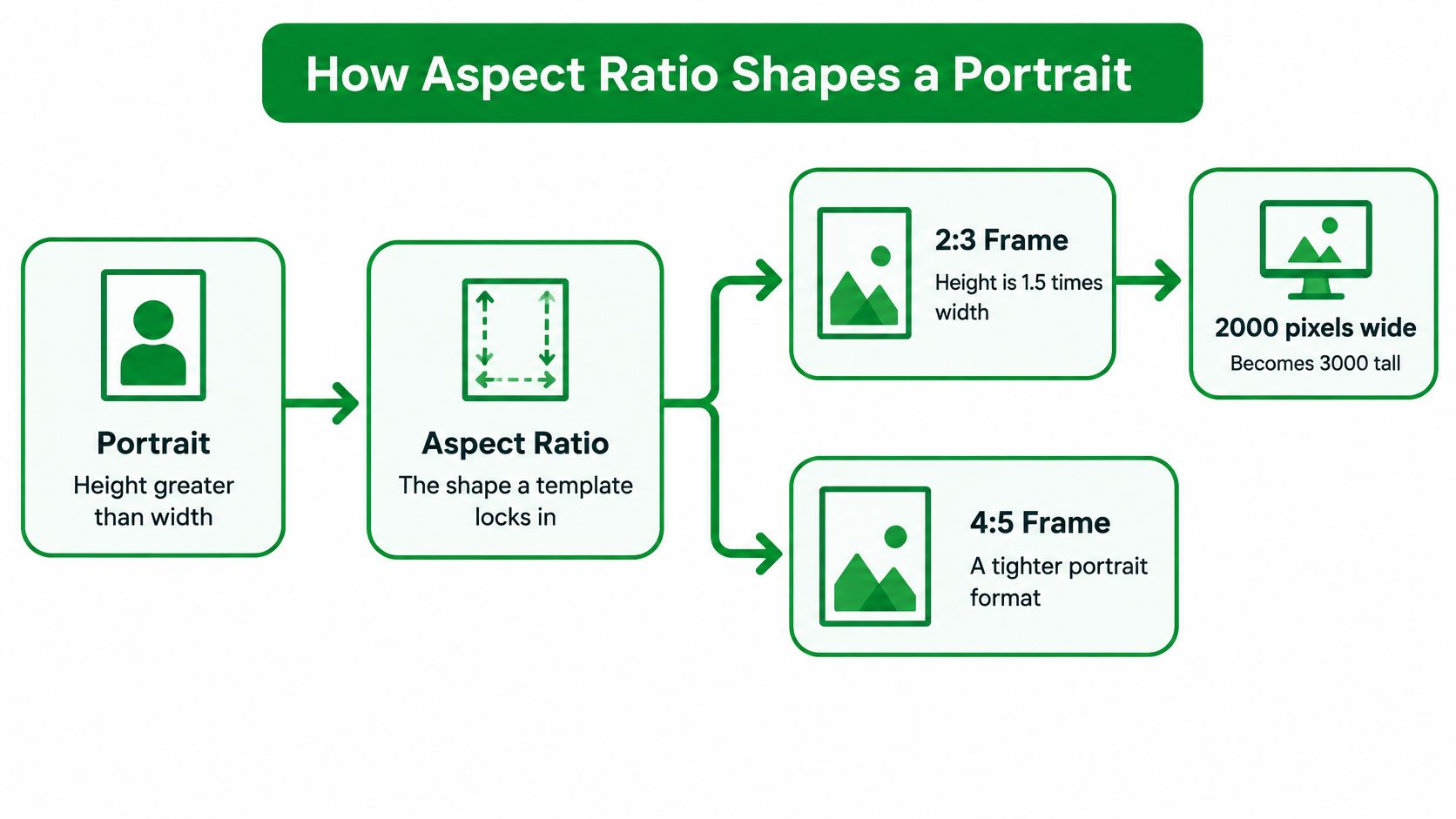
What happens to a full-length garment
Say you photograph a model wearing a long coat. The original includes the head, hem, shoes, and some background. Upload it into a shorter product-card box, and the theme must either hide part of the image or leave space around it.
A centered automatic crop might preserve the waist while cutting off the shoes. Moving the focal point upward saves the face but can remove even more of the hem. Neither result means the original lacks resolution. The shape of the destination conflicts with the composition.
Use an intentional fix rather than repeatedly uploading larger files:
- Crop deliberately. Open the destination ratio in an editor and move the crop until the important details remain visible.
- Add background space. Use a matching background when customers need to see the complete product and cropping would remove it.
- Create another derivative. Export a separate composition when the same photograph needs to serve substantially different placements.
Padding is particularly useful for products that customers compare by silhouette. A lamp, bottle, or handbag shouldn't lose its outline just to fill a decorative tile.
Pixels don't change the shape
Increasing the pixel dimensions doesn't make a tall file fit a shorter window. It gives the browser more image information, but the crop decision remains the same.
Likewise, changing a resolution label in an export dialog doesn't recover a clipped shoe or create missing background. Those are composition problems that require the original photograph, a new crop, or a different layout.
Keep the master generous. Make the exported crop specific.
The best handoff includes both the file and its intended behavior: fill the box, preserve the whole image, or favor a particular focal point. Without that instruction, the developer or theme makes a merchandising decision on your behalf.
Print Portrait Sizes and Cropping
For print, choose the physical paper size first. Then work backward to the pixel dimensions the printer needs.
PhotoWorkout's photo print size guide describes common 5 × 7-inch prints, approximately 13 × 18 centimeters, with 7:5 proportions, and 8 × 10-inch prints, approximately 20 × 25 centimeters, with 5:4 proportions. Those proportions describe the paper's long and short sides; when you write digital ratios as width to height for a portrait, reverse their order.
That distinction prevents a common export mistake. A print described by its long-side-first proportions isn't necessarily a horizontal photograph.
Calculate the file from the print order
The calculation is straightforward:
Print width in inches × requested pixels per inch = required pixel width.
Apply the same calculation to the height. Use the lab's requested resolution rather than assuming that a web export preset is appropriate for paper.
For a hypothetical print order, enter the paper dimensions and the lab's resolution in your editor's image-size dialog. Check whether resampling is enabled. If the file lacks enough original detail, increasing its pixel count won't reproduce the texture that wasn't captured.
- For a framed portrait, preview the crop with the frame opening in mind, not just the paper edge.
- For a product handout, preserve the complete product and keep labels readable.
- For a greeting card, allow room for the fold, trim, and any text the design requires.
Decide what the crop can remove
A tall digital composition moved into a shorter print shape will lose material at the top and bottom if you fill the paper. Fit the whole photograph instead, and you may need margins beside it.
Neither treatment is automatically wrong. The decision depends on whether the photograph's edges contain meaningful information.
For a face, inspect the space above the head and below the chin. For a product, check caps, handles, bases, and packaging corners. Keep text away from the outer edge because trimming and frame overlap can hide it.
Print check: Approve the photograph inside the actual paper or frame template, not as an isolated image on your monitor.
If you only publish online, don't use print-resolution metadata as a quality target. Work with the image's pixel dimensions, the rendered slot, and the visible result instead.
Responsive Files for Narrow Screens
A browser shouldn't have to download a large portrait original to fill a narrow mobile card. At the same width, a taller bitmap contains more pixels than a shorter one, although the final compressed file weight also depends on its content and encoding.
Google's image guidance recommends offering image alternatives through srcset or picture, retaining a fallback src, and describing the rendered slot with sizes; a practical portrait set can use widths of 360, 720, and 1200 pixels. The browser can then select a suitable candidate instead of receiving the original by default.
This flow shows the purpose of responsive delivery.
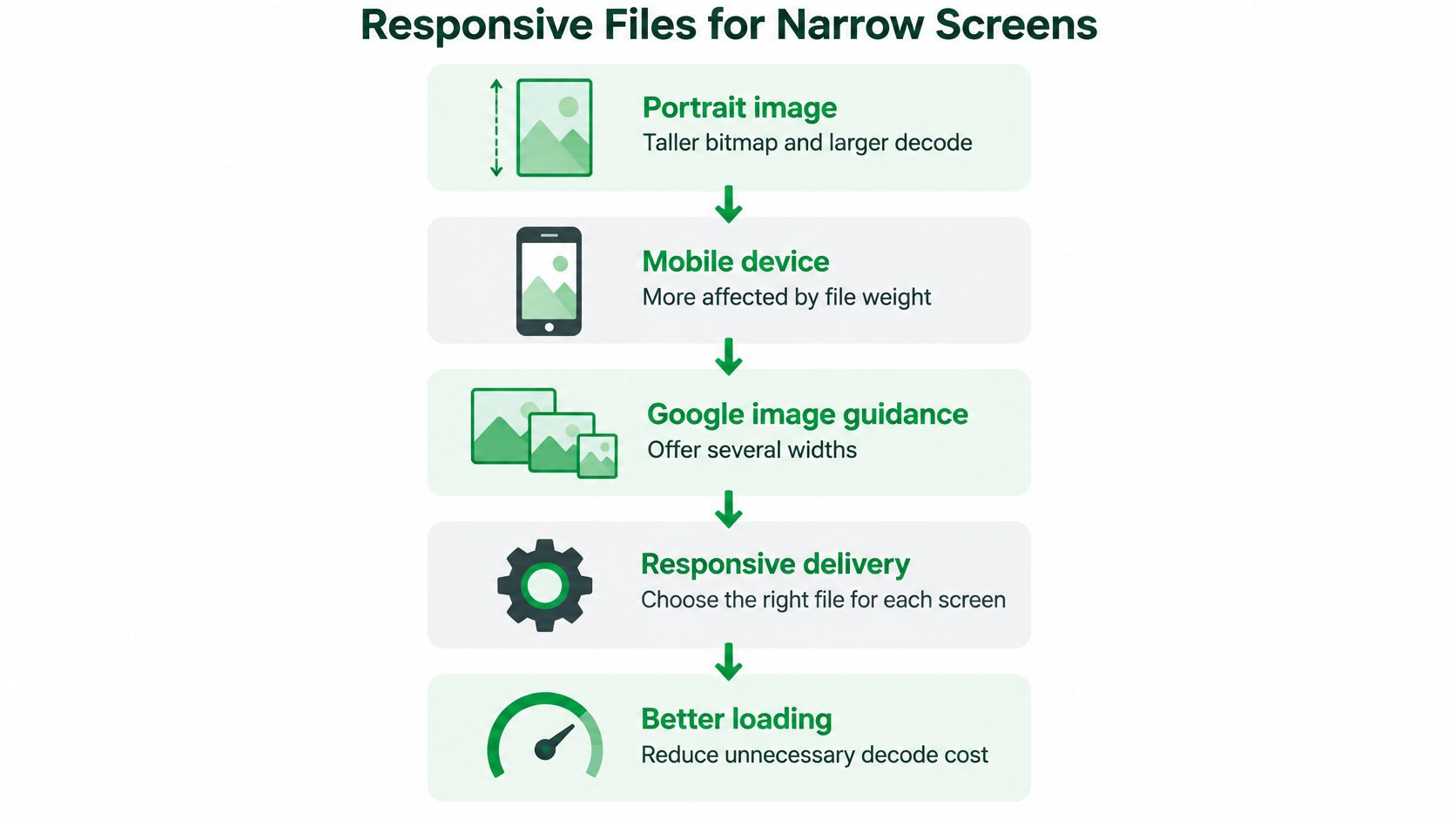
Build files around the rendered slot
Generate the candidate files from the approved crop. Keep their proportions consistent so the browser can switch between resolutions without changing the composition.
Then make sizes describe the actual layout. A portrait that fills the phone's content area may occupy only a narrow column in a desktop collection grid. Telling the browser that every image spans the viewport can cause it to select an unnecessarily large candidate.
Use your browser's developer tools to inspect the image request. Check the selected file, the displayed dimensions, and the layout at the breakpoint where the grid changes.
For a broader delivery workflow, use this guide to image sizes for the web alongside your theme's component settings.
Reserve the correct space
Declare HTML width and height values that reflect the image's intrinsic proportions. These attributes help the browser reserve the right box before the file arrives.
A dimension pair copied from a square placeholder can reserve the wrong space for a tall portrait. Depending on the CSS, the result may be movement during loading, an unwanted crop, or distortion.
Check delivery in a consistent order:
- Component shape. Confirm the image belongs in the box the theme creates.
- Candidate coverage. Inspect whether responsive alternatives are available.
- Slot accuracy. Compare
sizeswith the image's real rendered width. - Declared dimensions. Make sure the reserved box has the correct proportions.
The embedded video provides an additional visual reference for image sizing.
Compression comes after this delivery check. A compressed original can still be the wrong download for a small card, just as an appropriately sized derivative can still need better encoding.
Safe Zones for Ads Feeds and Social
A lifestyle photograph and a catalog photograph solve different merchandising problems. The lifestyle image explains how a product fits into someone's life; the catalog image helps the shopper inspect what they're buying.
A room scene can work beautifully as creative while making the product too small for a listing. A tightly framed catalog image can show every product detail but leave no room for a vertical placement's crop or interface.
Google's advertising guidance recommends 900 × 1600 pixels for 9:16 vertical display assets and advises keeping important content centered because placements may crop or resize creative. That makes subject placement, not just export resolution, part of the production brief.
Channel crops and what must stay visible
Use this comparison to decide which composition to prepare. Social dimensions below are example production targets, and Merchant requirements should be confirmed in the account's current product-image specification before submission.
| Placement | Target file | Subject rule | What goes wrong |
|---|---|---|---|
| Vertical display ads | The vertical advertising export described above | Keep important content centered | Placements crop or resize the edges |
| Stories and Reels | Example full-screen export of 1080×1920, 9:16 | Keep the face or product central and clear of interface overlays | Controls or captions cover important details |
| Merchant product image | A separate square listing export matched to current feed requirements | Make the product prominent and fully visible | A lifestyle image leaves the product too small |
| Tight catalog tile | The storefront's chosen portrait ratio | Show the complete product with controlled margins | Reusing the crop in a taller placement removes essential details |
The safe-zone comparison illustrates why a single composition can fail across channels.
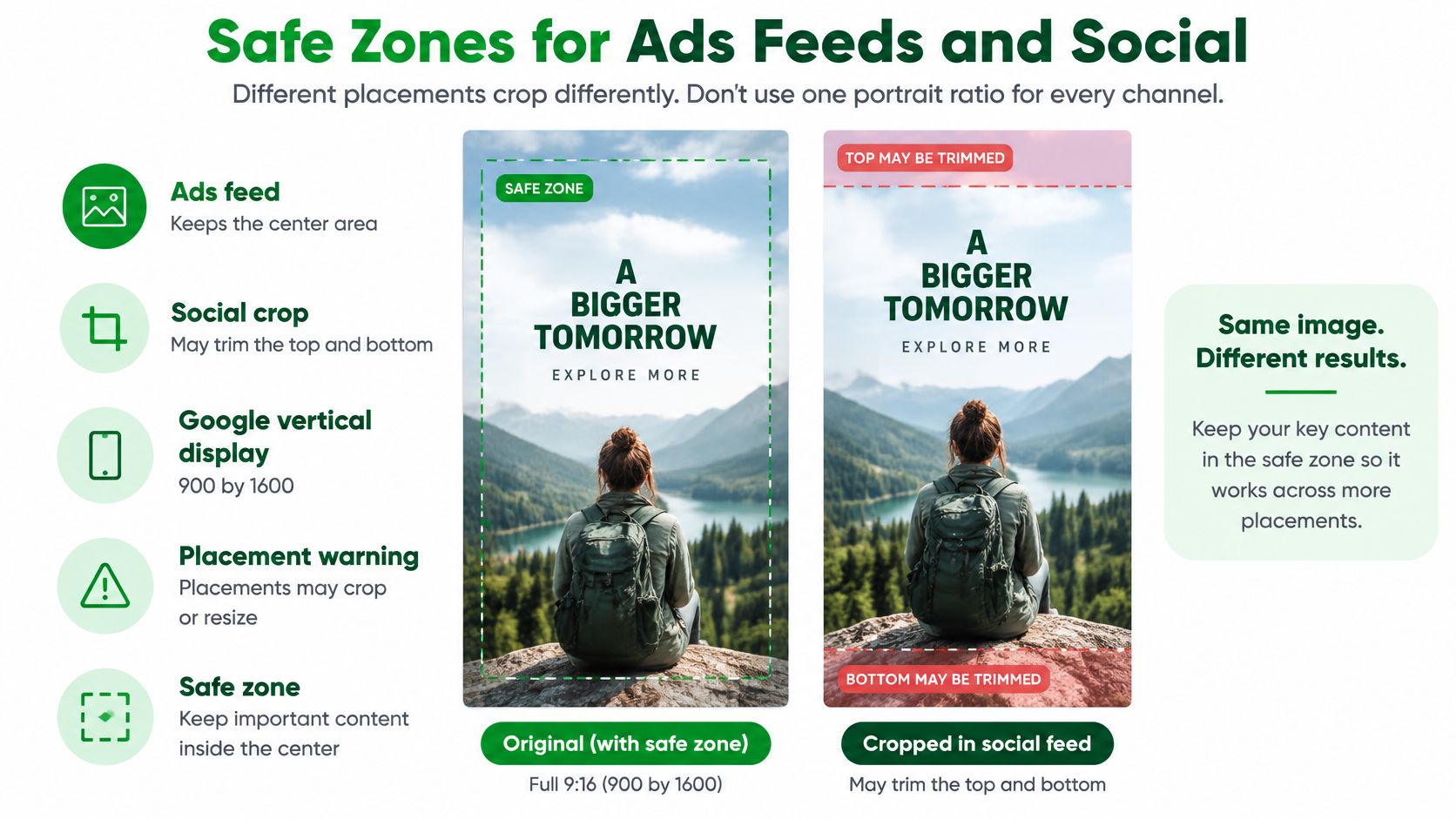
Brief a small asset family
For a skincare brand, commission a clean bottle photograph for the catalog and feed. Capture a looser lifestyle composition for vertical creative, with enough background to place the bottle away from overlays.
Keep logos, faces, and offer text away from vulnerable edges. Don't treat a central band as a universal guaranteed safe area, because interfaces and placements differ. Preview the actual creative in the publishing tool.
- Catalog asset. Prioritize product recognition, shape, and consistent scale.
- Vertical creative. Preserve the subject while leaving room for the placement's interface.
- Square listing asset. Compose for the product rather than trimming the lifestyle image.
Social preview images also need their own review when customers share a store URL. The workflow for social sharing images and Shopify SEO helps separate those previews from the product gallery.
A nonstandard pixel size isn't automatically a failure. Judge whether it meets the destination's requirements and whether the important content survives its actual presentation.
Shopify Product and Collection Portraits
Audit Shopify images by component, not with a storewide rule that every file must have identical dimensions. A gallery, collection grid, and article template have different jobs.
Shopify's image size guide supports practical portrait source sizes of approximately 1500×2250 or 2000×3000 pixels for a 2:3 ratio, provided the storefront component supports that shape. The useful control is the relationship between the source image and the component displaying it.
Product cards and collection grids
Open a collection in the live storefront and compare neighboring products. Look at subject scale, background, headroom, and the baseline beneath the products, not just whether the tile edges line up.
For apparel, crop colorways consistently. If the black coat fills its card but the beige coat appears distant, shoppers get an uneven comparison even when the exported files share a ratio.
- Set the card shape. Use the theme editor's available image-ratio control where supported.
- Find the outliers. Identify images with different proportions or noticeably different subject scale.
- Re-export the crop. Correct the composition in the source file rather than relying on a different focal point for every card.
Collection artwork needs separate consideration from product photography. If the collection card links to dresses, its image should remain understandable at grid size. Don't reuse a wide campaign banner merely because it already exists.
Product galleries and article images
A product gallery should preserve the details customers need to inspect. Keep a sufficiently detailed source for the gallery's enlargement behavior, and test that behavior rather than assuming the upload dimensions guarantee useful zoom.
Gallery thumbnails can use smaller derivatives of the approved composition. They shouldn't suggest a different product angle from the image that opens when a shopper selects them.
An article portrait has a different reading context. Check how much vertical space it occupies between paragraphs and whether a full-length image interrupts the text more than intended. The right crop may differ from the associated product card.
Merchandising test: A customer should recognize the same product immediately when moving from the collection card to the gallery.
Finish by defining cover versus contain behavior. Use cover when filling the component is intentional and the crop is approved; use contain when the full subject must remain visible, accepting the surrounding space.
Treat these choices as part of Shopify product page SEO, alongside accurate product information and a usable page. The control you can act on is concrete: set the theme's image ratio, correct the outliers, and test the live result.
Verify Portrait SEO on Your Store
Review a live product page and a live collection before applying changes across the catalog. The pass condition is simple: customers can identify the subject, inspect the product, and move through the page without avoidable visual disruption.
Use the checklist as a visual review aid.
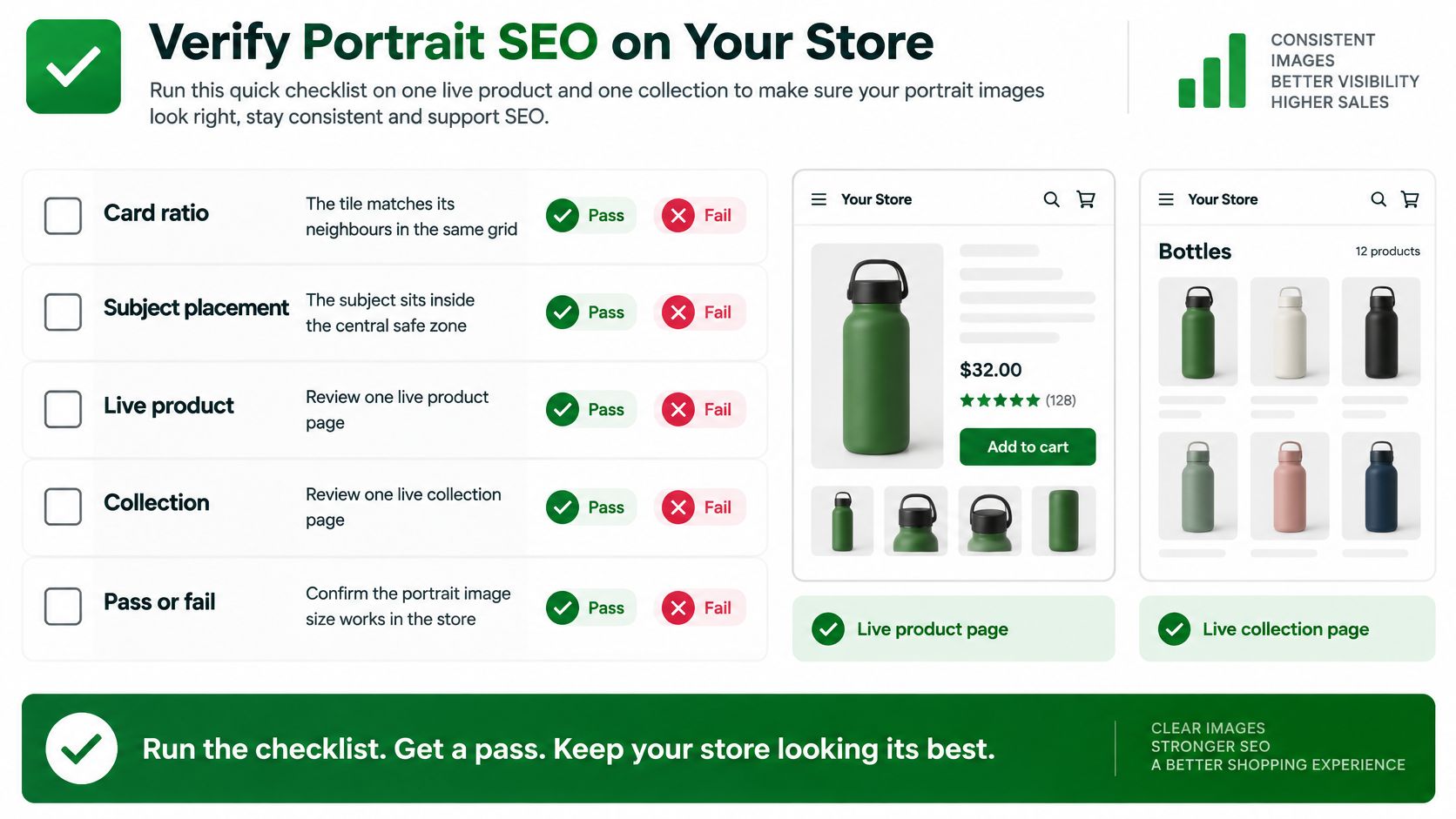
Run the live-store checks
- Card ratio and placement. The tile matches its neighbors, and the complete selling feature remains visible. Inspect the face, garment hem, label, handle, or other detail that customers need.
- Feed composition. If the asset also serves as a primary product-feed image, confirm that its product framing meets the destination's current requirements. Don't approve it solely because the storefront looks good.
- Responsive delivery. Inspect the downloaded file on a phone-sized viewport. Confirm that appropriate alternatives exist and that the image doesn't move surrounding content as it loads.
- Descriptive words. Use a meaningful filename and alt text that describes the product or person and the visible view. Avoid repeating portrait image size or other keywords that don't help explain the image.
- File quality and weight. Check compression and the served format. Reject visibly soft images that were enlarged merely to meet a pixel target.
Separate crop work from bulk work
Label each failure by the action it needs. A clipped subject needs a new crop. Missing alt text can be handled as a metadata task, while unnecessary file weight needs a delivery or compression review.
Correct a collection's composition before expanding the cleanup. Otherwise, you may optimize files that still need replacing and create duplicate work.
At RankEngine, both plans include image compression with WebP conversion and AI alt text that reads the actual image. Use those capabilities after approving the crop, then verify the supported changes against the live store rather than treating a saved setting as proof that the page is correct.
Keep the approved master, destination crops, and component settings together in your asset workflow. That gives the next photographer, merchandiser, or developer a clear standard to follow.
RankEngine offers Shopify image compression, WebP conversion, and image-based AI alt text, with live verification of supported store changes. Once your portrait crops fit their destinations, visit RankEngine to review image optimization gaps and apply the remaining cleanup across your catalog.